
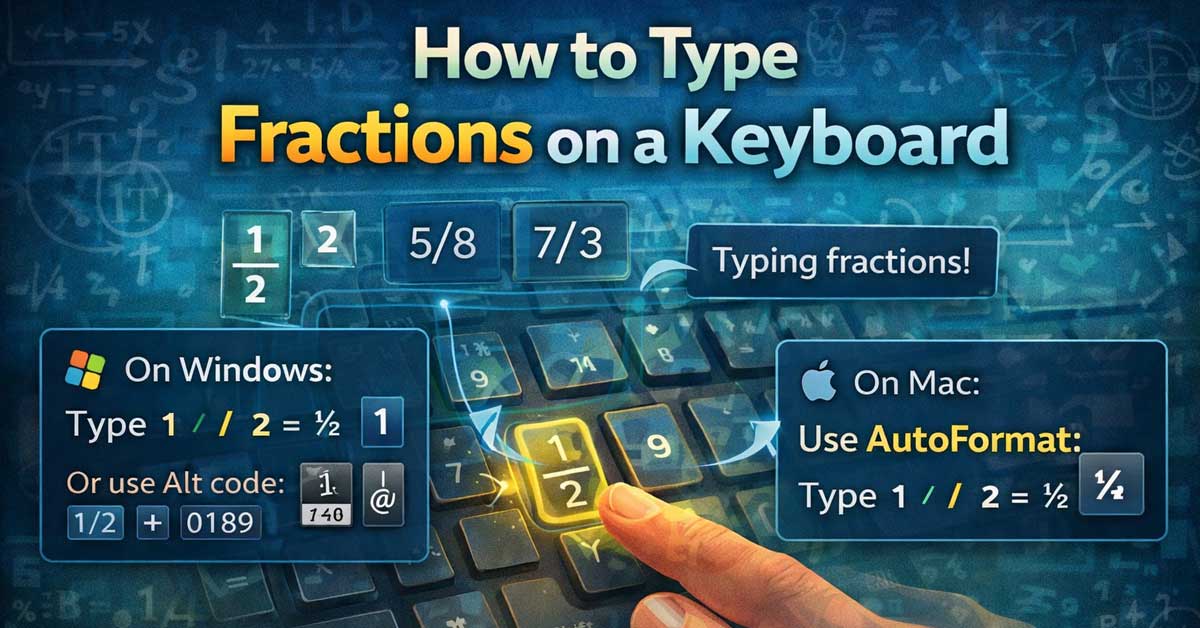

Several approaches depending on where you’re typing and how the fraction needs to look
Typing fractions — whether you need ½ as a single character, a properly formatted stacked fraction like ¾, or a slash-separated representation like 3/4 — works differently depending on your context.
The right method depends on whether you’re in a word processor, a spreadsheet, a chat app, or plain text, and whether the fraction needs to calculate, display nicely, or simply be readable.
Here’s every method organized by context.
The Simple Slash Method (Works Everywhere)
The universal approach that works in every context is typing the numerator, a forward slash, and the denominator: 3/4, 1/2, 7/8. This is immediately understood as a fraction in any context — documents, chat, email, code, plain text — even though it doesn’t look like a stacked fraction.
For most purposes this is the right approach. The other methods below are for situations where appearance matters more than simplicity.
Unicode Fraction Characters
A small set of common fractions exist as single Unicode characters that display as proper fractions in any font that supports them. These work in plain text, chat apps, social media, and anywhere Unicode renders correctly.
| Fraction | Character | Unicode |
|---|---|---|
| ½ | ½ | U+00BD |
| ¼ | ¼ | U+00BC |
| ¾ | ¾ | U+00BE |
| ⅓ | ⅓ | U+2153 |
| ⅔ | ⅔ | U+2154 |
| ⅕ | ⅕ | U+2155 |
| ⅖ | ⅖ | U+2156 |
| ⅗ | ⅗ | U+2157 |
| ⅘ | ⅘ | U+2158 |
| ⅙ | ⅙ | U+2159 |
| ⅚ | ⅚ | U+215A |
| ⅛ | ⅛ | U+215B |
| ⅜ | ⅜ | U+215C |
| ⅝ | ⅝ | U+215D |
| ⅞ | ⅞ | U+215E |
The limitation: Only these specific fractions have Unicode characters. You can’t type 3/7 or 5/9 as a single Unicode character — those require the slash method or formatting approaches.
Typing Unicode Fractions by Platform
Windows: Hold Alt and type the decimal code on the numpad. For ½, Alt + 0189. For ¼, Alt + 0188. For ¾, Alt + 0190.
Mac: Press Option + / for ÷ — no, wait. For fractions specifically: ½ is Option + Shift + = on some layouts. The most reliable Mac method is Control + Command + Space to open the Character Viewer and search “fraction.”
Chromebook and Linux: Press Ctrl + Shift + U, type the hex code (00BD for ½, 00BC for ¼, 00BE for ¾), and press Enter.
iPhone and iPad: Long press the number keys or fraction characters if your keyboard shows them. Set up text replacements in Settings → General → Keyboard → Text Replacement — map 1/2 to ½, 1/4 to ¼, and 3/4 to ¾.
Android: Check the symbols page in Gboard or use Gboard’s symbol search for “fraction.” Set up personal dictionary entries for common fractions.
Microsoft Word: AutoCorrect and Formatting
Word automatically converts common fractions as you type — a feature enabled by default. Type 1/2 and Word converts it to ½, type 1/4 and it becomes ¼, type 3/4 and it becomes ¾.
This AutoCorrect behavior covers only the fractions that have Unicode equivalents. For other fractions, Word offers proper fraction formatting.
To set up additional AutoCorrect fractions:
Go to File → Options → Proofing → AutoCorrect Options → AutoFormat As You Type. Make sure Fractions (1/2) with fraction character (½) is checked for the automatic conversions.
To add custom conversions — mapping 2/3 to ⅔ for example — go to the AutoCorrect tab and add entries manually.
For fractions not in the Unicode set — using superscript/subscript:
Type the numerator. Select it and apply Superscript (Ctrl + Shift + +). Type the fraction bar — use the division slash character (/) or the fraction slash character (⁄, U+2044 which appears smaller and angled). Type the denominator. Select it and apply Subscript (Ctrl + =).
This creates a visually stacked-style fraction using text formatting rather than a single character.
Using Word’s Equation Editor for proper stacked fractions:
Press Alt + = to insert an equation field. Type \frac followed by a space — Word’s equation editor converts this to a proper stacked fraction template. Fill in the numerator and denominator in the template boxes.
This produces the most professionally formatted fractions — proper stacked fractions with a horizontal bar — ideal for mathematical documents.
Google Docs
Google Docs AutoCorrect handles the same common fraction conversions as Word — type 1/2 and it converts to ½ automatically.
For other fractions, use Insert → Special Characters, search “fraction,” and insert from the character picker.
For proper equation-style fractions, go to Insert → Equation. In the equation toolbar, select the fraction template and fill in numerator and denominator.
LaTeX
LaTeX produces the most precise mathematical fraction formatting through its fraction command:
latex
% Basic fraction
$\frac{1}{2}$

% Complex fractions
$\frac{3}{4}$
$\frac{x+1}{x-1}$
$\frac{n!}{k!(n-k)!}$

% Display mode for larger fractions
$$\frac{numerator}{denominator}$$

% Inline fraction that stays compact
$\tfrac{1}{2}$

% Continued fractions
$a_0 + \cfrac{1}{a_1 + \cfrac{1}{a_2 + \cfrac{1}{a_3}}}$
The \frac{numerator}{denominator} command is the standard. \tfrac produces a smaller inline version. \dfrac forces display-style size even in inline mode.
HTML and Web
HTML uses the fraction slash and superscript/subscript tags for formatted fractions:
html
<!-- Using Unicode fraction characters -->
½ ½
¼ ¼
¾ ¾
<!-- Formatted fraction using sup/sub -->
<sup>3</sup>⁄<sub>4</sub>
<!-- Using CSS for styled fractions -->
<span class="fraction">
<sup>3</sup>
<span class="fraction-bar">/</span>
<sub>4</sub>
</span>The ⁄ entity (U+2044, fraction slash) is slightly angled and smaller than a regular forward slash, producing a cleaner fraction appearance when combined with superscript and subscript.
Excel and Google Sheets
For calculations, fractions are just division — =3/4 calculates to 0.75. Excel doesn’t display fractions visually in formula results by default.
To display a number as a fraction in Excel:
Select the cell. Press Ctrl + 1 to open Format Cells. Go to the Number tab and select Fraction from the category list. Choose the fraction type — up to one digit, up to two digits, halves, quarters, eighths, sixteenths, etc. Click OK.
A value of 0.75 formatted as a fraction displays as 3/4. A value of 0.333 displays as 1/3 with the one-digit setting.
Note: Excel’s fraction display format rounds to the nearest fraction of the selected precision — 0.333 displays as 1/3, not as the exact decimal.
Plain Text and Chat Apps
For plain text environments and chat apps, the options are:
The slash format — 3/4 — universally readable, works everywhere.
Unicode fraction characters for the supported set — ½ ¼ ¾ and others — paste them from a reference or set up text replacement shortcuts.
Text replacement shortcuts set up on your device — mapping 1/2 to ½ at the OS level means you get the proper character automatically in any app.
A Quick Reference by Context
| Context | Best Method |
|---|---|
| Word processor (Word, Docs) | AutoCorrect for common fractions, Equation editor for others |
| Plain text / chat | Slash method (3/4) or Unicode characters for common fractions |
| LaTeX | \frac{numerator}{denominator} |
| HTML | ½ entities or sup/sub tags |
| Excel (calculation) | Just use division: =3/4 |
| Excel (display) | Format Cells → Fraction |
| Windows (any app) | Alt codes for common fractions |
| Mac (any app) | Character Viewer → search “fraction” |
| Mobile | Text replacement shortcuts or long press |
The Bottom Line
For most everyday typing, the slash method — 3/4, 1/2, 7/8 — is the right answer. It works everywhere, requires no setup, and is universally understood. Unicode fraction characters cover the most common fractions (½, ¼, ¾ and a handful of others) for situations where appearance matters in plain text.
For professional documents and mathematical writing, Word’s equation editor and LaTeX’s \frac command produce properly formatted stacked fractions that look correct in formal contexts.
The slash gets the meaning across everywhere. The Unicode character looks right in plain text. The equation editor makes it mathematically precise. Know which one your context needs.

Meet Ry, “TechGuru,” a 36-year-old technology enthusiast with a deep passion for tech innovations. With extensive experience, he specializes in gaming hardware and software, and has expertise in gadgets, custom PCs, and audio.
Besides writing about tech and reviewing new products, he enjoys traveling, hiking, and photography. Committed to keeping up with the latest industry trends, he aims to guide readers in making informed tech decisions.