
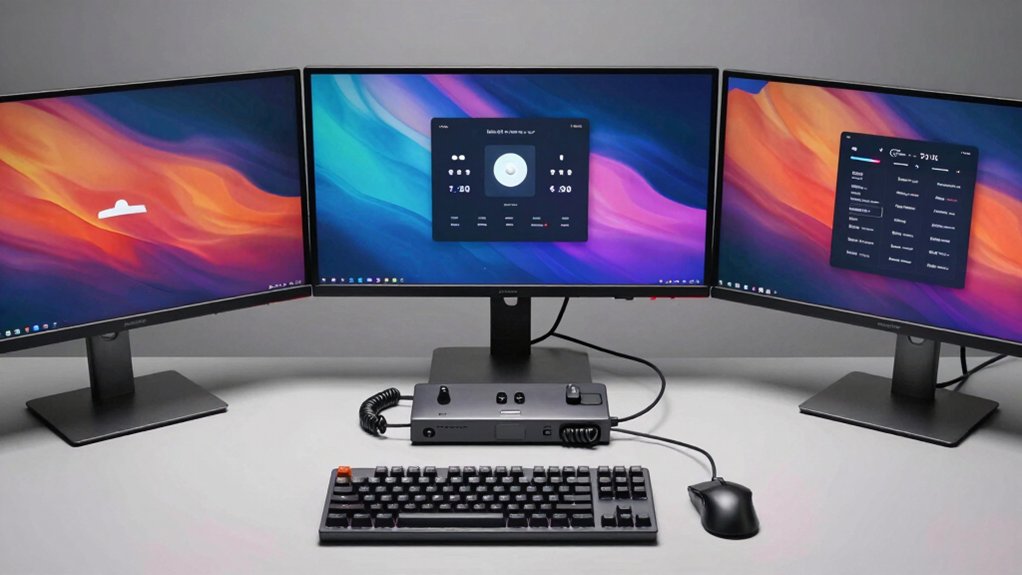

You’ll find that selecting a KVM switch for three monitors requires matching specific technical specs to your setup. You need to verify DisplayPort 1.4 or HDMI 2.1 support, confirm 4K@60Hz capability per monitor, and check USB 3.0 compatibility for peripherals. You should also assess switching methods—hotkeys, remotes, or front panels—and confirm OS support. Getting these details right prevents frustrating dropouts and display issues. The right choice depends on your exact hardware configuration, which we’ll break down next.
| HDMI KVM Switch 3 Monitors 4K@60Hz USB 3.0 |

| Best for Beginners | Maximum Video Resolution: 4K@60Hz | USB Ports: 4 USB 3.0 ports (5 Gbps) | Switching Methods: Panel button and wired external controller | VIEW LATEST PRICE | Read Our Analysis |
| 8K HDMI 2.1 KVM Switch Triple Monitor 3-Port |

| Maximum Resolution Power | Maximum Video Resolution: 8K@60Hz | USB Ports: 4 USB 3.0 ports (5 Gbps) | Switching Methods: Panel button and wired remote controller | VIEW LATEST PRICE | Read Our Analysis |
| MLEEDA Triple Monitor KVM Switch for 2 Computers |

| Most Versatile Connectivity | Maximum Video Resolution: 8K@60Hz | USB Ports: 4 USB 3.0 ports (5 Gbps) | Switching Methods: Panel button and wired remote control | VIEW LATEST PRICE | Read Our Analysis |
| HDMI DisplayPort KVM Switch for 3 Monitors 2 Computers |
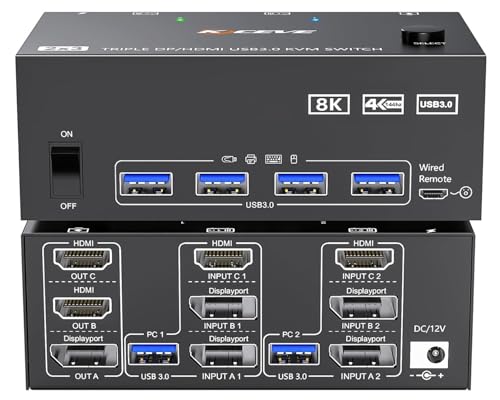
| Professional Grade Setup | Maximum Video Resolution: 8K@60Hz | USB Ports: 4 USB 3.0 ports | Switching Methods: Panel button and wired remote | VIEW LATEST PRICE | Read Our Analysis |
| KCEVE Triple Monitor KVM Switch USB 3.1 |

| Best Laptop Integration | Maximum Video Resolution: 4K@60Hz (desktop) | USB Ports: USB 3.1 ports (10 Gbps) | Switching Methods: Physical button and wired remote | VIEW LATEST PRICE | Read Our Analysis |
More Details on Our Top Picks
HDMI KVM Switch 3 Monitors 4K@60Hz USB 3.0
Are you looking to control two computers from a single keyboard, mouse, and monitor setup without constantly switching cables? This HDMI KVM Switch connects two computers to three monitors using HDMI outputs and four USB 3.0 ports for peripherals. You’ll switch between computers using either a panel button or external controller. The switch supports 4K@60Hz video, backward compatible with 4K@30Hz and 1080P. Each computer requires three HDMI cable connections for full three-monitor output. You can enable duplicate or extend display modes through Windows settings. The device needs a 12V DC power adapter and works across Windows, Mac, and Linux systems.
- Maximum Video Resolution:4K@60Hz
- USB Ports:4 USB 3.0 ports (5 Gbps)
- Switching Methods:Panel button and wired external controller
- Power Requirements:12V DC power adapter
- Computer Support:2 computers
- Display Modes:Extend and duplicate modes
- Additional Feature:Panel button and external controller
- Additional Feature:LED active device indicator
- Additional Feature:High-power USB device support
8K HDMI 2.1 KVM Switch Triple Monitor 3-Port
If you’re running two desktops and need to control three monitors from a single keyboard and mouse setup, this 8K HDMI 2.1 KVM switch delivers the connectivity you’re looking for. The switch handles 8K@60Hz over HDMI and 4K@144Hz over DisplayPort, giving you high-resolution options. Each computer requires two connections: one HDMI and one DisplayPort cable. The device includes four USB 3.0 ports for your keyboard, mouse, and other peripherals, with data transfer speeds reaching 5Gbps. Switch between computers using the included wired remote or front-panel button. Use HDMI 2.1 and DP 1.4 cables for optimal performance, keeping them shorter when possible.
- Maximum Video Resolution:8K@60Hz
- USB Ports:4 USB 3.0 ports (5 Gbps)
- Switching Methods:Panel button and wired remote controller
- Power Requirements:12V power adapter
- Computer Support:2 desktops
- Display Modes:Not explicitly detailed
- Additional Feature:Driver-free plug-and-play setup
- Additional Feature:HDMI 2.1 and DP 1.4
- Additional Feature:Three color LED indicators
MLEEDA Triple Monitor KVM Switch for 2 Computers
The MLEEDA Triple Monitor KVM Switch for 2 Computers works best if you’re running two computers that need to share three monitors and four USB 3.0 ports without installing drivers. Connect each PC with 2 DisplayPort cables, 1 HDMI cable, and 1 USB cable to the unit. Use the included wired remote to switch between computers instantly. The switch supports up to 8K@60Hz on DisplayPort and 4K@144Hz across three monitors. If your computer lacks required ports, add adapters like USB-C to DisplayPort or Mini DisplayPort converters. This setup handles mirror or extended display modes, making it suitable for offices, gaming, or home workstations requiring seamless multi-monitor sharing.
- Maximum Video Resolution:8K@60Hz
- USB Ports:4 USB 3.0 ports (5 Gbps)
- Switching Methods:Panel button and wired remote control
- Power Requirements:12V power adapter
- Computer Support:2 computers
- Display Modes:Mirror and extended modes
- Additional Feature:DP to HDMI conversion support
- Additional Feature:12-month warranty included
- Additional Feature:Three independent circuits (A, B, C)
HDMI DisplayPort KVM Switch for 3 Monitors 2 Computers
You’ll want this KVM switch if you’re running two computers that each have one DisplayPort output and two HDMI outputs, and you need to control three monitors from a single keyboard and mouse. This switch supports 8K@60Hz via DisplayPort and 4K@144Hz via HDMI. You can operate in extended mode, displaying unique images across all three monitors, or copy mode, showing identical content on each screen. The package includes two USB 3.0 cables, a power adapter, and a wired remote. Note that adapters like DVI-to-HDMI won’t work with this setup. After connecting everything, use Windows screen output settings to select your preferred display mode.
- Maximum Video Resolution:8K@60Hz
- USB Ports:4 USB 3.0 ports
- Switching Methods:Panel button and wired remote
- Power Requirements:Power adapter (specs not specified)
- Computer Support:2 computers
- Display Modes:Extended and copy modes
- Additional Feature:Extended and copy display modes
- Additional Feature:Three independent circuit boards
- Additional Feature:Windows display mode configuration support
KCEVE Triple Monitor KVM Switch USB 3.1
Want to run a personal desktop and company laptop simultaneously without switching cables between them? The KCEVE Triple Monitor KVM Switch connects both computers to three monitors using HDMI, HDMI, and DisplayPort connections. Your desktop supports triple 4K@60Hz output, while your laptop displays two 4K@60Hz monitors plus one 1080P@60Hz monitor. Switch between systems using the physical button or included wired remote. The USB 3.1 connection transfers data at 10Gbps, and the built-in 100W Power Delivery charges your laptop directly. No drivers are required for Windows, Mac, Linux, or Chrome OS systems.
- Maximum Video Resolution:4K@60Hz (desktop)
- USB Ports:USB 3.1 ports (10 Gbps)
- Switching Methods:Physical button and wired remote
- Power Requirements:100W Power Delivery (charges laptop)
- Computer Support:1 laptop + 1 desktop
- Display Modes:Extended and mirror modes
- Additional Feature:100W laptop power delivery
- Additional Feature:Multi-Stream Transport (MST) support
- Additional Feature:10Gbps USB 3.1 data transfer
Factors to Consider When Choosing a KVM Switch for Triple Monitors
When selecting a KVM switch for triple monitors, you’ll need to evaluate several critical factors: display resolution and refresh rates to ensure your setup handles your monitor specifications, computer compatibility requirements to confirm the switch works with your operating systems, port configuration and connectivity options to support all your devices, USB speed and device support for peripherals, and cable type and length specifications to fit your workspace. Start by checking your monitors’ maximum resolution and refresh rate, then verify the KVM switch supports those specs before examining how many USB ports you need and what connection types your computers require. Finally, measure your desk setup and confirm the included or available cables will reach all your equipment without strain.
Display Resolution and Refresh Rates
How do resolution and refresh rate affect your KVM switch choice? Your switch must support the combined bandwidth of all three monitors. If you’re running 4K@60Hz on each monitor, you’ll need sufficient total bandwidth across all outputs. Check your graphics card and cables—HDMI 2.0 limits 4K to 60Hz, while DisplayPort 1.4 handles 4K@144Hz or 8K@60Hz. When one monitor or cable can’t match your target refresh rate, your entire system drops to the lowest rate. For example, if two monitors run 4K@60Hz and one runs 1080p@144Hz, expect 60Hz across all three. Verify each port-to-monitor connection individually. Match your KVM switch specifications to your intended resolution and refresh rate before purchasing.
Computer Compatibility Requirements
Beyond matching your monitors’ resolution and refresh rates, you’ll need to confirm that each computer you’re connecting actually has the right video outputs to support three displays simultaneously. Check your computer’s graphics card specifications to verify it provides the exact combination your KVM switch requires—whether that’s 1 DisplayPort plus 2 HDMI, or 2 DisplayPort plus 1 HDMI. Some switches won’t accept adapter conversions like HDMI-to-DisplayPort without sacrificing resolution quality. If your current outputs fall short, consider installing a discrete graphics card with dedicated ports for each monitor. After physically connecting everything, you’ll configure your operating system using Windows + P or your OS’s display settings to enable extended display mode across all three monitors.
Port Configuration and Connectivity
The foundation of any successful triple-monitor KVM setup starts with verifying that each connected computer actually provides the video outputs your switch requires. Check your GPU specifications for available ports: you’ll need either two DisplayPort plus one HDMI per computer, or three HDMI outputs total. Next, confirm your KVM switch has matching input ports and that output cables support your monitor resolutions and refresh rates. For example, HDMI 2.1 handles 4K@60Hz, while DisplayPort 1.4 supports higher refresh rates. Count your USB peripherals—most KVM switches offer four USB 3.0 ports—and verify this quantity suits your keyboard, mouse, and other devices. Finally, check whether your setup requires power delivery for high-power peripherals before purchasing.
USB Speed and Device Support
What USB speed you’ll actually need depends on which peripherals you’re connecting to your KVM switch. Most triple-monitor KVM switches offer USB 3.0 ports with data transfer speeds up to 5 Gbps, which handles keyboards, mice, and standard printers adequately. However, if you’re using external drives or webcams, you’ll need a switch with a 12V power adapter to supply sufficient power since USB bandwidth gets shared among all connected devices. For faster performance, look for models supporting USB 3.1, 3.2, or USB-C. Verify the switch supports your specific device types—keyboards, mice, printers, scanners, and webcams—and confirm it’s compatible with both USB 3.0 and USB 2.0 devices to avoid connectivity issues with older peripherals.
Cable Type and Length Specifications
How you’ll connect your monitors to your KVM switch directly impacts video quality and stability across all three displays. Use HDMI 2.1 or DisplayPort 1.4 cables exclusively, as these support high refresh rates up to 4K@144Hz without bandwidth limitations. Keep cable lengths within your switch’s maximum specifications—typically 10 to 15 feet—to maintain signal integrity and prevent color artifacts or intermittent drops. Verify each cable is securely plugged into matching ports on both your switch and computers. Avoid using adapters like HDMI-to-DVI or HDMI 1.x converters, which degrade performance at high resolutions. Check that all connections are rated for your required bandwidth before installation to ensure three monitors display consistently without interruption.
Power Delivery and Adapter Needs
Before you choose a triple-monitor KVM switch, you’ll need to understand its power requirements and whether you need a separate adapter. Some models require a dedicated 12V power adapter to operate reliably and support high-power USB devices like external hard drives or webcams. Check your switch’s specifications to determine if power delivery (PD) through USB ports is available—some offer up to 100W while managing three displays simultaneously. If your model includes PD, you may not need an external adapter for basic operation. However, verify that any adapter matches the device’s exact voltage and current ratings; using an underpowered adapter causes instability and reduces display or USB performance. For USB-C and DisplayPort configurations, ensure the design maintains stable voltage across all outputs to prevent device reboots or signal drops.
Display Mode Flexibility Options
When you’re selecting a triple-monitor KVM switch, you’ll want to confirm it supports both Extended and Mirror display modes so you can choose the setup that fits your workflow. Extended mode lets you spread different content across all three monitors independently, maximizing your screen real estate for multitasking. Mirror mode duplicates your output identically on all three displays, useful for presentations or collaborative viewing.
Before purchasing, verify the switch’s mode specifications in the product documentation. Check whether switching between modes requires Windows hotkeys, panel buttons, or remote controls. Some models disable hotkey toggles entirely, forcing you to use physical controls instead. Confirm your monitors’ compatibility with your chosen mode to avoid resolution or refresh rate mismatches during operation.
Multi-Monitor Setup Feasibility
To successfully set up a triple-monitor KVM switch, you’ll first need to verify that your chosen switch can actually support three monitors while connecting two computers. Check your computer’s video outputs—you’ll need either two DisplayPort plus one HDMI per machine, or equivalent combinations. Confirm the switch handles extended display mode, which stretches your workspace across all three screens, rather than only mirror mode that duplicates content. Test cable compatibility by using HDMI 2.1 or DisplayPort 1.4 connectors to maintain 4K@60Hz resolution across monitors. Finally, assess power delivery requirements for all peripherals connected through the switch. Some KVM switches provide USB 3.0 bandwidth, but you must verify this won’t bottleneck your devices.
Final Thoughts
You’ve reviewed five reliable KVM switches designed for triple monitors. Select one based on your specific needs: choose HDMI 4K@60Hz models for standard setups, upgrade to 8K HDMI 2.1 for future-proofing, or pick DisplayPort options for higher refresh rates. Verify USB 3.0/3.1 compatibility for your peripherals, confirm cable lengths match your desk setup, and check that your operating system—Windows, Mac, or Linux—is supported before purchasing.

Meet Ry, “TechGuru,” a 36-year-old technology enthusiast with a deep passion for tech innovations. With extensive experience, he specializes in gaming hardware and software, and has expertise in gadgets, custom PCs, and audio.
Besides writing about tech and reviewing new products, he enjoys traveling, hiking, and photography. Committed to keeping up with the latest industry trends, he aims to guide readers in making informed tech decisions.