
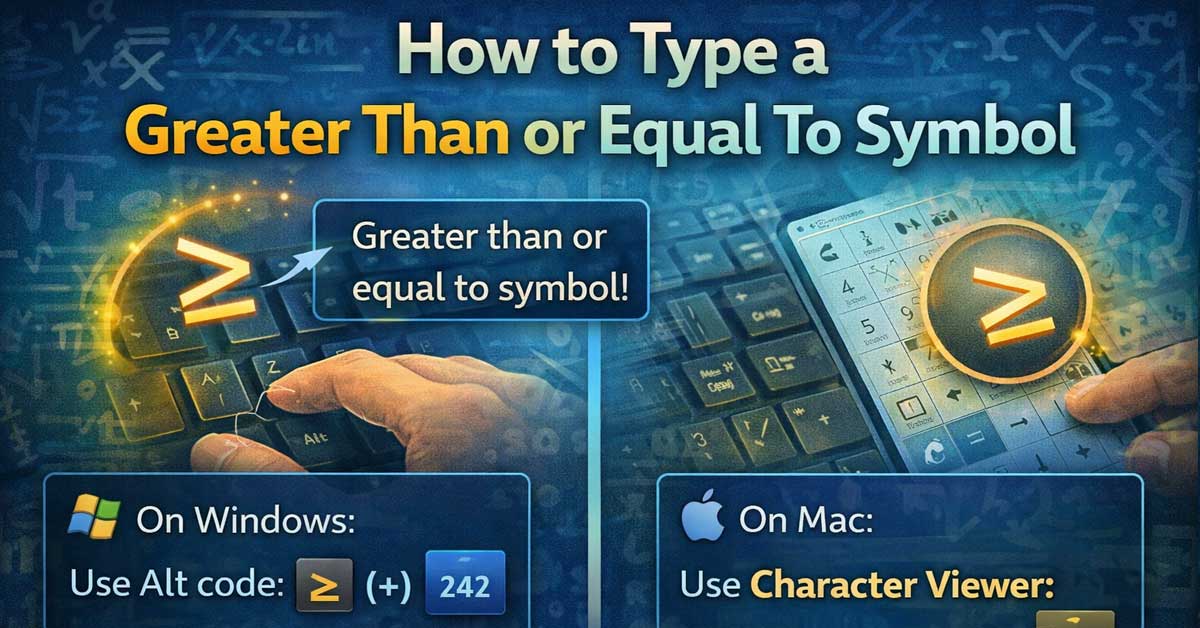

Not on any standard key — here’s every method on every platform
The greater than or equal to symbol ≥ (Unicode U+2265) and its counterpart less than or equal to ≤ (Unicode U+2264) appear constantly in mathematics, statistics, programming documentation, and scientific writing.
Neither is on a standard keyboard but every platform has a reliable method to produce them, and in most writing contexts a quick shortcut or text expansion makes them as accessible as any other character.
The Two Symbols
≥ — greater than or equal to (U+2265). Read as “greater than or equal to” or sometimes “at least.”
≤ — less than or equal to (U+2264). Read as “less than or equal to” or “at most.”
Both are covered in the methods below since they’re almost always needed together.
Windows
Method 1: Alt Codes
For ≥: hold Alt and type 242 on the numeric keypad. For ≤: hold Alt and type 243 on the numeric keypad.
- Num Lock must be on
- Use the numeric keypad only — not the number row
- Doesn’t work on laptops without a dedicated numpad
Method 2: Character Map
Search for Character Map in the Start menu. Find ≥ or ≤ in the Mathematical Operators block, copy, and paste. Works on any Windows machine.
Method 3: System-Wide Text Expansion
Use PhraseExpress, AutoHotkey, or Espanso to map triggers like >= to ≥ and <= to ≤ system-wide.
A simple AutoHotkey script:
::>=::≥
::<=::≤
This is particularly useful because >= and <= are the natural ways people type these symbols in code and informal writing — the expander converts them to the proper mathematical characters automatically.
Mac
Method 1: Keyboard Shortcut
For ≥: press Option + > (Option and the greater than sign, which is Shift + period). For ≤: press Option + < (Option and the less than sign, which is Shift + comma).
This is the method to remember on Mac. The shortcuts are logical — Option transforms the comparison operators into their “or equal to” equivalents. Works in every application with no setup.
Method 2: Character Viewer
Press Control + Command + Space to open the Character Viewer. Search “greater than or equal” and double-click to insert.
Method 3: Text Replacement
Go to System Settings → Keyboard → Text Replacements and map >= to ≥ and <= to ≤. Works system-wide.
iPhone and iPad
Method 1: Text Replacement
Go to Settings → General → Keyboard → Text Replacement. Add ≥ as the phrase with >= as the shortcut and ≤ with <= as the shortcut. Auto-expands in any text field across iOS after setup.
Method 2: Symbols Page
Tap ?123 to switch to numbers and symbols. Look through the available symbol pages — ≥ and ≤ may appear on secondary symbol screens depending on your iOS version.
Android
Method 1: Gboard Symbol Search
In Gboard, tap the G logo and use the search function. Type “greater than or equal” and ≥ appears as an insertable option.
Method 2: Symbol Keyboard
Tap ?123 and look through the symbols pages for ≥ and ≤.
Method 3: Text Replacement
In Gboard settings, go to Dictionary → Personal Dictionary and add ≥ with shortcut >= and ≤ with shortcut <=.
Chromebook
Method 1: Unicode Input
For ≥: press Ctrl + Shift + U, type 2265, then press Enter or Space. For ≤: press Ctrl + Shift + U, type 2264, then press Enter or Space.
Method 2: Special Characters Picker
Press Search + Shift + Space to open the emoji and special characters panel. Search “greater than or equal” and select the symbol.
Linux
Method 1: Unicode Input
For ≥: press Ctrl + Shift + U, type 2265, then press Enter. For ≤: press Ctrl + Shift + U, type 2264, then press Enter.
Method 2: Compose Key
With a Compose key configured, the sequence Compose + > + = produces ≥ and Compose + < + = produces ≤ on many Linux configurations.
Microsoft Word (Any Platform)
Method 1: Alt + X
For ≥: type 2265 then immediately press Alt + X. For ≤: type 2264 then immediately press Alt + X.
Word converts the Unicode code point to the symbol instantly.
Method 2: Insert Symbol With AutoCorrect
Go to Insert → Symbol → More Symbols. Select Mathematical Operators from the character set dropdown. Find ≥ or ≤, insert, and click AutoCorrect to set triggers like >= and <= that Word converts automatically.
Method 3: Equation Editor
Press Alt + = to open an equation field. Type \geq followed by Space for ≥ or \leq followed by Space for ≤. Word’s equation editor renders them correctly in math mode.
Method 4: Alt Codes
Hold Alt and type 242 for ≥ or 243 for ≤ on the numpad.
Google Docs
Option + > on Mac works inside Google Docs exactly as it does elsewhere. The Alt codes work on Windows inside Docs.
For equations, go to Insert → Equation and type \geq or \leq followed by Space — Google’s equation editor renders both correctly.
Go to Insert → Special Characters, search “greater than or equal,” and click to insert for occasional use.
LaTeX
In LaTeX, both symbols are typed as commands in math mode:
latex
% Greater than or equal to
$x \geq 0$
$a \geq b$

% Less than or equal to
$x \leq 10$
$a \leq b$

% Example in context
If $x \geq 0$ and $x \leq 1$, then $x \in [0, 1]$.

% Alternative commands (same output)
$x \ge 0$    % shorthand for \geq
$x \le 0$    % shorthand for \leq
Both \geq and \ge produce ≥. Both \leq and \le produce ≤. The shorter forms \ge and \le are common in practice.
HTML and Web Development
html
<!-- Greater than or equal to -->
≥ <!-- named entity -->
≥ <!-- decimal -->
≥ <!-- hex -->
≥ <!-- direct character -->
<!-- Less than or equal to -->
≤ <!-- named entity -->
≤ <!-- decimal -->
≤ <!-- hex -->
≤ <!-- direct character -->The named entities ≥ and ≤ are the cleanest options in HTML source.
Programming and Code
In programming, comparison operators use the keyboard characters rather than the Unicode symbols — >= and <= are the standard in virtually every programming language:
python
# Python
if x >= 0:
if x <= 10:

# JavaScript
if (x >= 0)
if (x <= 10)

# Java, C, C++
if (x >= 0)
if (x <= 10)

# SQL
WHERE value >= 100
WHERE value <= 500
The actual Unicode characters ≥ and ≤ should not be used in code — programming language parsers expect >= and <= as two-character operators and won’t recognize the Unicode symbols as equivalent.
The Unicode symbols are for documentation, mathematical writing, and display purposes. The two-character ASCII versions are for actual code.
Quick Reference Table
| Symbol | Platform | Fastest Method | Shortcut |
|---|---|---|---|
| ≥ | Windows | Alt code (numpad) | Alt + 242 |
| ≤ | Windows | Alt code (numpad) | Alt + 243 |
| ≥ | Mac | Keyboard shortcut | Option + > |
| ≤ | Mac | Keyboard shortcut | Option + < |
| ≥ / ≤ | iPhone / iPad | Text replacement | >= → ≥, <= → ≤ |
| ≥ / ≤ | Android | Gboard search | Search “greater than or equal” |
| ≥ | Chromebook | Unicode input | Ctrl + Shift + U, 2265 |
| ≤ | Chromebook | Unicode input | Ctrl + Shift + U, 2264 |
| ≥ | Microsoft Word | Code conversion | Type 2265 then Alt + X |
| ≤ | Microsoft Word | Code conversion | Type 2264 then Alt + X |
| ≥ / ≤ | LaTeX | Math commands | \geq / \leq in math mode |
| ≥ / ≤ | HTML | Named entities | ≥ / ≤ |
The Bottom Line
On Mac, Option + > and Option + < are the most logical shortcuts available for any mathematical symbol — they transform the comparison operators directly into their “or equal to” versions. On Windows, Alt + 242 and Alt + 243 cover both with a numpad. In LaTeX, \geq and \leq are the standard.
For text expansion users, mapping >= to ≥ and <= to ≤ is particularly natural because those are exactly what people type when they mean these symbols anyway — the expander just converts the informal notation to the proper Unicode character automatically.
In code, always use >= and <= — the Unicode symbols don’t work as programming operators.
Option + > on Mac. Alt + 242 on Windows. \geq in LaTeX. And >= in code — never the Unicode symbol in actual programming.

Meet Ry, “TechGuru,” a 36-year-old technology enthusiast with a deep passion for tech innovations. With extensive experience, he specializes in gaming hardware and software, and has expertise in gadgets, custom PCs, and audio.
Besides writing about tech and reviewing new products, he enjoys traveling, hiking, and photography. Committed to keeping up with the latest industry trends, he aims to guide readers in making informed tech decisions.