

When you’re setting up multiple displays, you’ll quickly discover that not all HDMI splitters deliver reliable performance. You’ll encounter signal degradation, compatibility issues, and power failures that waste your time and money. This guide walks you through five proven models—including the Anker 4K@60Hz switcher and OREI UltraHD splitter—that actually solve these problems. You’ll learn exactly which specifications matter and why certain features prevent the frustration most users face.
| avedio links HDMI Splitter 1 in 2 Out 4K |

| Best for Dual Displays | 4K Support: 4K Ultra HD at 30Hz | Port Configuration: 1 input, 2 outputs (splitter) | Power Requirements: 5V 1A USB power adapter required | VIEW LATEST PRICE | Read Our Analysis |
| MT-ViKI HDMI Splitter 1×4 with AC Adapter |

| Best for Multiple TVs | 4K Support: 4K x 2K at 30Hz | Port Configuration: 1 input, 4 outputs (splitter) | Power Requirements: AC adapter included | VIEW LATEST PRICE | Read Our Analysis |
| Anker HDMI Switch 4K@60Hz 2-in-1 Switcher |

| Best Overall | 4K Support: 4K at 60Hz | Port Configuration: 2 inputs, 1 output (switcher) | Power Requirements: No external power required | VIEW LATEST PRICE | Read Our Analysis |
| OREI UltraHD 4K HDMI Splitter 1×2 Port |

| Premium Performance Pick | 4K Support: 4K at 60Hz | Port Configuration: 1 input, 2 outputs (splitter) | Power Requirements: Built-in auto-switching power supply (100-240V) | VIEW LATEST PRICE | Read Our Analysis |
| GANA HDMI Switch 4K@60Hz Bidirectional Switcher |
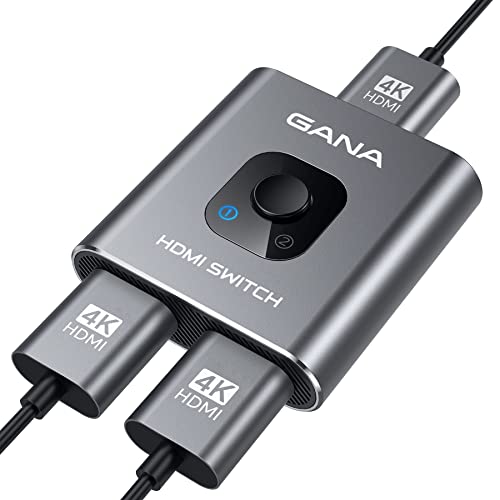
| Most Versatile | 4K Support: 4K at 60Hz | Port Configuration: 2 inputs, 1 output (bidirectional switcher) | Power Requirements: No external power required | VIEW LATEST PRICE | Read Our Analysis |
More Details on Our Top Picks
avedio links HDMI Splitter 1 in 2 Out 4K
Do you need to display the same content on two screens at once without buying additional devices? The avedio links HDMI Splitter 1 in 2 Out 4K duplicates one HDMI input to two displays simultaneously. You’ll need a 5V 1A power adapter, which isn’t included. Connect your source device to the single input, then attach your two displays to the output ports. This splitter supports 4K at 30Hz and works with HDMI 1.3/1.4. Use HDMI 2.0 AWG 26 cables, keeping lengths under 16 feet for 4K or 32.8 feet for 1080p. Note that it doesn’t extend displays or work with HDCP2.2 content, and it isn’t a switcher.
- 4K Support:4K Ultra HD at 30Hz
- Port Configuration:1 input, 2 outputs (splitter)
- Power Requirements:5V 1A USB power adapter required
- 3D Capability:Not specified
- Audio Format Support:DTS-HD, Dolby TrueHD, LPCM 7.1, DTS, Dolby AC3, DSD, HD(HBR)
- Warranty:Not specified
- Additional Feature:Deep color 12/16 bit support
- Additional Feature:Cable length up to 32.8 ft
- Additional Feature:Plug-and-play, no drivers needed
MT-ViKI HDMI Splitter 1×4 with AC Adapter
If you’re looking to display one HDMI source across multiple TVs or monitors at the same time, the MT-ViKI HDMI Splitter 1×4 with AC Adapter delivers exactly that capability. Connect your computer or laptop to the input port, then attach up to four TVs or projectors to the output ports. The splitter mirrors your signal identically to all four displays simultaneously. It supports 4K resolution at 30Hz and 3D content. Keep input and output cables within 15 meters; for longer distances, use 8K fiber optic cables. Audio plays only through devices with built-in speakers. Note that this splitter duplicates signals rather than switching between different sources.
- 4K Support:4K x 2K at 30Hz
- Port Configuration:1 input, 4 outputs (splitter)
- Power Requirements:AC adapter included
- 3D Capability:3D support
- Audio Format Support:No separate audio interface
- Warranty:Not specified
- Additional Feature:Duplicates signal to 4 displays
- Additional Feature:Fiber optic cable compatibility option
- Additional Feature:Suitable for PS4/Fire Stick
Anker HDMI Switch 4K@60Hz 2-in-1 Switcher
Need to connect two HDMI devices to a single display without constantly unplugging cables? The Anker HDMI Switch 4K@60Hz handles this task efficiently. Press a single button to switch between two input sources instantly. This switcher supports 4K resolution at 60Hz, making it suitable for gaming consoles, laptops, and projectors. Keep HDMI cables under 3.3 feet for optimal 4K performance, with combined length not exceeding 6.5 feet. The device includes an 18-month warranty and ranks #1 in Audio & Video Selector Boxes, backed by 4.5 out of 5 stars from over 4,000 customers.
- 4K Support:4K at 60Hz
- Port Configuration:2 inputs, 1 output (switcher)
- Power Requirements:No external power required
- 3D Capability:3D support
- Audio Format Support:HDR and Dolby support
- Warranty:18-month warranty
- Additional Feature:Single button cable switching
- Additional Feature:HDR and Dolby support
- Additional Feature:#1 best sellers rank
OREI UltraHD 4K HDMI Splitter 1×2 Port
The OREI UltraHD 4K HDMI Splitter works best for you if you’re running a single HDMI source to two displays simultaneously—say, connecting your PS4 to both your TV and a projector at the same time. This 1×2 splitter duplicates your signal across two outputs without HDCP bypass, supporting 4K@60Hz at 18 Gbps. You’ll get consistent video and audio across both screens using LPCM, Dolby, or DTS formats. Connect your source device to the single input, attach your displays to each output, and plug in the included power supply. Keep HDMI cables under 30 feet for optimal performance. It’s compatible with most devices—gaming consoles, streaming boxes, Blu-ray players, and computers.
- 4K Support:4K at 60Hz
- Port Configuration:1 input, 2 outputs (splitter)
- Power Requirements:Built-in auto-switching power supply (100-240V)
- 3D Capability:3D support
- Audio Format Support:LPCM, Dolby-AC3, DTS7.1, DSD, Dolby/DTS-HD Master Audio
- Warranty:1 Year Full Warranty
- Additional Feature:18 Gbps HDMI 2.0b support
- Additional Feature:HDCP 2.2 compatible
- Additional Feature:Auto-switching 100-240V power supply
GANA HDMI Switch 4K@60Hz Bidirectional Switcher
Looking to connect multiple devices to a single display without constantly unplugging cables? The GANA HDMI Switch 4K@60Hz Bidirectional Switcher solves this problem with its manual switching capability. This aluminum switcher features three HDMI ports and supports 4K resolution at 60Hz, making it compatible with laptops, gaming consoles like PS5, and streaming devices. Simply press the button on the switch box to toggle between two active sources, and LED indicators show you which port is currently active. No external power or drivers are required. Use standard HDMI 2.0 cables with a maximum combined length of 3 meters for ideal 4K performance. The switcher works in both directions—connecting two sources to one display or one source to two displays.
- 4K Support:4K at 60Hz
- Port Configuration:2 inputs, 1 output (bidirectional switcher)
- Power Requirements:No external power required
- 3D Capability:3D capable
- Audio Format Support:Standard audio formats (HDMI embedded)
- Warranty:Lifetime technical support; 0-1 year warranty
- Additional Feature:Bidirectional one/two display switching
- Additional Feature:Aluminum enclosure for stability
- Additional Feature:No external power required
Factors to Consider When Choosing HDMI Splitters
Before you buy an HDMI splitter, you’ll need to check your resolution and refresh rate requirements, count how many ports you actually need, and verify the power setup your devices require. Next, measure your cable runs to confirm compatibility, and confirm that the splitter supports HDCP content protection if you’re connecting to streaming services or copy-protected media. These five factors will guide you toward a splitter that matches your specific setup without wasted features or incompatibility issues.
Resolution And Refresh Rate
What resolution and refresh rate does your setup actually need? Start by identifying your display’s maximum capabilities—4K at 30Hz, 4K at 60Hz, or 1080p at 60Hz. Next, confirm your splitter supports that exact specification, since some units only output at fixed rates like 30Hz regardless of your source. Check the bandwidth requirements for your chosen resolution and color depth, such as 4:4:4 8-bit versus 4:2:2, to prevent chroma subsampling or visual artifacts. Then measure your HDMI cable runs, as higher refresh rates like 4K60 require shorter cables to maintain signal integrity. Finally, verify HDCP compatibility if you’re using protected content, since older splitters may block 4K/HDR playback on newer displays.
Number Of Ports Needed
Once you’ve confirmed your display’s resolution and refresh rate capabilities, you’ll need to determine how many outputs your splitter must support. Count the total number of displays you want to connect simultaneously. Common configurations include 1×2 splitters for two displays or 1×4 splitters for four displays. Most standard splitters max out at four outputs and don’t support daisy-chaining for expansion. Verify that your splitter’s port count matches your exact requirement—a 1×2 model won’t work if you need three displays. Check whether the device supports only mirroring, which duplicates content across all outputs, or if you need extended displays. Finally, confirm your single HDMI source can drive all connected outputs at your desired resolution and refresh rate simultaneously.
Power Requirements And Setup
How much power does your splitter actually need? Most HDMI splitters require a 5V 1A power supply for stable operation. Check your splitter’s specifications first. Some models include built-in power adapters, while others operate passively without external power. If your splitter needs power, use a dedicated wall outlet adapter rather than relying on USB power from your TV or hub, which often provides insufficient power. Connect the power cable before plugging in HDMI connections. For 4K/60Hz signals or longer cable runs, powered splitters perform better than passive models. Ensure consistent duplication across both displays by maintaining adequate power throughout your setup. Verify all connections are secure after powering on.
Cable Length Compatibility
Why does cable length matter so much when you’re setting up an HDMI splitter? Signal degradation increases with distance, especially at 4K resolution. Keep input and output cables under 16 feet to maintain reliable performance at 4K 30/60 Hz. For optimal 4K60 results, aim for combined runs under 6.5 feet when possible. Verify your splitter’s specific cable length limits before purchasing, since specifications vary by model. If you need longer distances, use fiber optic HDMI extenders instead of standard cables. Choose HDMI 2.0 or 2.1 rated cables with proper shielding to preserve signal integrity and HDCP compliance across all outputs. Always check the manufacturer’s documentation for maximum supported cable lengths to prevent instability and ensure consistent picture quality.
HDCP And Content Protection
While cable length ensures your signal reaches all displays without degradation, the content protection standard your splitter supports determines whether you’ll actually see that content at all. You’ll need an HDCP 2.2–compliant splitter to play 4K content from Blu-ray players and streaming services. Older splitters supporting only HDCP 1.4 will block or downgrade protected content. Check your splitter’s specifications before purchasing. Verify that all connected displays are HDCP-compliant, as non-compliant displays may prevent playback entirely. If you’re upgrading to 4K sources, prioritize HDCP 2.2 compatibility. Some splitters explicitly state they don’t bypass HDCP protection, so read product descriptions carefully. Matching your splitter’s protection standard to your content sources prevents frustrating playback failures.
Audio Format Support
Audio format support is a critical factor that’s often overlooked when selecting an HDMI splitter. You need to identify which audio formats your devices require—DTS-HD, Dolby TrueHD, LPCM 7.1, DTS, Dolby AC3, DSD, and HD(HBR) are common options. Check your source equipment and displays to determine compatibility. Next, verify whether your splitter passes these formats without degradation. Keep in mind that some splitters only transmit audio if your connected displays have built-in speakers. If you’re using external speakers or a soundbar, confirm the splitter includes audio extraction capabilities. Finally, cross-reference your splitter’s specifications with your HDCP version support, since HDCP 1.4 and HDCP 2.2 compatibility directly affect multichannel audio preservation. This ensures uninterrupted, high-quality audio across your setup.
Device Compatibility And Use Case
Before you buy an HDMI splitter, you’ll need to identify whether duplication or input selection matches your actual setup. If you’re displaying the same content on multiple monitors, you need a splitter. If you’re switching between different sources, you need a switch instead. Next, check your resolution requirements. A 4K display demands splitters rated for 4K@60Hz, while 1080p setups work with basic models. Verify HDCP compatibility with your source devices—streaming services often require HDCP 2.2 support. Consider power needs: some splitters require external power for stable performance, while others work plug-and-play. Finally, measure your cable distances. Keep 4K runs under 16 feet for reliability, or use higher-quality cables for longer distances.
Final Thoughts
You’ve now reviewed five reliable HDMI splitters that handle 4K content without signal degradation. When you make your choice, verify HDCP 2.2 compatibility, 18 Gbps bandwidth, and stable power supply specs match your setup. Check that audio formats you need pass through cleanly. Pick a model from a reputable brand with clear documentation. Install it following the manufacturer’s instructions, then test your connection before relying on it for daily use.

Meet Ry, “TechGuru,” a 36-year-old technology enthusiast with a deep passion for tech innovations. With extensive experience, he specializes in gaming hardware and software, and has expertise in gadgets, custom PCs, and audio.
Besides writing about tech and reviewing new products, he enjoys traveling, hiking, and photography. Committed to keeping up with the latest industry trends, he aims to guide readers in making informed tech decisions.