
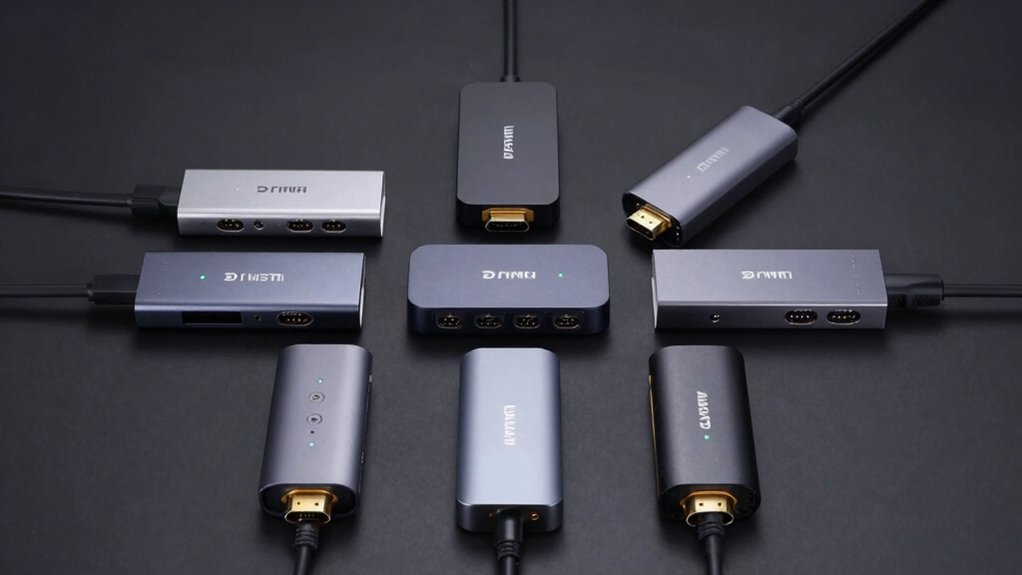

You need a reliable HDMI hub that won’t drop your signal or force you to troubleshoot drivers. Whether you’re connecting multiple monitors for work or managing different video sources, you’ll find that not all hubs deliver consistent performance. The right hub depends on your setup—DisplayPort splitters, USB-C docks, or dedicated switches each offer different advantages. Understanding your specific needs will determine which solution actually works for you.
| DisplayPort to HDMI Splitter Multi Monitor Adapter (4K) |

| Best Multi-Monitor Setup | Max Resolution Support: 4K@60Hz (3 monitors) | Input/Output Configuration: 1 DisplayPort input to 3 HDMI outputs | Power Requirements: 5V 1A USB-C (included) | VIEW LATEST PRICE | Read Our Analysis |
| HDMI Switch 3 in 1 Out 4K@60Hz with Cable |
![[Upgrade] HDMI Switch 3 in 1 Out, 4K@60Hz HDMI 2.0](https://m.media-amazon.com/images/I/415OBm-7G7L._SL500_.jpg)
| Best 3-in-1 Switcher | Max Resolution Support: 4K@60Hz | Input/Output Configuration: 3 HDMI inputs to 1 HDMI output | Power Requirements: No external power required | VIEW LATEST PRICE | Read Our Analysis |
| Anker HDMI Switch 4K@60Hz 2 in 1 Out |

| Best Compact Switch | Max Resolution Support: 4K@60Hz | Input/Output Configuration: 2 HDMI inputs to 1 HDMI output | Power Requirements: No external power required | VIEW LATEST PRICE | Read Our Analysis |
| Anker 8-in-1 USB-C Docking Station Dual Monitor |

| Best Dual Monitor Docking | Max Resolution Support: 4K@60Hz (single display) / 4K@30Hz (dual display) | Input/Output Configuration: 1 USB-C input to 2 HDMI outputs (plus 2 USB-A/Ethernet/SD card) | Power Requirements: 100W PD wall charger required | VIEW LATEST PRICE | Read Our Analysis |
| StarTech USB-A 3.0 to Dual HDMI Adapter |

| Best USB-A Option | Max Resolution Support: 4K@30Hz (one port) / 1920×1200 (other port) | Input/Output Configuration: 1 USB-A 3.0 input to 2 HDMI outputs | Power Requirements: 5V 1A (no external power plug) | VIEW LATEST PRICE | Read Our Analysis |
| Acer 5-in-1 USB-C Hub with 4K HDMI |

| Best Portable Hub | Max Resolution Support: 4K@30Hz | Input/Output Configuration: 1 USB-C input to 1 HDMI output (plus 3 USB-A/PD charging) | Power Requirements: 100W PD charging port included | VIEW LATEST PRICE | Read Our Analysis |
| KOZYC USB-C to Dual HDMI Adapter 4K |

| Best USB-C Flexibility | Max Resolution Support: 4K@30Hz | Input/Output Configuration: 1 USB-C input to 2 HDMI outputs (plus 1 USB 3.0/PD charging) | Power Requirements: 100W PD charging port included | VIEW LATEST PRICE | Read Our Analysis |
| 4K HDMI Splitter 1 in 2 Out Dual Monitor |

| Best Display Mirroring | Max Resolution Support: 4K (up to 60Hz for 2K/1080P) | Input/Output Configuration: 1 HDMI input to 2 HDMI outputs | Power Requirements: No external power required | VIEW LATEST PRICE | Read Our Analysis |
| UGREEN HDMI Switch 5 in 1 with Remote |

| Best 5-Device Switcher | Max Resolution Support: 4K@60Hz | Input/Output Configuration: 5 HDMI inputs to 1 HDMI output | Power Requirements: USB power cable required (adapter not included) | VIEW LATEST PRICE | Read Our Analysis |
| Anker 7-in-1 USB-C Hub Dual Monitor Docking Station |

| Best Docking Station | Max Resolution Support: 1080p@60Hz (dual display) | Input/Output Configuration: 1 USB-C input to 2 HDMI outputs (plus 4 USB data ports/PD charging) | Power Requirements: 100W input / 85W output; wall charger not included | VIEW LATEST PRICE | Read Our Analysis |
More Details on Our Top Picks
DisplayPort to HDMI Splitter Multi Monitor Adapter (4K)
If you’re running multiple displays on your PC, the THANDBLE DisplayPort to HDMI MST Hub transforms your single DP connection into three simultaneous monitor outputs. Connect your graphics card’s DisplayPort to the hub’s input, plug in the included USB-C power cable, then attach three HDMI cables to your monitors. The hub supports 4K@60Hz across all three displays, though your graphics card must support at least 18 Gbps bandwidth. Installation requires no drivers—it’s truly plug-and-play. Note that Macs aren’t compatible, and integrated GPUs may only mirror one monitor instead of extending multiple displays.
- Max Resolution Support:4K@60Hz (3 monitors)
- Input/Output Configuration:1 DisplayPort input to 3 HDMI outputs
- Power Requirements:5V 1A USB-C (included)
- Switching/Display Method:Automatic (MST) / extended or cloned displays
- Compatibility:PC with DisplayPort; not Mac compatible
- Warranty Length:2-year warranty
- Additional Feature:Gold-plated connectors/durability
- Additional Feature:Nylon braided cable design
- Additional Feature:Heat dissipation optimized
HDMI Switch 3 in 1 Out 4K@60Hz with Cable
You’re juggling multiple devices but only one display—the NEWCARE HDMI Switch 3 in 1 Out solves this setup problem with straightforward switching between three input sources and one output. Connect your PC, laptop, gaming console, or streaming device to the three inputs, then run one cable to your TV or monitor. Press the button to switch between sources instantly. For 4K@60Hz performance, keep input and output cables under 1.5 meters. Power on at least two devices simultaneously to maintain stable signal transmission. The included 2.6-foot cable gets you started, though you’ll manage longer runs up to 10 feet with quality cables. No remote or power adapter required—this switcher’s simplicity makes it reliable.
- Max Resolution Support:4K@60Hz
- Input/Output Configuration:3 HDMI inputs to 1 HDMI output
- Power Requirements:No external power required
- Switching/Display Method:Manual push-button switching
- Compatibility:Windows, PS5/PS4, Xbox, Blu-ray, Fire Stick, DVD, PC
- Warranty Length:1-year warranty
- Additional Feature:Included 2.6 ft cable
- Additional Feature:Push-button switching control
- Additional Feature:Deep color 12-bit support
Anker HDMI Switch 4K@60Hz 2 in 1 Out
Need a compact switch that handles two HDMI sources without cluttering your desk? The Anker HDMI Switch lets you connect two devices—like your laptop and gaming console—to one display using a single button. Press the button to seamlessly switch between sources. This model supports 4K resolution at 60Hz, so you’ll get sharp, smooth visuals whether you’re working or gaming. Keep your HDMI cables under 3.3 feet each, with total combined length not exceeding 6.5 feet for optimal 4K performance. The switch weighs just 30 grams and works with PCs, PS5, Xbox Series, and projectors. Note that it doesn’t support HDMI CEC control. You’ll receive an 18-month warranty with your purchase.
- Max Resolution Support:4K@60Hz
- Input/Output Configuration:2 HDMI inputs to 1 HDMI output
- Power Requirements:No external power required
- Switching/Display Method:Manual single-button switching
- Compatibility:Windows, Mac, laptops, PS5, Xbox, projectors
- Warranty Length:18-month warranty
- Additional Feature:Single button seamless switching
- Additional Feature:HDR/3D/Dolby support
- Additional Feature:Smooth finish design
Anker 8-in-1 USB-C Docking Station Dual Monitor
The Anker PowerExpand 8-in-1 handles simultaneous dual-monitor setups through its dual HDMI configuration. Connect two displays at 4K@30Hz each, or use one monitor at 4K@60Hz. The docking station includes an 85W USB-C charging port, two USB-A data ports, Gigabit Ethernet, and an SD card reader. Plug your laptop’s USB-C cable into the station, then connect your monitors to the HDMI ports. Attach your power adapter to the PD-IN port for charging while you work. This setup works with Windows 10/11 and ChromeOS devices that support DisplayPort Alt Mode, providing a complete workspace expansion without switching cables between devices.
- Max Resolution Support:4K@60Hz (single display) / 4K@30Hz (dual display)
- Input/Output Configuration:1 USB-C input to 2 HDMI outputs (plus 2 USB-A/Ethernet/SD card)
- Power Requirements:100W PD wall charger required
- Switching/Display Method:Automatic (mirror/extend mode)
- Compatibility:Windows 10/11, ChromeOS, MacBook, iPad; not Linux
- Warranty Length:18-month warranty
- Additional Feature:SD/microSD card reader
- Additional Feature:1 Gbps Ethernet port
- Additional Feature:85W power delivery included
StarTech USB-A 3.0 to Dual HDMI Adapter
StarTech’s USB-A 3.0 adapter stands out for professionals who need reliable multi-monitor expansion without external power. You’ll connect one HDMI port for 4K at 30Hz and another for 1920 x 1200 resolution. The adapter draws only 5 watts from your USB port, requiring no separate power supply. Installation demands administrator rights and works exclusively on Windows systems. The 9.8-inch cable provides flexible positioning. You’ll get a 3-year warranty plus lifetime technical support. This adapter suits office workstations where you need straightforward dual-display setup without complicated configuration.
- Max Resolution Support:4K@30Hz (one port) / 1920×1200 (other port)
- Input/Output Configuration:1 USB-A 3.0 input to 2 HDMI outputs
- Power Requirements:5V 1A (no external power plug)
- Switching/Display Method:Automatic (extend or mirror)
- Compatibility:Windows only (Intel, AMD, Snapdragon X)
- Warranty Length:3-year warranty
- Additional Feature:3-year warranty coverage
- Additional Feature:USB 3.0 bandwidth advantage
- Additional Feature:Lifetime technical assistance
Acer 5-in-1 USB-C Hub with 4K HDMI
Looking for a hub you’ll actually want to carry everywhere? The Acer 5-in-1 USB-C Hub delivers 4K HDMI output at 30Hz, perfect for connecting your laptop or tablet to external displays. You’ll get three USB-A ports for data transfer up to 5Gbps, plus two USB 2.0 ports for additional peripherals. The 100W Power Delivery port charges your device simultaneously, though it doesn’t support data or video. Simply plug it in—no drivers required. This hub works with MacBooks, iPads, Chromebooks, and most USB-C devices, making it reliable for business travel and daily use.
- Max Resolution Support:4K@30Hz
- Input/Output Configuration:1 USB-C input to 1 HDMI output (plus 3 USB-A/PD charging)
- Power Requirements:100W PD charging port included
- Switching/Display Method:Automatic (mirror or extend mode)
- Compatibility:MacBook Pro/Air/Neo, iPad Pro/Air, Chromebook, Dell XPS, iPhone 15+
- Warranty Length:Not specified
- Additional Feature:100W PD charging port
- Additional Feature:Plug-and-play/no drivers
- Additional Feature:Mirror/extend mode versatility
KOZYC USB-C to Dual HDMI Adapter 4K
Need to connect multiple displays to your USB-C laptop? The KOZYC 4-in-1 hub lets you do exactly that with two HDMI ports supporting 4K@30Hz resolution. First, verify your device supports Thunderbolt 3 or DisplayPort Alt Mode—this adapter won’t work without these features. Plug it directly into your USB-C port; no external power needed. Connect your monitors to both HDMI ports and configure your display settings through your operating system. Note that Windows supports multiple display modes, while macOS supports AAA and ABB configurations only. You’ll also get a USB 3.0 port for peripherals and a 100W charging port. The adapter includes a two-year warranty and lifetime technical support.
- Max Resolution Support:4K@30Hz
- Input/Output Configuration:1 USB-C input to 2 HDMI outputs (plus 1 USB 3.0/PD charging)
- Power Requirements:100W PD charging port included
- Switching/Display Method:Automatic (extended/dual display modes)
- Compatibility:Windows, Mac, Android, Linux (DP Alt Mode / Thunderbolt 3)
- Warranty Length:2-year warranty
- Additional Feature:100W PD charging port
- Additional Feature:2-year hassle-free warranty
- Additional Feature:Lifetime technical support included
4K HDMI Splitter 1 in 2 Out Dual Monitor
The Mindorlen 4K HDMI Splitter works exceptionally well for display mirroring across two monitors simultaneously. Connect your PC or laptop to the splitter’s single input, then attach two displays to the outputs. Both screens’ll show identical images automatically. You’ll get synchronized audio without needing separate cables. On first use, adjust your resolution and refresh rate in display settings for optimal performance. The splitter supports 4K, 2K at 60Hz, 1080P at 60Hz, and 720P at 60Hz. No driver installation’s required. This straightforward setup makes it ideal when you need duplicate displays rather than expanded desktop space.
- Max Resolution Support:4K (up to 60Hz for 2K/1080P)
- Input/Output Configuration:1 HDMI input to 2 HDMI outputs
- Power Requirements:No external power required
- Switching/Display Method:Automatic mirroring (duplicate signal)
- Compatibility:MacBook, laptop, desktop PC, graphics card, TV
- Warranty Length:Amazon 30-day return guarantee
- Additional Feature:Included 30 cm cable
- Additional Feature:No driver installation needed
- Additional Feature:Synchronized audio/video output
UGREEN HDMI Switch 5 in 1 with Remote
When you’ve got five devices competing for one TV input, you’ll find this 5-port switcher handles the job efficiently. Connect your PS5, Nintendo Switch, Fire Stick, or other devices to separate ports, then use the included remote or manual button to select which one displays. The switcher supports 4K@60Hz resolution with HDR and 3D capabilities. LED indicators show you which port’s active. You’ll need to plug in the USB power cable during operation—no automatic switching occurs. Keep HDMI cables under 3 meters for optimal 4K performance. The remote works up to 33 feet away.
- Max Resolution Support:4K@60Hz
- Input/Output Configuration:5 HDMI inputs to 1 HDMI output
- Power Requirements:USB power cable required (adapter not included)
- Switching/Display Method:Manual remote control + manual button switching
- Compatibility:PS5/PS4, Nintendo Switch, Xbox, Roku, Fire Stick, Apple TV, Blu-ray, PC
- Warranty Length:Warranty information available (duration not specified)
- Additional Feature:Remote control 33 ft range
- Additional Feature:LED port indicators
- Additional Feature:VRR/Dynamic HDR support
Anker 7-in-1 USB-C Hub Dual Monitor Docking Station
Want to expand your workspace without replacing your laptop? The Anker 7-in-1 USB-C Hub Dual Monitor Docking Station does exactly that. Connect it to your USB-C port and attach two external monitors simultaneously at 1080p resolution. You’ll get 85W power output, 10Gbps data transfer speeds, and four additional USB ports. This hub works with MacBooks, Windows PCs, and Chromebooks that support USB-C, USB4, or Thunderbolt connections. The compact gray design fits easily on your desk. Simply plug in your monitors via HDMI, connect your peripherals to the USB ports, and charge your device through the hub.
- Max Resolution Support:1080p@60Hz (dual display)
- Input/Output Configuration:1 USB-C input to 2 HDMI outputs (plus 4 USB data ports/PD charging)
- Power Requirements:100W input / 85W output; wall charger not included
- Switching/Display Method:Automatic (mirror on macOS; extend capable)
- Compatibility:MacBook (macOS 12+), Windows 10/11, ChromeOS; not Linux
- Warranty Length:18-month warranty
- Additional Feature:10Gbps data transfer rate
- Additional Feature:100W fast charging input
- Additional Feature:Gray plastic enclosure design
Factors to Consider When Choosing an HDMI Hub for PC
Before you buy an HDMI hub, you’ll need to identify your display resolution requirements (whether you’re using 1080p, 1440p, or 4K monitors), calculate your total power delivery needs based on connected devices, and map out your exact port configuration so you know how many HDMI outputs and additional USB ports you actually need. You should also measure the distance from your PC to where you’ll place the hub and connected displays, then verify that the hub supports your operating system—Windows, macOS, or Linux—without requiring outdated drivers. These five factors will guide you toward a hub that handles your specific setup reliably rather than one that looks good but fails to meet your actual demands.
Display Resolution Capabilities
Because bandwidth determines what your HDMI hub can actually deliver, you’ll need to understand how resolution and refresh rate work together before making a purchase. Hubs rated 18 Gbps or higher support 4K@60Hz on multiple displays simultaneously. Lower-bandwidth hubs may only handle 4K@60Hz on a single output, dropping to 4K@30Hz when you connect two or more screens. Check your GPU and interface—DP 1.2 or HDMI 2.0+ with 18 Gbps bandwidth is required. Keep HDMI cables under 1.5 meters to maintain signal integrity. If your setup can’t sustain full 4K concurrency, some hubs will automatically downscale to 2K@60Hz or 1080p@120Hz. Match your hub’s specs to your actual display count and resolution needs.
Power Delivery Requirements
When you’re running multiple displays on your laptop, the hub itself draws power, and your device’s battery depletes faster—which is why you’ll need an HDMI hub with Power Delivery (PD) support. Check the hub’s PD wattage rating and confirm it matches or exceeds your laptop’s charging requirements. A 60W hub won’t suffice for a 100W laptop; you’ll experience slow or no charging. Verify the hub has a dedicated PD IN port that accepts the same voltage and current as your original charger. Pair it with a capable wall charger—ideally 100W PD—and a compliant USB-C cable. Note that some hubs limit display output when simultaneously drawing power, so confirm your setup supports 4K60 with PD active before purchasing.
Port Configuration Needs
What monitor setup do you actually have—two displays, three, or a mix of HDMI and DisplayPort? List your exact port requirements first. Count how many HDMI outputs you need, then check if you require DisplayPort outputs instead. Verify your monitors’ input types to ensure the hub matches them directly. Next, confirm the hub supports MST (multi-stream transport) if you’re connecting multiple displays through a single cable. Check the HDMI version and total bandwidth—HDMI 2.0 provides 18 Gbps, which handles 4K@60Hz on one output or 4K@30Hz across two displays simultaneously. Finally, verify the hub’s input compatibility: does it accept USB-C with DP Alt Mode or USB-A? Match this to your computer’s available ports before purchasing.
Cable Length Limitations
How far can you actually run your HDMI cables before signal degradation ruins your setup? Keep individual HDMI cables under 1.5 meters (4.9 feet) for 4K@60Hz to maintain signal integrity. Check your hub’s specifications for maximum overall run length, as combined cable length across your entire chain directly impacts bandwidth. When using multiple HDMI outputs from one source, minimize each cable’s length to prevent signal loss and timing mismatches. For USB-C hubs or docking stations driving HDMI displays, verify the hub supports adequate DP Alt Mode bandwidth and that connected HDMI cables stay within recommended lengths. Exceeding length limits causes resolution or frame rate drops. Plan your setup layout first, measure distances, and select cables accordingly before purchasing your hub.
Operating System Compatibility
Before you buy an HDMI hub, you’ll need to verify that it actually works with your operating system, because not all hubs support Windows, macOS, Linux, and ChromeOS equally. Some hubs are Windows-only and won’t function on other platforms. If you’re a macOS user, check whether the hub supports extended displays across multiple monitors or only mirrored displays. USB-C hubs require DP Alt Mode on your device to output video—without it, HDMI won’t work. Driver requirements also vary by OS; some hubs need no drivers on Windows but require drivers or specific permissions on macOS or Linux. Verify compatibility before purchasing to avoid purchasing incompatible equipment.
Multi-Monitor Support Options
When you’re choosing an HDMI hub for multiple displays, you’ll need to understand the different ways hubs can connect to your monitors and what each method requires from your PC. Some hubs use dual HDMI outputs from a single USB-C or DisplayPort Alt Mode input, while others employ direct DisplayPort inputs or HDMI switches to manage multiple sources. Your GPU must support either mirroring or extended desktop modes depending on your setup needs. For 4K@60Hz across multiple monitors, you’ll need sufficient bandwidth—typically 18 Gbps or more—and compatible DP or HDMI interfaces on both your GPU and hub. External power delivery often becomes necessary when running several 4K displays simultaneously, so verify your hub’s power requirements before purchasing.
Final Thoughts
You’ll choose your HDMI hub based on your specific needs. If you need multiple displays, pick a USB-C dock for dual 4K@60Hz support. For switching between inputs, select an HDMI switch. Check your PC’s ports—DisplayPort, USB-A, or USB-C—before buying. Verify cable lengths and bandwidth requirements. Test compatibility with your monitor resolution. Install any required drivers beforehand to avoid setup issues.

Meet Ry, “TechGuru,” a 36-year-old technology enthusiast with a deep passion for tech innovations. With extensive experience, he specializes in gaming hardware and software, and has expertise in gadgets, custom PCs, and audio.
Besides writing about tech and reviewing new products, he enjoys traveling, hiking, and photography. Committed to keeping up with the latest industry trends, he aims to guide readers in making informed tech decisions.