
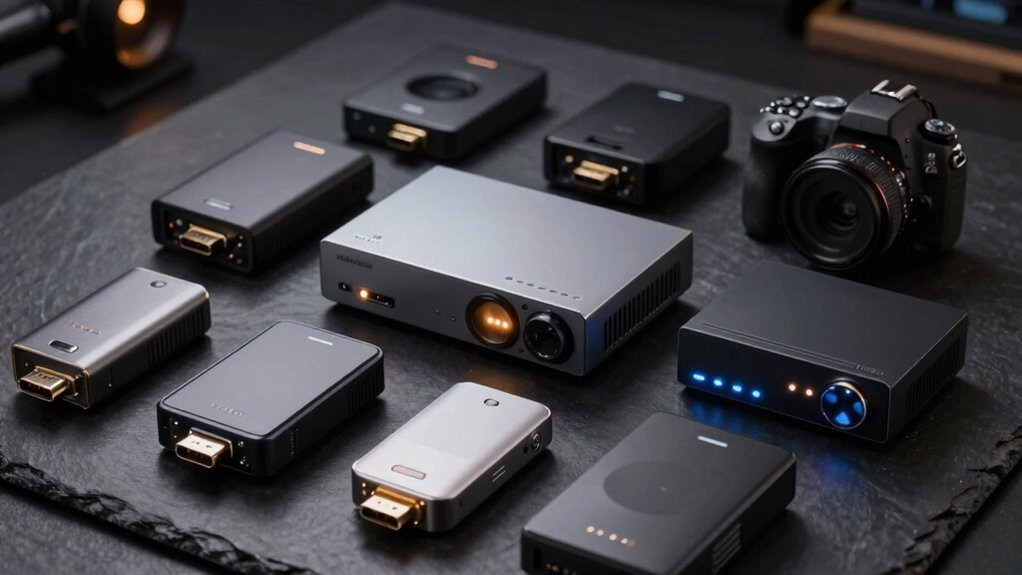

When you’re recording gameplay, streaming events, or capturing multiple video sources, you need an HDMI recorder that handles your specific setup without complications. You’ll find options ranging from standalone units that work independently to PC-based capture cards that integrate with OBS software. Each recorder type offers different advantages—some prioritize 4K quality, others emphasize portability or built-in monitoring. Before settling on one, you should understand which features match your workflow and what technical specs actually matter for your content.
| 4K HDMI Video Capture Card for Gaming & Streaming |
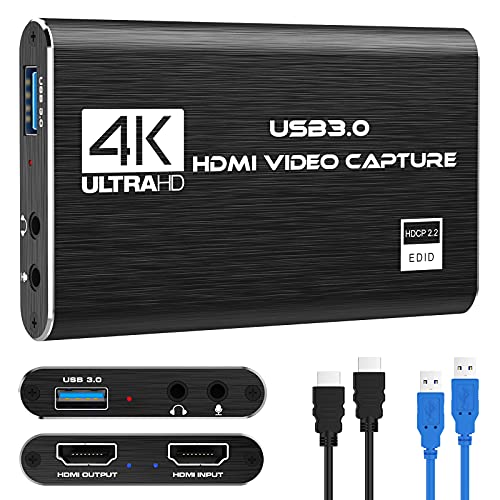
| Best for Streamers | Maximum Input Resolution: 4K30/60Hz | PC Required: Yes | Recording Output Format: Live stream only (no local recording) | VIEW LATEST PRICE | Read Our Analysis |
| ClonerAlliance Box Pro 1080p Video Recorder HDMI Capture |
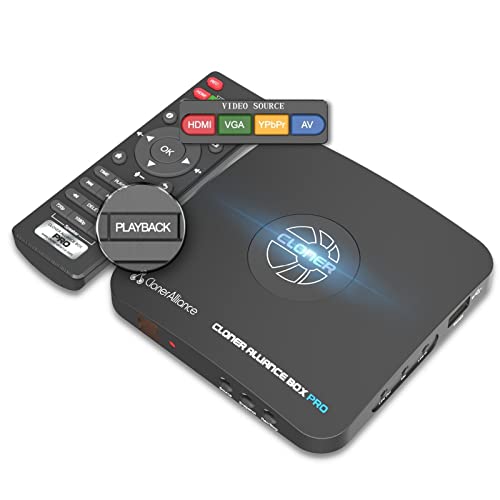
| Best for Archiving | Maximum Input Resolution: 1080p60 | PC Required: No (standalone) | Recording Output Format: MP4 | VIEW LATEST PRICE | Read Our Analysis |
| Guermok 4K USB3.0 HDMI Video Capture Card |
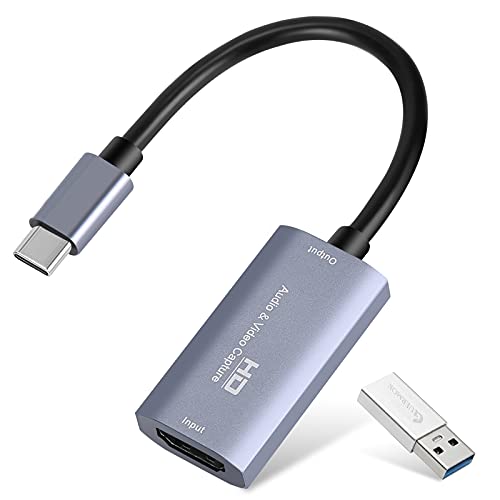
| Most Portable | Maximum Input Resolution: 4K30Hz | PC Required: Yes | Recording Output Format: Live stream or local recording | VIEW LATEST PRICE | Read Our Analysis |
| ClonerAlliance UHD Pro 4K Video Recorder HDMI Capture |

| Best 4K Recorder | Maximum Input Resolution: 4K60Hz | PC Required: No (standalone) | Recording Output Format: MP4 | VIEW LATEST PRICE | Read Our Analysis |
| 1080P HDMI Video Capture Card for Gaming Consoles |
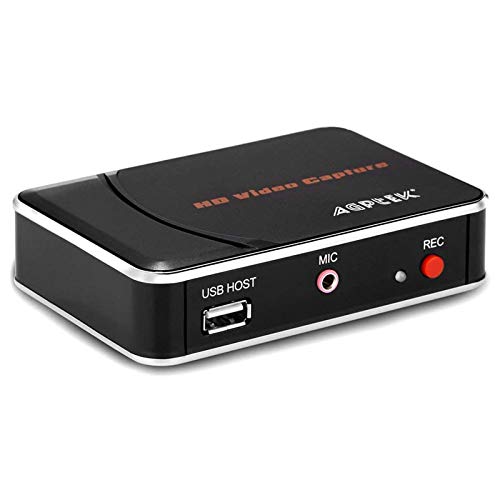
| Simplest Setup | Maximum Input Resolution: 1080p | PC Required: No (direct USB recording) | Recording Output Format: USB/HDD storage (format unspecified) | VIEW LATEST PRICE | Read Our Analysis |
| 4K60 Video Capture Box with 7 Inch Screen |

| Best Multi-Input | Maximum Input Resolution: 4K60Hz | PC Required: No (standalone with optional PC) | Recording Output Format: MP4 | VIEW LATEST PRICE | Read Our Analysis |
| SoundBeast 4K HD Video Capture Box with LCD Display |

| Best Budget Option | Maximum Input Resolution: 4K30Hz or 1080p60 | PC Required: No (standalone) | Recording Output Format: MP4 | VIEW LATEST PRICE | Read Our Analysis |
| Papeaso 4K HDMI Video Capture Card for Gaming |

| Most Versatile | Maximum Input Resolution: 4K60Hz | PC Required: Yes | Recording Output Format: Live stream or local recording | VIEW LATEST PRICE | Read Our Analysis |
| 4K HDMI Video Recorder with DVR and Playback |

| Best Standalone Device | Maximum Input Resolution: 4K30fps | PC Required: No (standalone) | Recording Output Format: External USB/TF card storage | VIEW LATEST PRICE | Read Our Analysis |
| 4K 60FPS Portable Video Recorder Capture Card |

| Most Compact | Maximum Input Resolution: 4K60Hz | PC Required: Yes | Recording Output Format: TF card storage | VIEW LATEST PRICE | Read Our Analysis |
More Details on Our Top Picks
4K HDMI Video Capture Card for Gaming & Streaming
Why settle for complicated setup when you’re streaming? The Rybozen V316B-FR capture card requires no drivers or external power—just plug it into your USB 3.0 port. Connect your HDMI device (PS4, Xbox, camera, or Nintendo Switch) to the input. The card automatically detects your source and adjusts settings. It captures 1080p at 60fps and outputs up to 2K30Hz through HDMI loop-out, eliminating gameplay delay. Add commentary using the 3.5mm microphone input. Windows and Mac OS both support this device. Use OBS, Twitch, or YouTube for streaming. The lightweight design fits easily in your setup. You’re ready to stream without technical complications.
- Maximum Input Resolution:4K30/60Hz
- PC Required:Yes
- Recording Output Format:Live stream only (no local recording)
- Built-In Display:None
- Primary Form Factor:USB card (compact)
- Operating Systems Supported:Windows, Mac OS
- Additional Feature:Auto-detection, no driver required
- Additional Feature:HDMI loop-out, zero-delay gameplay
- Additional Feature:Mic-in for live commentary
ClonerAlliance Box Pro 1080p Video Recorder HDMI Capture
Need to digitize old VHS tapes, camcorders, or analog recordings? The ClonerAlliance Box Pro converts analog video sources directly to digital MP4 files without requiring a PC. Connect your VCR, camcorder, or set-top box using HDMI, RCA, or Component cables. The device records at 1080p@60fps to USB storage, which you can then play back on your TV. You’ll access schedule recording features for automated captures and enjoy ultra-low latency passthrough under 90ms. The included remote manages playback functions. Note that it doesn’t support Mac systems or HDCP-protected content, and it won’t accept signals from smart TVs or antenna feeds as sources.
- Maximum Input Resolution:1080p60
- PC Required:No (standalone)
- Recording Output Format:MP4
- Built-In Display:None (TV playback via remote)
- Primary Form Factor:Standalone box
- Operating Systems Supported:Windows only
- Additional Feature:Standalone operation, no PC
- Additional Feature:Analog-to-digital conversion support
- Additional Feature:Schedule recording tasks
Guermok 4K USB3.0 HDMI Video Capture Card
The Guermok 4K USB3.0 HDMI Video Capture Card delivers the most portable solution for creators who stream or record from gaming consoles, cameras, and laptops without sacrificing 4K input capability. Simply connect your HDMI source to the card’s input, plug the USB-C adapter into your computer, and launch OBS or your streaming software—no drivers required. The card accepts 4K signals at 30Hz and outputs 1080p at 60fps directly to your hard drive. It works with Windows, Mac, Linux, and Android devices. For PS5 users, disable HDCP in console settings first. The lightweight aluminum design makes it ideal for mobile streaming setups outdoors or at events. Keep the HDMI-to-USB-C direction consistent; reversing the connection may cause signal loss.
- Maximum Input Resolution:4K30Hz
- PC Required:Yes
- Recording Output Format:Live stream or local recording
- Built-In Display:None
- Primary Form Factor:USB card (portable)
- Operating Systems Supported:Windows, Mac OS, Linux, Android
- Additional Feature:Ultra low latency streaming
- Additional Feature:Aluminum alloy heat dissipation
- Additional Feature:USB-C connectivity, portable design
ClonerAlliance UHD Pro 4K Video Recorder HDMI Capture
ClonerAlliance’s UHD Pro captures 4K video directly to external storage without requiring a computer, making it ideal for content creators who need standalone recording flexibility. Connect your HDMI source—gaming consoles, cameras, or set-top boxes—to the device’s input. Select your recording format: H.265 or H.264 codec at up to 30fps. Save files directly to USB storage or TF cards using exFAT or NTFS formatting. The recorder passes through 4K video at 60fps simultaneously, letting you monitor live output. You can pause and resume recordings as needed. Note that HDCP-protected content won’t record, and you should disable Dolby audio and HDR from your source beforehand.
- Maximum Input Resolution:4K60Hz
- PC Required:No (standalone)
- Recording Output Format:MP4
- Built-In Display:None (TV playback)
- Primary Form Factor:Standalone box
- Operating Systems Supported:Windows only
- Additional Feature:Standalone 4K passthrough capture
- Additional Feature:H.265/H.264 codec support
- Additional Feature:Pause/resume recording capability
1080P HDMI Video Capture Card for Gaming Consoles
Looking for straightforward gameplay recording? The MYPIN VG0019-61 captures 1080P video directly from your gaming console without requiring a PC. Connect your HDMI source—Xbox One, PS4, Nintendo Switch, or similar device—to the capture card. Attach a USB drive or external hard drive formatted in FAT32 to store your recordings. Press the button once to start recording, then press again to stop. You can add microphone commentary through the 3.5mm input. Videos save directly to your storage device, supporting drives up to 128GB or hard drives up to 2TB.
- Maximum Input Resolution:1080p
- PC Required:No (direct USB recording)
- Recording Output Format:USB/HDD storage (format unspecified)
- Built-In Display:None
- Primary Form Factor:USB recorder (direct to drive)
- Operating Systems Supported:Windows/Linux/PlayStation
- Additional Feature:Direct USB storage recording
- Additional Feature:One-touch button operation
- Additional Feature:No PC required streaming
4K60 Video Capture Box with 7 Inch Screen
Want to capture and preview multiple video sources simultaneously? The 4K60 Video Capture Box with 7-inch screen handles two HDMI inputs up to 4K60 resolution while outputting 1080p60. You’ll use PIP, POP, or PMP functionality to manage multiple screens on the built-in monitor for real-time preview. Connect your consoles, cameras, or PCs directly to the HDMI inputs. Stream live to your computer via USB using OBS on Windows, Mac, or Linux. Save footage to USB flash drives or hard drives in mp4 format using exFAT, FAT32, or NTFS file systems. Power the device through the included supply or compatible batteries like F550/F750/F970 models.
- Maximum Input Resolution:4K60Hz
- PC Required:No (standalone with optional PC)
- Recording Output Format:MP4
- Built-In Display:7-inch monitor
- Primary Form Factor:Standalone capture box with monitor
- Operating Systems Supported:Windows, Mac, Linux
- Additional Feature:Picture-in-picture, multi-input display
- Additional Feature:Built-in 7-inch preview monitor
- Additional Feature:Battery and power supply
SoundBeast 4K HD Video Capture Box with LCD Display
Need to capture video from multiple sources without spending heavily? The SoundBeast captures 4K at 30 FPS or 1080P at 60 FPS from HDMI sources, plus analog inputs like VHS, DVD, and camcorders. You’ll preview footage on its 5″ LCD screen without needing a computer. Record directly to SD cards, USB drives, or external hard drives in MP4 format. For live streaming, connect via USB to Windows PCs using OBS—Mac isn’t supported. Note that content-protected HDMI sources display as black screens. You’ll receive a remote, charger, HDMI cable, AV adapter, and USB cable. SoundBeast backs everything with a two-year warranty and USA-based support.
- Maximum Input Resolution:4K30Hz or 1080p60
- PC Required:No (standalone)
- Recording Output Format:MP4
- Built-In Display:5-inch LCD
- Primary Form Factor:Standalone capture box with display
- Operating Systems Supported:Windows only
- Additional Feature:Analog and HDMI input
- Additional Feature:Built-in 5-inch LCD display
- Additional Feature:USB streaming via OBS
Papeaso 4K HDMI Video Capture Card for Gaming
The Papeaso 4K HDMI Video Capture Card is the most versatile option for streamers juggling multiple gaming platforms and content types simultaneously. Connect your PS4, Xbox One, Nintendo Switch, or DSLR directly to the device’s HDMI input. The card captures at 1080p60fps with zero lag, then outputs to your PC via USB-C. Install no drivers—simply plug in and launch OBS, VLC, or PotPlayer to begin recording or streaming to Twitch, YouTube, or Facebook. The included USB-C adapter lets you connect to both USB-C and standard USB devices across Windows, Mac, and Linux systems.
- Maximum Input Resolution:4K60Hz
- PC Required:Yes
- Recording Output Format:Live stream or local recording
- Built-In Display:None
- Primary Form Factor:USB card (portable)
- Operating Systems Supported:Windows, Mac OS, Linux, Android
- Additional Feature:No driver installation required
- Additional Feature:USB-C adapter included
- Additional Feature:2-year warranty included
4K HDMI Video Recorder with DVR and Playback
Looking to capture 4K footage without tethering to a computer? The ZowieREC HDMI Recorder lets you record directly to external storage. Connect your HDMI source—camera, gaming console, or set-top box—to the device’s input port. The recorder down-converts 4K to 1080P60 for storage on USB drives, TF cards, or NAS systems. Use the included remote to pause, resume, or schedule recordings. Play back videos instantly on your TV through the loop-out pass-through. This standalone setup requires no PC, making it ideal for content creators needing straightforward capture and immediate playback without software complications.
- Maximum Input Resolution:4K30fps
- PC Required:No (standalone)
- Recording Output Format:External USB/TF card storage
- Built-In Display:None (TV playback via remote)
- Primary Form Factor:Standalone recorder box
- Operating Systems Supported:No PC required
- Additional Feature:Instant TV playback capability
- Additional Feature:Schedule recordings remotely
- Additional Feature:Snapshot functionality included
4K 60FPS Portable Video Recorder Capture Card
Want to record 4K video without hauling bulky equipment? The UNISHEEN UR-M2 delivers compact portability with serious performance. Connect your phone, camera, or gaming console via USB-C using the included Type-C cable. The device captures 4K at 60FPS or 1080p60 with H.264 encoding, balancing quality and file size. Plug it in—no drivers needed. Preview clips instantly on your smartphone through the TF card. Add external audio through the AUX interface for commentary. At just 107 x 60 x 18mm and 0.07kg, you’ll carry professional-grade recording capability anywhere, making it ideal for mobile content creation and live streaming setups.
- Maximum Input Resolution:4K60Hz
- PC Required:Yes
- Recording Output Format:TF card storage
- Built-In Display:None (smartphone preview via TF card)
- Primary Form Factor:Portable USB-C card (smallest)
- Operating Systems Supported:Windows, Mac, Linux, iOS, Android
- Additional Feature:DisplayPort input via USB-C
- Additional Feature:Instant smartphone preview playback
- Additional Feature:AUX audio interface included
Factors to Consider When Choosing HDMI Recorders
When you’re selecting an HDMI recorder, you’ll need to evaluate five critical factors: resolution and frame rate (which determine video quality and smoothness), input and output compatibility (which ensure your recorder connects to your devices), storage and file format (which affect how much you can record and what software can play your files), standalone versus PC-based setup (which influences whether you need a computer to operate the recorder), and latency and performance (which impact real-time monitoring and recording reliability). Each factor directly affects your workflow, so you should prioritize them based on your specific content creation needs. Start by listing your equipment and software requirements, then match those requirements against what each recorder offers.
Resolution And Frame Rate
How do you know which resolution and frame rate combination actually fits your content needs? Start by identifying your output platform. If you’re streaming to social media, 1080p at 60fps typically delivers smooth motion without excessive bandwidth demands. For archival or professional work, 4K at 60fps captures maximum detail, though it requires USB 3.0 or USB-C connections and substantially larger storage. Next, check your source device’s capabilities. Some recorders accept 4K input but downscale to 1080p for actual recording, limiting your final quality. Finally, verify HDCP compatibility. Content protection may restrict certain resolution and frame rate combinations on your specific capture device. Match these three factors—platform requirements, device specifications, and protection constraints—to select your optimal setup.
Input And Output Compatibility
To choose an HDMI recorder that’ll actually work with your setup, you’ll need to match three key components: your source devices, the recorder’s input specs, and your intended output method. First, identify your sources—consoles, cameras, Blu-ray players, or set-top boxes—then verify the recorder accepts that resolution and frame rate. Most devices handle 4K@30/60Hz or 1080p@60/120/144Hz input. Next, check output capabilities, which typically max at 1080p or 2K. Many recorders offer HDMI loop-out or pass-through, letting you monitor content while recording. Finally, consider your workflow: standalone recorders save directly to USB storage without a PC, while others require computer connection for streaming or editing. Match these three elements to your specific needs.
Storage And File Format
Once you’ve confirmed your devices will connect properly, you’ll need to plan for where your recordings actually land and in what format they’ll be saved. Most HDMI recorders save to USB drives, SD cards, or external hard drives using MP4, MOV, or AVI formats. MP4 offers the best compatibility across Windows, macOS, and Linux systems. Storage capacity ranges from 128GB USB drives to 2TB external drives, directly affecting how long you can record continuously. Check your recorder’s supported file systems—FAT32, exFAT, NTFS, MBR, and GPT are common options. Some devices record directly to external storage without needing a PC, while others require computer-based capture. Note that HDCP-protected content may block recording entirely, limiting what you can actually capture from certain sources.
Standalone Versus PC-Based
What matters most to your recording setup—portability and independence, or advanced processing and streaming capabilities?
Standalone recorders give you freedom. They capture directly to USB storage or SD cards without needing a computer, so you can record anywhere and play back immediately on built-in displays. This setup works best if you need low latency and don’t want software dependencies.
PC-based recorders require a computer running software like OBS or XSplit. They excel at real-time streaming and advanced editing workflows but introduce potential latency from software encoding. Choose this route if you prioritize streaming capabilities and post-production flexibility.
Consider your workflow: portable, independent recording suggests standalone devices. Complex streaming and editing needs point toward PC-based systems. Your choice determines your equipment purchases and operational efficiency.
Latency And Performance
How much delay can you tolerate between your source and your recording output? Latency directly affects your workflow. Standalone recorders typically deliver ultra-low latency (under 90ms), writing directly to USB storage without software processing overhead. PC-based capture using OBS introduces additional delay through software processing, making it slower for live situations.
Check your device’s HDMI loop-out capability. Zero-latency passthrough lets you monitor gameplay or live content without noticeable delay during recording. Resolution and framerate impact performance significantly—4K60 inputs require more processing than 1080p60, increasing end-to-end delay.
Consider HDCP protection limitations. Protected content may display a black screen or block capture entirely, affecting your recording functionality.
Match your latency tolerance to your capture method. If you need real-time monitoring, prioritize standalone recorders with passthrough features.
Audio Capture Capabilities
Do you need to add commentary, voiceovers, or external audio to your recordings? Check whether your HDMI recorder includes a 3.5mm mic-in jack. This connector lets you plug in a standard headset or microphone to capture narration alongside your video feed. Some models offer built-in audio capture, while others require separate analog audio inputs. Before purchasing, verify that your recorder supports the audio input method you’ll use. If you plan to capture audio while streaming, confirm the device allows this through its settings or accompanying software. Note that HDCP-protected content may block audio output entirely. You’ll need to disable HDCP protection or use unprotected sources to ensure your audio records successfully alongside your video.
Portability And Form Factor
Once you’ve settled on your audio setup, the physical design of your HDMI recorder becomes your next consideration. Portable models range from pocket-sized devices weighing 70 grams to compact units measuring 3–4 inches per side. Decide whether you need a standalone DVR-style box with internal storage or a lightweight dongle-style capture card. Consider weight carefully: heavier units around 0.4 kg suit stationary setups, while sub-0.1 kg models work better for field recording and handheld use. Evaluate screen options next. Built-in 7-inch preview screens let you monitor footage without a PC, whereas models relying on external HDMI displays demand additional equipment. Finally, check connectivity—USB-C or USB 3.0 interfaces allow direct recording to USB drives or SD cards independently.
Warranty And Support Coverage
Your HDMI recorder’s warranty and support coverage directly affect your long-term costs and peace of mind. Check the warranty duration first—options typically range from 90 days to 2 years. Some manufacturers include replacement services as part of extended coverage, while others offer it separately for an additional fee. Review what conditions the warranty covers, such as dead-on-arrival defects, and identify any exclusions. Examine the return policy window, usually 30 days, and note whether restocking fees apply based on item condition. Determine if the seller provides hassle-free returns or if you’ll follow standard Amazon policies. Compare support options across models to find coverage matching your production schedule and budget requirements.
Final Thoughts
You’ll want to evaluate your specific needs before selecting an HDMI recorder. Consider your resolution requirements (1080p versus 4K), whether you need PC-free recording or streaming integration, and your storage preferences (USB, SD, or built-in drives). Compare pass-through latency, HDCP support, and frame rate capabilities across your top choices. Match these specs to your budget and workflow to find the recorder that fits your content creation demands.

Meet Ry, “TechGuru,” a 36-year-old technology enthusiast with a deep passion for tech innovations. With extensive experience, he specializes in gaming hardware and software, and has expertise in gadgets, custom PCs, and audio.
Besides writing about tech and reviewing new products, he enjoys traveling, hiking, and photography. Committed to keeping up with the latest industry trends, he aims to guide readers in making informed tech decisions.