
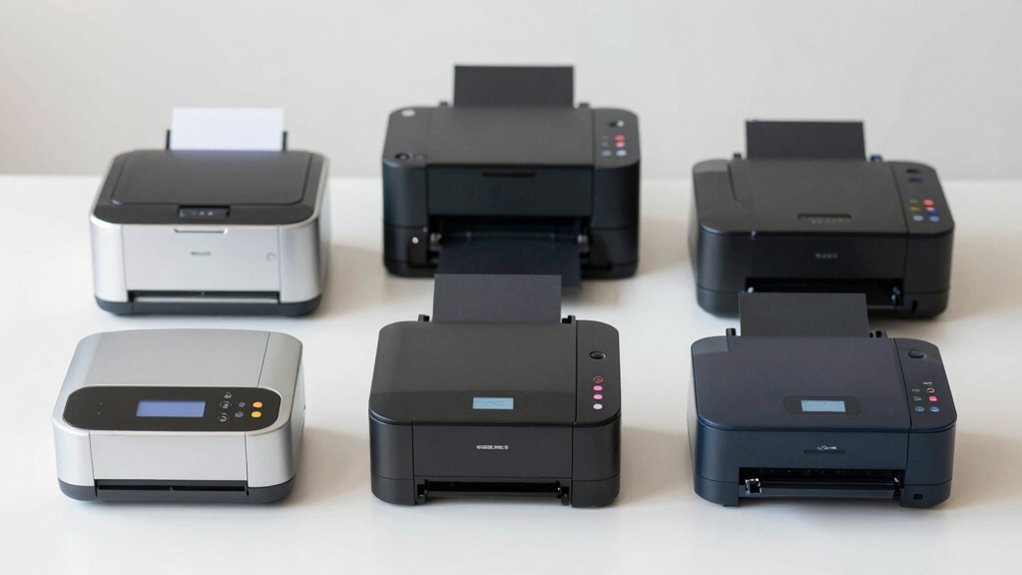

If you’re a Mac user managing shipping labels or package logistics, you’ll need a printer that works seamlessly with your system. You can choose from thermal printers that connect via Bluetooth, USB, or Wi-Fi, each offering different advantages for your workflow. Before deciding which model suits your needs, you should understand what features actually matter most for your specific setup—and we’ve identified six printers that Mac users consistently recommend for reliability and compatibility.
| Bluetooth 4×6 Thermal Label Printer for Shipping Packages |

| Best Overall | Printing Technology: Thermal (no ink) | Label Width Support: 1″ to 4.4″ | Print Resolution: Not specified | VIEW LATEST PRICE | Read Our Analysis |
| JADENS Bluetooth Thermal 4×6 Shipping Label Printer |

| Most Reliable | Printing Technology: Thermal (no ink) | Label Width Support: 1.57″ to 4.1″ | Print Resolution: 203 DPI | VIEW LATEST PRICE | Read Our Analysis |
| Rollo Wireless 4×6 Thermal Shipping Label Printer |

| Fastest Performance | Printing Technology: Direct thermal (no ink) | Label Width Support: 1.57″ to 4.1″ | Print Resolution: 203 DPI | VIEW LATEST PRICE | Read Our Analysis |
| Rollo USB 4×6 Thermal Shipping Label Printer |

| Best Value | Printing Technology: Direct thermal (no ink) | Label Width Support: 1.57″ to 4.1″ | Print Resolution: 203 DPI | VIEW LATEST PRICE | Read Our Analysis |
| Rongta Bluetooth Thermal Shipping Label Printer 4×6 |

| Most Portable | Printing Technology: Direct thermal (no ink) | Label Width Support: 0.98″ to 4.37″ | Print Resolution: Not specified | VIEW LATEST PRICE | Read Our Analysis |
| DYMO LabelWriter 550 Series Label Printer |

| Eco-Conscious Pick | Printing Technology: Direct thermal (no ink) | Label Width Support: DYMO-branded labels only | Print Resolution: Not specified | VIEW LATEST PRICE | Read Our Analysis |
More Details on Our Top Picks
Bluetooth 4×6 Thermal Label Printer for Shipping Packages
If you’re shipping packages regularly and want a printer that works seamlessly with your Mac without complicated setup, the Bluetooth 4×6 thermal label printer delivers what you need. After initial configuration, you’ll print directly via Bluetooth without extra steps. The compact, mobile-phone-sized device prints labels from 1″ to 4.4″ wide, handling 4×6 shipping labels and formats like 3×2, 2×2, and QR codes. You’ll use thermal printing technology, eliminating ink cartridge costs and maintenance. The Label Expert app for Mac lets you create, edit, and import labels from shipping platforms like USPS, ShipStation, and UPS, plus selling platforms including Amazon, eBay, and Shopify. You receive lifetime technical support from LabelRange via phone and email.
- Printing Technology:Thermal (no ink)
- Label Width Support:1″ to 4.4″
- Print Resolution:Not specified
- Mac Connectivity Options:Bluetooth
- E-commerce Platform Compatibility:Amazon, eBay, Etsy, Shopify, PayPal, Poshmark, Whatnot
- Shipping Platform Compatibility:USPS, ShipStation, Shippo, PirateShip, ShipWorks, UPS
- Additional Feature:Feature-rich Label Expert app
- Additional Feature:Lifetime professional technical support
- Additional Feature:No ink cartridges/thermal technology
JADENS Bluetooth Thermal 4×6 Shipping Label Printer
The JADENS Bluetooth Thermal 4×6 Shipping Label Printer (Model JD268BT) works best for Mac users who need wireless label printing without managing ink or toner cartridges. Connect via Bluetooth or USB 2.0 to your Mac running OS 10.9 or later. The printer supports 4×6, 3×3, 3×2, and 2×1 inch labels at 203 DPI resolution, printing 6.57 pages per minute. After inserting fanfold or roll labels, calibrate the label size by long-pressing the feed button. You can print directly from ShipStation, Shopify, Amazon, eBay, or other integrated platforms. The included USB drive contains drivers and setup videos. With one-year warranty and 30-day return guarantee, you get reliable thermal printing for shipping and warehouse operations.
- Printing Technology:Thermal (no ink)
- Label Width Support:1.57″ to 4.1″
- Print Resolution:203 DPI
- Mac Connectivity Options:Bluetooth, USB
- E-commerce Platform Compatibility:Amazon, eBay, Shopify
- Shipping Platform Compatibility:ShipStation, Shipping Easy, Shippo, ShipWorks
- Additional Feature:Japanese high-tech print head
- Additional Feature:Setup calibration after label changes
- Additional Feature:Included problem-solving instructional videos
Rollo Wireless 4×6 Thermal Shipping Label Printer
Need a label printer that works seamlessly with your Mac without requiring drivers or complicated setup? The Rollo Wireless 4×6 Thermal Shipping Label Printer connects via Wi-Fi or USB directly to your Mac. It supports AirPrint from iPhone, iPad, and Mac devices. The printer prints 4×6 labels at 203 DPI resolution at 150 mm/s speed. You’ll get the included Rollo Ship Manager App, which streamlines your mailing process and provides access to exclusive shipping rates through FedEx, UPS, USPS, ShipStation, ShippingEasy, Shippo, and ShipWorks. The thermal printhead lasts approximately 650,000 labels—4x longer than competitor models—making it a durable, cost-effective choice for Mac users handling regular shipping volume.
- Printing Technology:Direct thermal (no ink)
- Label Width Support:1.57″ to 4.1″
- Print Resolution:203 DPI
- Mac Connectivity Options:Wi-Fi, USB, AirPrint
- E-commerce Platform Compatibility:Amazon, Shopify, Etsy, eBay
- Shipping Platform Compatibility:FedEx, UPS, USPS, ShipStation, ShippingEasy, Shippo, ShipWorks
- Additional Feature:AirPrint support for Apple devices
- Additional Feature:650,000 label printing lifespan
- Additional Feature:Rollo Ship Manager App included
Rollo USB 4×6 Thermal Shipping Label Printer
Rollo’s 4×6 thermal printer delivers what Mac-based small businesses need: fast, cost-effective label production without ongoing ink or toner expenses. Connect it via USB, download the drivers, and you’re ready to print. It produces one label per second at 203 DPI resolution, ensuring clear, scannable output. The printer works with major shipping platforms—FedEx, UPS, USPS, ShipStation, and Shopify—plus marketplace integrations. You’ll handle shipping labels, barcodes, and custom stickers through the Rollo app. Label width ranges from 1.57″ to 4.1″, covering most shipping and inventory needs. Setup requires Mac 10.9 or later.
- Printing Technology:Direct thermal (no ink)
- Label Width Support:1.57″ to 4.1″
- Print Resolution:203 DPI
- Mac Connectivity Options:USB
- E-commerce Platform Compatibility:Amazon, Shopify, Etsy, eBay
- Shipping Platform Compatibility:FedEx, UPS, USPS, ShipStation, ShippingEasy, Shippo, ShipWorks
- Additional Feature:Plug-and-play USB connection
- Additional Feature:One 4×6 label per second
- Additional Feature:Custom barcode/QR code creation
Rongta Bluetooth Thermal Shipping Label Printer 4×6
Want a compact, wireless label printer that works seamlessly with your Mac and mobile devices? The Rongta RP425 offers direct thermal printing at 60 labels per minute without requiring ink or consumables. It connects via Bluetooth to your Mac, iPhone, iPad, and Android devices simultaneously—up to three devices at once. Download the RLabel app to your phone or tablet for straightforward mobile printing. On your Mac, install the RP425 driver from the instruction card and pair via Bluetooth. The printer supports label widths from 0.98 to 4.37 inches and works with FedEx, Amazon, Etsy, eBay, and Shopify. Its portable design weighs just 1.25 pounds, making it ideal for small businesses and shipping operations.
- Printing Technology:Direct thermal (no ink)
- Label Width Support:0.98″ to 4.37″
- Print Resolution:Not specified
- Mac Connectivity Options:Bluetooth, USB
- E-commerce Platform Compatibility:Amazon, Etsy, eBay, Shopify
- Shipping Platform Compatibility:FedEx, DHL
- Additional Feature:Multi-device simultaneous connectivity capability
- Additional Feature:Automatic label detection and feed
- Additional Feature:Ultra-portable 1.25 lb design
DYMO LabelWriter 550 Series Label Printer
If you’re managing inventory, organizing supplies, or shipping products regularly on your Mac, the DYMO LabelWriter 550 Series delivers the efficiency you need through its Automatic Label Recognition technology. This printer identifies your loaded DYMO-branded labels automatically, adjusting print settings for optimal alignment and eliminating jams. You’ll reduce label waste by 65% while avoiding misprints. The direct thermal printing technology produces high-quality barcodes, QR codes, images, and text. Install the free DYMO Connect for Desktop software on Mac 10.14 or later, load your FSC-certified labels, and start printing. The printer works exclusively with DYMO-branded labels for consistent, reliable results.
- Printing Technology:Direct thermal (no ink)
- Label Width Support:DYMO-branded labels only
- Print Resolution:Not specified
- Mac Connectivity Options:USB
- E-commerce Platform Compatibility:Not specified
- Shipping Platform Compatibility:Not specified
- Additional Feature:Automatic Label Recognition technology
- Additional Feature:65% reduced label waste
- Additional Feature:Plastic-free label packaging option
Factors to Consider When Choosing a Label Printer for Mac
When you’re selecting a label printer for your Mac, you’ll want to evaluate several key factors: connectivity and compatibility options that match your setup, print speed and resolution quality that fit your volume and precision needs, and label size and format flexibility to handle your various projects. You should also consider whether thermal printing technology benefits your workflow by eliminating ink costs, and confirm that the printer’s software integration and app support work smoothly with your Mac system. These factors work together to determine whether a printer will actually meet your requirements rather than frustrate you with limitations.
Connectivity and Compatibility Options
How you’ll connect your label printer to your Mac matters just as much as the printer itself. Choose between USB, Bluetooth, or Wi-Fi connectivity based on your workspace setup. USB connections require cables but offer stable, straightforward connections. Bluetooth and Wi-Fi enable wireless printing, allowing you to print from anywhere in your office without cables.
Verify that your printer includes a dedicated macOS driver or supports driverless printing through AirPrint. Check the manufacturer’s website for macOS compatibility, noting the minimum operating system version required. Confirm the printer works with your shipping software, whether you use ShipStation, Shippo, Amazon, or eBay. Test compatibility before purchasing to avoid format or driver conflicts that could disrupt your workflow.
Print Speed and Resolution Quality
What speed and resolution do you actually need for your Mac label printer?
Print speed directly affects how many labels you produce per minute. You’ll find speeds ranging from 6 lpm to 7 lpm, with some models hitting 150 mm/s peak performance. Choose higher speeds if you’re processing large shipments regularly; slower speeds work fine for occasional printing.
Resolution quality matters for barcode readability and text clarity. Most Mac-compatible label printers use 203 DPI, which provides sharp barcodes and legible small text on shipping labels. This standard resolution suits virtually all shipping applications.
Direct thermal printing eliminates ink costs but requires monitoring print head wear, which can gradually reduce speed and clarity. Ensure your Mac has proper drivers installed and calibrate label sizes to maintain consistent 203 DPI output quality.
Label Size and Format Flexibility
Once you’ve confirmed your printer delivers the speed and resolution you need, you’ll want to verify it actually prints the label sizes your Mac workflow requires. Look for printers supporting label widths from 1.57 to 4.1 inches to handle 4×6 shipping labels and smaller formats. Check whether your printer accommodates both fanfold and roll labels if you use different packaging workflows. Confirm your Mac’s macOS version works with the printer’s drivers or apps, especially for label size configuration. Test that custom elements—barcodes, QR codes, text, and logos—print at desired sizes without distortion. Verify automatic label size detection features that minimize misalignment when switching between formats. These capabilities ensure your labeling process remains efficient and accurate across varied shipping needs.
Thermal Printing Technology Benefits
Why should you consider thermal printing for your Mac label workflow? Thermal printers eliminate ink and toner costs by using heat to transfer images directly onto special label stock. You’ll only purchase labels themselves, creating significant long-term savings. These printers deliver 203 DPI resolution, ensuring clear text, barcodes, and QR codes that scan reliably every time. Thermal printers support common label widths—4×6 inches for shipping, plus 2×1 to 4.1 inches for various applications—giving you format flexibility. Most models connect via USB or Bluetooth/Wi‑Fi, enabling straightforward setup with your Mac. This combination of reduced consumable costs, high-quality output, versatile label sizes, and easy connectivity makes thermal printing practical for businesses and regular users managing shipping labels and product identification.
Software Integration and App Support
While thermal printers handle the physical printing work efficiently, you’ll also need software that connects your Mac to the printer and manages your label designs. Check if your printer includes native macOS apps or desktop software for designing and editing labels directly on your Mac. Verify compatibility with shipping platforms you use—ShipStation, Shippo, and ShipWorks all support macOS workflows. Confirm the printer supports AirPrint or direct USB/Wi-Fi printing to avoid third-party workarounds. Review whether the manufacturer provides regular driver and firmware updates for macOS to maintain security and performance. These integrations streamline your entire labeling process, from design through printing, keeping everything within your Mac environment without switching between multiple applications or systems.
Wireless Versus Wired Connection
When you’re setting up a label printer for your Mac, you’ll need to decide between a wireless or wired connection—each option has distinct advantages depending on your workflow. Wired USB connections deliver stable, plug-and-play printing with minimal setup required and fewer network complications. You simply connect the printer via USB cable, install the driver package, and start printing. Wireless connections offer flexibility to print from multiple devices without cables, though they typically demand setup apps or pairing steps beforehand. Check whether your printer supports AirPrint for seamless Mac integration or requires specific macOS drivers. For reliability and straightforward operation, choose USB. For device flexibility and cable-free convenience, choose wireless.
Long-Term Cost and Maintenance
After you’ve settled on your connection type, it’s time to evaluate how much you’ll actually spend owning and maintaining your label printer over several years. Thermal printers eliminate ink and toner costs, reducing your consumable expenses significantly. Look for models with 203 DPI print heads and consistent label widths between 1.57–4.1 inches to minimize waste from misprints. Automatic label recognition and auto-feeding features decrease jams and rejected labels, lowering maintenance time and replacement material costs. Check whether your printer uses recyclable label rolls and eco-friendly packaging to reduce long-term disposal expenses. Calculate the total cost by adding upfront purchase price, expected monthly label consumption, maintenance visits, and replacement parts across three to five years of typical use.
Final Thoughts
You’ve reviewed six label printers that work well with Mac systems. Choose based on your connectivity needs—Bluetooth for portability, USB for reliability, or Wi-Fi for flexibility. Consider your shipping volume and software requirements. Rollo offers excellent integration with Shopify and ShipStation. DYMO provides budget-friendly options. Rongta and JADENS deliver solid performance at lower costs. Test your preferred printer’s Mac compatibility before purchasing to ensure smooth workflow integration.

Meet Ry, “TechGuru,” a 36-year-old technology enthusiast with a deep passion for tech innovations. With extensive experience, he specializes in gaming hardware and software, and has expertise in gadgets, custom PCs, and audio.
Besides writing about tech and reviewing new products, he enjoys traveling, hiking, and photography. Committed to keeping up with the latest industry trends, he aims to guide readers in making informed tech decisions.