
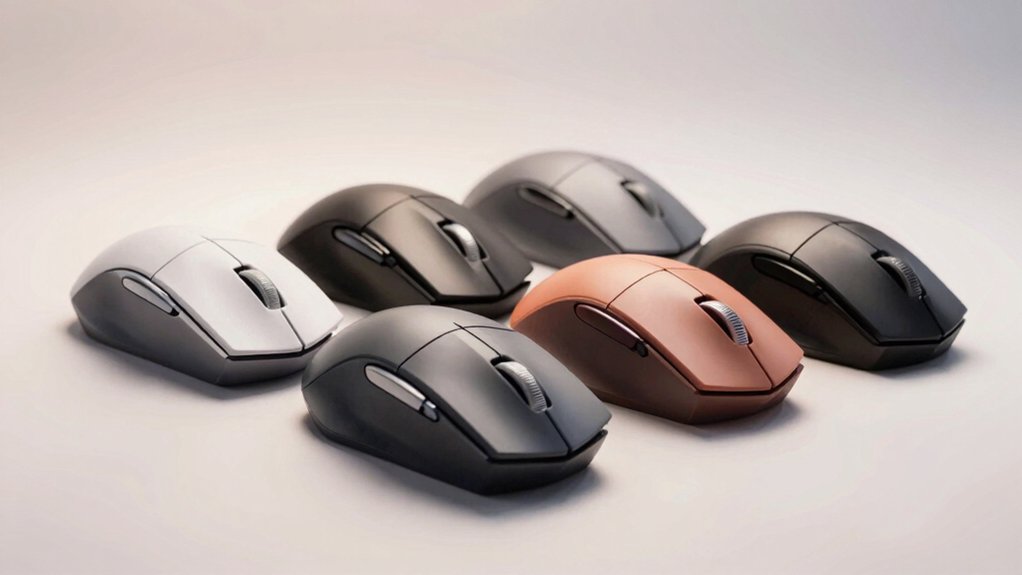

If you spend hours navigating spreadsheets, designing graphics, or switching between applications, your standard mouse is limiting your efficiency. Horizontal scrolling mice let you move left and right without rotating your view, saving you time and reducing wrist strain. You’ve got several solid options available, each with different features and price points. Understanding what each mouse offers will help you choose the right tool for your specific workflow—so let’s examine each one.
| TECKNET Wireless Bluetooth Ergonomic Rechargeable Mouse |

| Best for Multitaskers | Multi-Device Connectivity: 3 devices (2 Bluetooth 5.3/5.0 + 2.4GHz USB-A) | DPI Levels: 6-level DPI (800/1200/1600/2400/3200/4800) | Side Scroll Wheel: Yes (horizontal scrolling for spreadsheets/design) | VIEW LATEST PRICE | Read Our Analysis |
| INFINMIND Wireless Ergonomic Mouse with Multi-Device Support |

| Best Value | Multi-Device Connectivity: 3 devices (2.4G USB + 2 Bluetooth) | DPI Levels: 4-level DPI (1000/1600/2400/3000) | Side Scroll Wheel: Yes (horizontal page scrolling) | VIEW LATEST PRICE | Read Our Analysis |
| Logitech MX Master 3S Wireless Bluetooth Mouse |

| Professional Grade | Multi-Device Connectivity: 3 devices (Bluetooth only) | DPI Levels: 8000 DPI (customizable) | Side Scroll Wheel: Yes (thumbwheel; 7 buttons total) | VIEW LATEST PRICE | Read Our Analysis |
| Acer Ergonomic Wireless Bluetooth Mouse with Side Scroll |

| Best Budget Pick | Multi-Device Connectivity: 3 devices (Dual-mode Bluetooth + 2.4G) | DPI Levels: 4-level DPI (1200/2400/3200/4000) | Side Scroll Wheel: Yes (3-in-1 side scroll with central button) | VIEW LATEST PRICE | Read Our Analysis |
| Acer Ergonomic Wireless Rechargeable Mouse with Side Scroll |

| Best Overall | Multi-Device Connectivity: 3 devices (2.4G + 2 Bluetooth) | DPI Levels: 6-level DPI (800/1200/1600/2400/3200/4800) | Side Scroll Wheel: Yes (side scroll wheel for horizontal navigation) | VIEW LATEST PRICE | Read Our Analysis |
More Details on Our Top Picks
TECKNET Wireless Bluetooth Ergonomic Rechargeable Mouse
Are you juggling work across multiple devices throughout your day? The TECKNET Wireless Bluetooth Ergonomic Rechargeable Mouse handles three devices simultaneously using two Bluetooth 5.3/5.0 connections and one 2.4GHz USB receiver. Press the dedicated button to switch between devices instantly. The side scroll wheel enables horizontal scrolling for spreadsheets and design work. Adjust precision across six DPI levels from 800 to 4800. The rechargeable battery lasts approximately three months with two hours of daily use, charging fully in 1.5 to 2 hours. It’s compatible with Windows, macOS, Chrome, and Linux systems, backed by a 36-month warranty.
- Multi-Device Connectivity:3 devices (2 Bluetooth 5.3/5.0 + 2.4GHz USB-A)
- DPI Levels:6-level DPI (800/1200/1600/2400/3200/4800)
- Side Scroll Wheel:Yes (horizontal scrolling for spreadsheets/design)
- Battery Type:Rechargeable (1.5–2 hour charge time; ~3 months life)
- Ergonomic Design:Metal scroll wheel with durable texture
- Platform Compatibility:Windows, macOS, Chrome, Linux (side scroll not on macOS)
- Additional Feature:Metal scroll wheel with luster
- Additional Feature:Fast 1.5-2 hour charging
- Additional Feature:36-month warranty coverage
INFINMIND Wireless Ergonomic Mouse with Multi-Device Support
If you’re juggling work across multiple devices—switching between your laptop, tablet, and smartphone throughout the day—the INFINMIND Wireless Ergonomic Mouse delivers the connectivity you need without the setup hassle. This mouse connects to three devices simultaneously using 2.4G USB and dual Bluetooth, letting you switch between them with a single button press. The contoured design with soft rubber grips reduces hand fatigue during extended work sessions. You’ll appreciate the side scroll wheel for horizontal page navigation and near-silent clicking for quiet office environments. Battery life reaches twenty months with one AA battery or forty months with two. The mouse works across Windows, Mac, Linux, iOS, and Android without requiring manual system switching, making it ideal for cross-platform workflows.
- Multi-Device Connectivity:3 devices (2.4G USB + 2 Bluetooth)
- DPI Levels:4-level DPI (1000/1600/2400/3000)
- Side Scroll Wheel:Yes (horizontal page scrolling)
- Battery Type:AA batteries (1 battery: 20 months; 2 batteries: 40 months)
- Ergonomic Design:Contoured shape with soft rubber grips
- Platform Compatibility:Windows, macOS, Linux, iOS, Android, Chrome OS
- Additional Feature:AA battery flexibility (1-2)
- Additional Feature:Up to 40 months battery
- Additional Feature:Silent scrolling and clicking
Logitech MX Master 3S Wireless Bluetooth Mouse
The Logitech MX Master 3S works best for professionals who juggle multiple devices and need seamless control across Windows, macOS, Linux, Chrome OS, iPadOS, and Android simultaneously—up to three devices via Bluetooth. You’ll experience precise navigation with its 8K DPI sensor and customizable sensitivity settings. The thumbwheel enables horizontal scrolling for spreadsheets and timelines, while seven programmable buttons adapt to your workflow. MagSpeed scrolling reduces friction by 90%, making navigation 87% more precise. Customize button functions and create app-specific profiles using Logi Options+ software on Windows or macOS. The rechargeable battery provides extended use between charges, and the ergonomic design supports natural wrist positioning during extended work sessions.
- Multi-Device Connectivity:3 devices (Bluetooth only)
- DPI Levels:8000 DPI (customizable)
- Side Scroll Wheel:Yes (thumbwheel; 7 buttons total)
- Battery Type:Rechargeable Li-Po (500 mAh)
- Ergonomic Design:Natural wrist posture; thumb controls
- Platform Compatibility:Windows, macOS, Linux, Chrome OS, iPadOS, Android
- Additional Feature:8K DPI sensor technology
- Additional Feature:FLOW cross-computer file transfer
- Additional Feature:MagSpeed 90% faster scrolling
Acer Ergonomic Wireless Bluetooth Mouse with Side Scroll
Looking for a mouse that supports multiple devices without constant reconnecting? The Acer Ergonomic Wireless Bluetooth Mouse connects to three devices simultaneously using dual-mode Bluetooth and 2.4G wireless. Switch between devices by double-clicking the DPI button to toggle between two Bluetooth modes and one wireless mode. The 59° vertical tilt positions your hand in a natural handshake posture, reducing wrist strain during extended use. Its 3-in-1 side scroll wheel handles horizontal scrolling, zoom functions, and window toggling with single clicks. Four DPI levels—1200, 2400, 3200, and 4000—let you adjust cursor sensitivity for different tasks. Note that this mouse uses AAA batteries, not rechargeable power.
- Multi-Device Connectivity:3 devices (Dual-mode Bluetooth + 2.4G)
- DPI Levels:4-level DPI (1200/2400/3200/4000)
- Side Scroll Wheel:Yes (3-in-1 side scroll with central button)
- Battery Type:AAA batteries (not included; not rechargeable)
- Ergonomic Design:59° vertical tilt for handshake posture (small to medium hands)
- Platform Compatibility:Windows, macOS, Linux, Chrome OS
- Additional Feature:59° ergonomic vertical tilt
- Additional Feature:3-in-1 side scroll wheel
- Additional Feature:Forward/back browsing buttons
Acer Ergonomic Wireless Rechargeable Mouse with Side Scroll
Professionals working with spreadsheets, video timelines, and document layouts will find this mouse’s side scroll wheel especially valuable for horizontal navigation without constantly switching tools. The ergonomic design positions medium to large hands naturally, reducing wrist strain during extended work sessions. You’ll access six DPI levels from 800 to 4800 to adjust cursor speed for different tasks. The rechargeable 500mAh battery connects via USB-C, eliminating frequent battery replacements. Switch between three devices using two Bluetooth connections and 2.4GHz wireless mode through a dedicated button. Forward and backward navigation buttons let you move between applications quickly without reaching your keyboard.
- Multi-Device Connectivity:3 devices (2.4G + 2 Bluetooth)
- DPI Levels:6-level DPI (800/1200/1600/2400/3200/4800)
- Side Scroll Wheel:Yes (side scroll wheel for horizontal navigation)
- Battery Type:Rechargeable (500mAh; USB-C)
- Ergonomic Design:Natural handshake posture (medium to large hands)
- Platform Compatibility:Windows, Chrome OS, Linux, macOS
- Additional Feature:USB-C fast charging capability
- Additional Feature:8 total programmable buttons
- Additional Feature:500mAh high-capacity battery
Factors to Consider When Choosing a Mouse With Horizontal Scroll
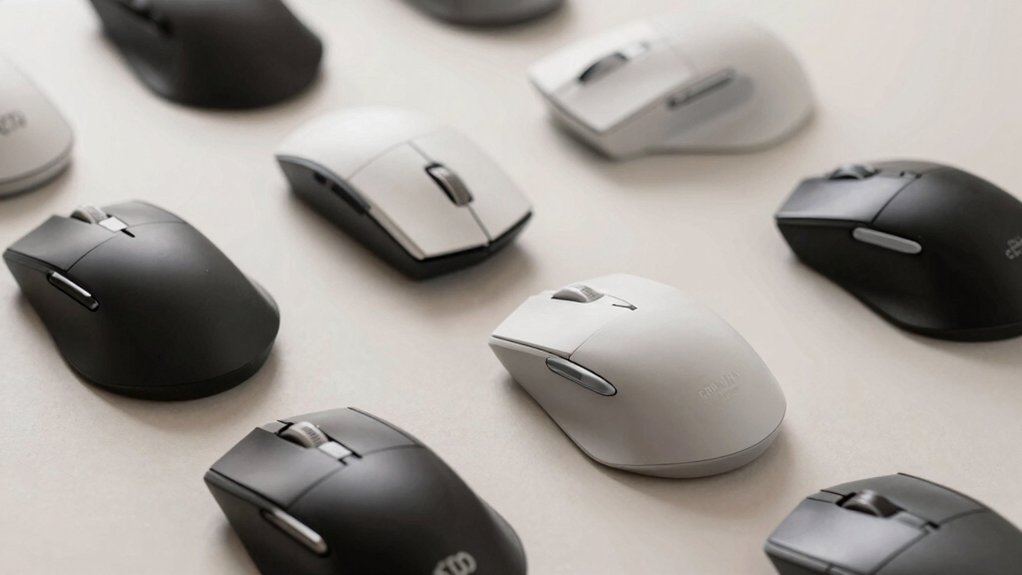
When selecting a horizontal scroll mouse, you’ll want to evaluate five key factors: ergonomic comfort level to reduce strain during extended use, multi-device connectivity options to guarantee compatibility with your computer setup, DPI sensitivity customization to match your preferred cursor speed, battery life duration to minimize charging frequency, and operating system compatibility to confirm the mouse works with your device. Start by testing the mouse’s grip and hand position, then check the software requirements and connectivity types—Bluetooth, wireless dongle, or USB—against your devices. Finally, review the DPI range (typically 800–16,000) and battery specifications to match your workflow demands.
Ergonomic Comfort Level
How much strain does your current mouse put on your wrist and hand during long work sessions? Ergonomic comfort directly affects your ability to work efficiently without pain or injury. Look for mice with contoured shapes that support your palm and forearm during horizontal scrolling. Choose models with soft grips to reduce tension in your fingers and wrist. Consider the weight: lighter mice reduce muscle fatigue during extended use, while heavier options may increase strain. Position the side wheel or thumb wheel within easy reach to minimize finger extension. Test the mouse’s height and width to ensure your hand rests naturally without stretching. Verify that adjustable DPI settings (800–4800 range) allow smooth, controlled movements without compensatory hand strain. These features work together to protect your wrist and hand throughout your workday.
Multi-Device Connectivity Options
Beyond ergonomic support, you’ll want a mouse that connects to multiple devices without constant reconnection hassles. Multi-device connectivity lets you switch between two Bluetooth devices and a 2.4 GHz USB connection simultaneously. Check if your mouse uses a dedicated mode switch or quick-access buttons to cycle among profiles. Some models require companion apps for advanced per-device pairing, while others work plug-and-play without software. USB receivers store inside certain mice, enabling charging-free use. Note that some mice have cross-connection limitations—Bluetooth and 2.4 GHz modes can’t operate together. Determine your workflow needs: if you alternate between laptop and desktop, dual Bluetooth with USB backup offers flexibility. If you need all three connections active simultaneously, verify your specific model supports this feature.
DPI Sensitivity Customization
DPI sensitivity customization controls how far your cursor travels across the screen for each inch you move your mouse, and you’ll find common preset options ranging from 800 to 4800 DPI. Lower DPI settings like 800 or 1200 give you better precision for detailed work, making them ideal for design tasks or spreadsheet navigation. Higher settings like 3200 or 4800 increase cursor speed, which works well for general browsing. Multi-level DPI options let you switch between settings quickly without accessing menus. Most mice display your current DPI through LED indicators or on-screen icons. When using horizontal scrolling in large documents or design applications, moderate DPI settings ensure smooth, controlled panning. Match your DPI choice to your screen size and primary tasks for optimal workflow efficiency.
Battery Life Duration
When you’re selecting a mouse with horizontal scroll functionality, battery life duration should rank high on your priority list since it directly impacts your workflow continuity. Consider your usage pattern first. AA-powered mice deliver 20–40 months for light use, while rechargeable models typically last weeks to months between charges. Evaluate connectivity options next. Bluetooth and 2.4G connections drain batteries differently depending on polling rates and pairing frequency. Check for power-management features like auto-sleep after 10 minutes of inactivity or wake-on-click functions. These features significantly extend operational time. Match the battery type to your workflow. If you work remotely without frequent charging access, AA batteries offer convenience. For office environments with charging stations, rechargeable models provide faster, built-in charging solutions.
Operating System Compatibility
Which operating systems does your mouse need to support? Review the manufacturer’s specifications to confirm compatibility with Windows, macOS, Linux, Chrome OS, iOS, and Android. Check whether side scroll functionality works on all platforms, as macOS sometimes disables this feature. Verify if desktop software is required for advanced customization on specific operating systems only. Test plug-and-play capability without installing software on your target OS to ensure hassle-free setup. Examine OS-specific limitations affecting multi-device profiles or Flow features that may restrict cross-device usage. Document any permissions requirements for your chosen operating systems. Cross-reference your primary devices against the mouse’s supported platforms to confirm full compatibility before purchasing.
Build Quality Materials
How does a mouse’s build quality affect its long-term performance? The materials you choose directly determine durability and comfort during extended use. Look for mice featuring precision metal scroll wheels, which provide smooth, durable scrolling compared to plastic alternatives. Check for reinforced plastics or recycled content materials that resist wear over time. Examine the ergonomic mold design—rigid button housings minimize flex and reduce internal component stress during frequent multi-device switching. Evaluate the side scroll wheel shoulders for sturdiness and reliable actuation, as these handle horizontal scrolling demands. Non-programmable buttons offer predictable mechanical performance with less wear risk from software customization. Test the overall weight in your hand; heavier, quality-constructed mice feel more stable and reliable than lightweight models prone to damage.
Scroll Wheel Functionality
The scroll wheel’s design and mechanism directly determine how effectively you’ll navigate horizontally across spreadsheets, design applications, and wide webpages. You should evaluate whether the mouse offers a dedicated side scroll wheel or additional buttons for horizontal navigation. Test the scroll speed and feel, which depend on DPI settings and the scrolling mechanism—magazine-style precision versus smooth continuous scrolling. Check platform compatibility, as some side wheels don’t function on macOS. Consider mice with central buttons that switch between zoom and horizontal scrolling modes. Assess how adjacent buttons enhance multi-directional workflow. Choose based on your primary platform and whether you need frequent sideways navigation for your specific work tasks.
Warranty Coverage Period
When you’re investing in a mouse with horizontal scroll functionality, warranty coverage period directly impacts your financial protection and long-term value. Most mice offer 1 to 3 years of warranty protection, with some brands providing extended coverage for registered customers. Review each product’s warranty details carefully before purchasing. The Logitech MX Master 3S, for example, includes a 2-year limited hardware warranty. Check whether coverage applies only to hardware defects or includes additional conditions. Verify exact terms during checkout or on the manufacturer’s website, since not all products explicitly list warranty duration in product descriptions. Prioritize mice that specify concrete warranty periods and clearly define what’s covered. This approach ensures you understand your protection if the mouse fails or malfunctions.
Final Thoughts
You’ll improve your workflow by selecting a mouse that fits your specific needs. If you work with spreadsheets, choose the TeckNet or INFINMIND for their 3-in-1 horizontal scrolling. For multitasking, the Logitech MX Master 3S offers programmable buttons. If you need multi-device switching, pick an Acer model. Compare battery life, ergonomic comfort, and your budget. Test the scroll responsiveness before purchasing to ensure it matches your work demands.

Meet Ry, “TechGuru,” a 36-year-old technology enthusiast with a deep passion for tech innovations. With extensive experience, he specializes in gaming hardware and software, and has expertise in gadgets, custom PCs, and audio.
Besides writing about tech and reviewing new products, he enjoys traveling, hiking, and photography. Committed to keeping up with the latest industry trends, he aims to guide readers in making informed tech decisions.