
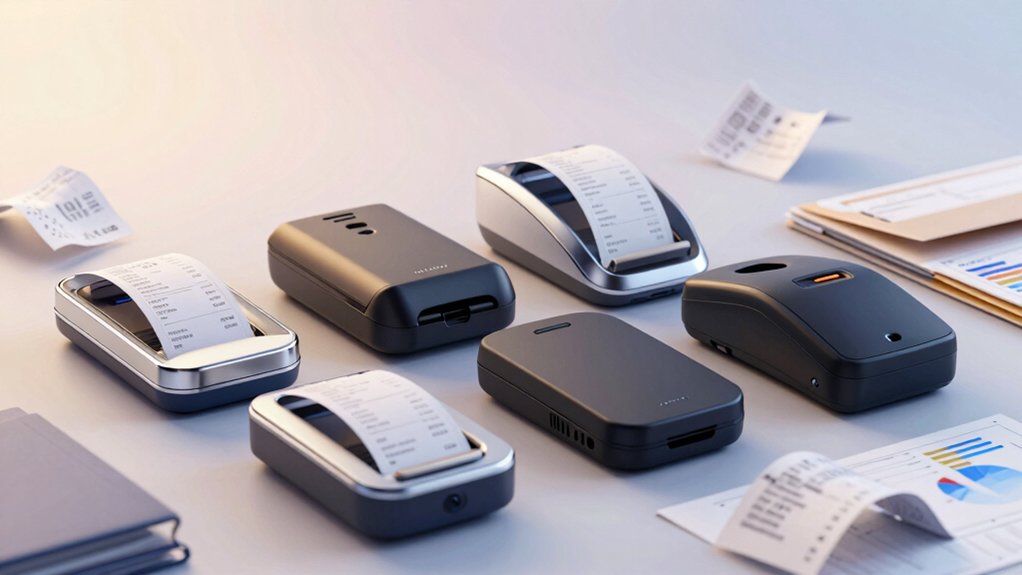

You’ve got receipts piling up, and organizing them manually wastes your time. Receipt scanners convert paper documents into digital files, extracting data automatically so you can categorize expenses without effort. You’ll find five top-performing models that range from compact mobile options to wireless touchscreen versions, each designed to streamline your financial tracking. But which scanner fits your specific needs and budget?
| Brother DS-640 Compact Mobile Document Scanner (Model: DS640) |

| Most Portable | Scanning Speed: Up to 16 pages per minute | Cloud Integration: File, Image, OCR, Email, and cloud services | Power Source: Micro USB 3.0 cable from PC/laptop | VIEW LATEST PRICE | Read Our Analysis |
| Epson WorkForce ES-50 Portable Sheet-Fed Document Scanner for PC and Mac |

| Lightest Option | Scanning Speed: Single page up to 5.5 seconds | Cloud Integration: Scan to cloud | Power Source: USB powered (no batteries/external power) | VIEW LATEST PRICE | Read Our Analysis |
| Epson RapidReceipt RR-60 Mobile Document Scanner |
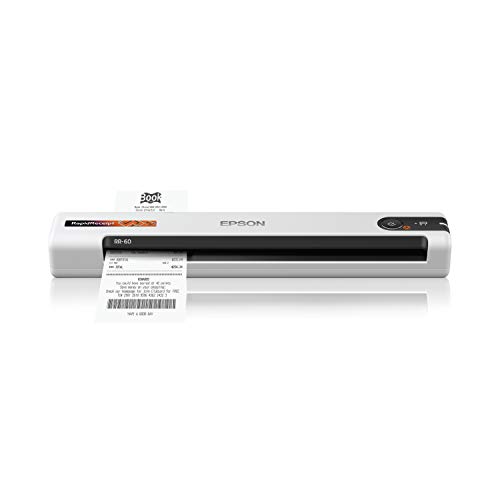
| Best AI Features | Scanning Speed: Up to 10 pages per minute | Cloud Integration: OneDrive, Dropbox, Google Drive via PC/Mac or mobile app | Power Source: USB powered | VIEW LATEST PRICE | Read Our Analysis |
| Epson RapidReceipt RR-70W Wireless Document Scanner |

| Best Wireless | Scanning Speed: Up to 15 pages per minute | Cloud Integration: OneDrive, Dropbox, Google Drive via PC, Mac, or Epson Smart Panel app | Power Source: USB or battery powered | VIEW LATEST PRICE | Read Our Analysis |
| ScanSnap iX2500 Wireless Document Scanner with Touchscreen |

| Fastest Processor | Scanning Speed: 45 pages per minute double-sided | Cloud Integration: Cloud services support with quick menu access | Power Source: Wi-Fi, USB, USB-C connectivity | VIEW LATEST PRICE | Read Our Analysis |
More Details on Our Top Picks
Brother DS-640 Compact Mobile Document Scanner (Model: DS640)
If you’re constantly on the move and need to capture receipts without carrying bulky equipment, the Brother DS-640 delivers portability without sacrificing performance. This compact scanner weighs just 1.5 pounds and fits easily into bags or pockets. It scans at 16 pages per minute in both color and black & white, handling documents up to 72 inches long. The device connects via micro USB 3.0 directly to your PC or laptop—no outlet needed. You’ll access included OCR software to convert receipts into editable Word files, then route scanned documents to cloud services, email, or file storage. Automatic color detection and background removal optimize your receipt images for storage and retrieval.
- Scanning Speed:Up to 16 pages per minute
- Cloud Integration:File, Image, OCR, Email, and cloud services
- Power Source:Micro USB 3.0 cable from PC/laptop
- OCR & PDF Capabilities:OCR and document management software included; convert to editable Word files
- Document Length Support:Up to 72 inches long
- Weight:About 1.03–1.5 pounds
- Additional Feature:Scans plastic ID cards
- Additional Feature:Automatic color detection/adjustment
- Additional Feature:Converts to editable Word files
Epson WorkForce ES-50 Portable Sheet-Fed Document Scanner for PC and Mac
Want a receipt scanner you can take anywhere? The Epson WorkForce ES-50 delivers portability and speed. This lightweight scanner weighs just 9.44 ounces and scans single pages in 5.5 seconds. It handles various documents, including receipts, IDs, and pages up to 8.5 x 72 inches. Connect via USB cable—no batteries needed. Use the included ScanSmart Software to review and save your scans. Nuance OCR converts images into searchable PDFs or editable Word and Excel files. The automatic feeding mode lets you scan multiple pages into one document. It’s compatible with Windows and Mac systems, making it versatile for different setups.
- Scanning Speed:Single page up to 5.5 seconds
- Cloud Integration:Scan to cloud
- Power Source:USB powered (no batteries/external power)
- OCR & PDF Capabilities:Nuance OCR for searchable PDFs and editable Word/Excel
- Document Length Support:Extra-long pages up to 8.5 x 72 inches
- Weight:9.44 ounces
- Additional Feature:Single page in 5.5 seconds
- Additional Feature:Automatic feeding mode
- Additional Feature:Nuance OCR for searchable PDFs
Epson RapidReceipt RR-60 Mobile Document Scanner
The Epson RapidReceipt RR-60 Mobile Document Scanner suits you best if you’re managing receipts and invoices across multiple devices and cloud storage platforms. This USB-powered device weighs under 10 ounces and scans up to 10 pages per minute. ScanSmart AI PRO Technology automatically extracts data and categorizes documents, while HyperClear Technology provides sharp scans with auto-cropping. You’ll export organized information directly to financial software like QuickBooks or TurboTax. The included mobile app lets you scan and save to OneDrive, Dropbox, or Google Drive instantly. Automatic file naming recognizes whether you’re scanning receipts, invoices, or standard documents, streamlining your organization workflow across Windows, Mac, and mobile platforms.
- Scanning Speed:Up to 10 pages per minute
- Cloud Integration:OneDrive, Dropbox, Google Drive via PC/Mac or mobile app
- Power Source:USB powered
- OCR & PDF Capabilities:Create searchable and editable PDFs with included software
- Document Length Support:Long pages up to 8.5 x 72 inches
- Weight:Under 10 ounces
- Additional Feature:ScanSmart AI PRO technology
- Additional Feature:Automatic receipt/invoice categorization
- Additional Feature:HyperClear high-resolution optics
Epson RapidReceipt RR-70W Wireless Document Scanner
For professionals who need to digitize receipts and invoices while staying mobile, Epson’s RapidReceipt RR-70W delivers portability without sacrificing scanning speed or accuracy. This wireless scanner weighs under 11 ounces and scans up to 15 pages per minute at 600 dpi resolution. ScanSmart AI PRO technology automatically extracts data from receipts and invoices, then exports directly to QuickBooks or TurboTax. You can scan to cloud services like OneDrive, Dropbox, or Google Drive using your smartphone, tablet, PC, or Mac. Battery or USB power options keep the device portable for on-the-go use. The scanner handles receipts, invoices, business cards, and documents up to 8.5 by 72 inches.
- Scanning Speed:Up to 15 pages per minute
- Cloud Integration:OneDrive, Dropbox, Google Drive via PC, Mac, or Epson Smart Panel app
- Power Source:USB or battery powered
- OCR & PDF Capabilities:Create searchable, editable PDFs with included software
- Document Length Support:Long pages up to 8.5 x 72 inches
- Weight:Under 11 ounces
- Additional Feature:600 dpi resolution
- Additional Feature:Battery-powered option available
- Additional Feature:AI-ready for Copilot/ChatGPT
ScanSnap iX2500 Wireless Document Scanner with Touchscreen
If you’re handling high volumes of receipts and need them organized automatically, the iX2500 delivers the speed and smart sorting you’re after. This scanner processes 45 pages per minute double-sided, handling 100 documents at once. Its touchscreen lets you select customizable profiles that auto-name and sort files instantly. You’ll send scanned receipts directly to your PC, Mac, mobile device, or cloud service. The brake roller system prevents jams while multi-feed sensors catch stuck pages. Wi-Fi 6 connectivity keeps your wireless transfers stable and secure, eliminating manual filing steps entirely.
- Scanning Speed:45 pages per minute double-sided
- Cloud Integration:Cloud services support with quick menu access
- Power Source:Wi-Fi, USB, USB-C connectivity
- OCR & PDF Capabilities:Automatic document optimization and file organization
- Document Length Support:Standard document handling (no specified length limitation)
- Weight:Not specified
- Additional Feature:Large built-in touchscreen
- Additional Feature:100-page document feeder
- Additional Feature:Multi-feed jam detection system
Factors to Consider When Choosing a Scanner for Receipts
When you’re selecting a receipt scanner, you’ll want to evaluate scanning speed and efficiency to match your volume, consider the device’s portability if you’re scanning on-the-go, and assess its OCR and data extraction capabilities to automatically capture key financial details. Next, check whether the scanner integrates with your preferred cloud storage or accounting software, and verify that it offers automatic file organization features to sort receipts by date, category, or vendor. These five factors will determine how well the scanner fits your specific financial management workflow and budget tracking needs.
Scanning Speed and Efficiency
Prioritize scanning speed when you’re evaluating receipt scanners, since faster processing directly reduces the time you’ll spend capturing your financial documents. Look for models offering 15–45+ pages per minute (ppm), which markedly accelerates daily receipt capture compared to slower 5–10 ppm options. Choose automatic feeding over single-sheet modes for batch processing, especially when handling large receipt stacks. Verify that your scanner maintains consistent performance across both color and monochrome scanning to avoid workflow interruptions. Check for reliable multi-feed detection, which prevents paper jams and processing errors. If you frequently encounter unusually long receipts or documents with extended notes, select a model supporting long-page scanning up to 72 inches. These specifications combined ensure efficient, uninterrupted receipt processing.
Portability and Size Constraints
Once you’ve determined your scanner’s speed and processing power, you’ll want to evaluate how easily you can move and use the device in different locations. Ultra-portable models weigh under one pound and fit inside bags or purses for convenient transport. Check the dimensions—scanners around 1.5 inches thick and just over 11 inches long maximize portability. Consider power options carefully. USB-powered models eliminate outlet dependence, making them ideal for travel. Battery-powered or wireless scanners remove tethering requirements entirely, allowing genuine mobility. Be aware that lightweight designs typically feature single-sheet or small-capacity feeders, requiring you to scan receipts one at a time. Evaluate your scanning location and frequency to determine whether full portability matters for your needs.
OCR and Data Extraction
OCR (optical character recognition) technology transforms your scanned receipts from static images into searchable, editable text—a critical feature if you’re managing multiple expenses or need quick financial retrieval. Look for scanners with integrated OCR software that automatically names, categorizes, and exports data to QuickBooks or Word. Smart OCR features go further by distinguishing receipts from invoices and generating structured data fields ready for accounting import. Cloud-enabled workflows let you store searchable PDFs directly in OneDrive, Google Drive, or Dropbox for instant access anywhere. Verify your scanner uses TWAIN/WIA drivers to ensure compatibility with your PC or Mac’s existing OCR and editing software. This integration streamlines your entire expense management process from scan to financial record.
Cloud Integration Capabilities
How seamlessly can your scanner connect to the cloud services you already use? Check whether your scanner offers direct scan-to-cloud destinations like OneDrive, Google Drive, or Dropbox. Verify that companion apps or web interfaces, such as Epson Smart Panel, enable wireless scanning to these services. Review whether included software can export scanned receipts as searchable PDFs stored in the cloud or shared from cloud folders. Confirm compatibility with cloud-enabled workflows and AI-assisted data extraction that pushes receipt data into cloud-based financial tools. Test that cloud connectivity works across multiple platforms—PC, Mac, and mobile—to ensure seamless cloud backup and retrieval. These capabilities eliminate manual file transfers and keep your receipts accessible anywhere.
Automatic File Organization
Since you’ll likely scan dozens of receipts monthly, you’ll want a scanner that organizes them automatically rather than forcing you to manually name and sort files afterward. Look for scanners with automatic file naming that categorizes documents by type—receipts, invoices, or standard documents. AI-powered data extraction converts receipts into searchable PDFs and structured data, enabling automatic filing without extra effort. Choose a scanner offering cloud-to-local workflows so receipts sync to both cloud storage and your local folders consistently. Document supervisors using OCR technology enhance accuracy by distinguishing receipts from other documents during scanning. These features combine to eliminate manual tagging, reduce filing errors, and keep your financial records organized with minimal intervention after each scan.
Resolution and Image Quality
What resolution do you actually need in a receipt scanner? Aim for at least 600 DPI to capture crisp text and fine details on small print and aging receipts. Higher resolution produces sharper images that OCR software can read more accurately, converting receipt text into searchable, editable documents.
Color depth matters too. Choose 24-bit color at minimum to preserve logos and colored highlights on receipts. Some scanners offer 48-bit color for greater accuracy if you need precise color matching.
Look for automatic color detection and background removal features. These tools reduce noise from smudges and high-contrast marks, improving readability without manual adjustments. Select a scanner with long-page capability—up to 8.5 x 72 inches—to handle extended receipts while maintaining consistent image quality throughout the entire scan.
Power Source Requirements
Your scanner’s power source directly affects where and how you’ll use it. You’ll encounter three main options: USB-powered, battery-powered, and wireless models.
USB-powered scanners draw electricity from your computer or USB hub, requiring you to stay near a compatible device. This limits mobility but eliminates battery concerns. Battery-powered and wireless scanners let you scan receipts anywhere without searching for outlets, making them ideal for frequent travelers. However, you’ll need to recharge them regularly and accept added weight.
Evaluate your habits first. If you scan receipts primarily at your desk, USB-powered works fine. For on-the-go scanning, choose battery or wireless options. Consider whether you’ll tolerate carrying extra weight and performing regular charging maintenance before selecting your scanner.
Software Compatibility and Features
How compatible is a scanner with your existing devices and software? You’ll want to verify driver support—check for TWAIN, WIA, or SANE compatibility with your Windows or Mac system. Next, examine the OCR software included. Look for tools that generate searchable PDFs and export to Word or Excel formats, enabling quick data retrieval. Evaluate cloud integration options: confirm whether the scanner connects directly to OneDrive, Google Drive, or Dropbox. Review the mobile app functionality too. Quality receipt scanners include companion software like Epson Smart Panel, allowing you to scan directly to cloud storage or local applications across PCs, Macs, and phones. Finally, prioritize models featuring AI-powered data extraction and automatic file naming, which categorize receipts without manual renaming. These features streamline your financial organization significantly.
Final Thoughts
You’ll want to match your scanner choice to your specific needs. If you need portability, choose the Brother DS-640 or Epson RapidReceipt models. For wireless convenience, pick the RR-70W or ScanSnap iX2500. Consider your budget, scanning volume, and whether you prefer battery or USB power. Test each scanner’s OCR accuracy and software compatibility with your accounting system before purchasing to ensure seamless financial organization.

Meet Ry, “TechGuru,” a 36-year-old technology enthusiast with a deep passion for tech innovations. With extensive experience, he specializes in gaming hardware and software, and has expertise in gadgets, custom PCs, and audio.
Besides writing about tech and reviewing new products, he enjoys traveling, hiking, and photography. Committed to keeping up with the latest industry trends, he aims to guide readers in making informed tech decisions.