
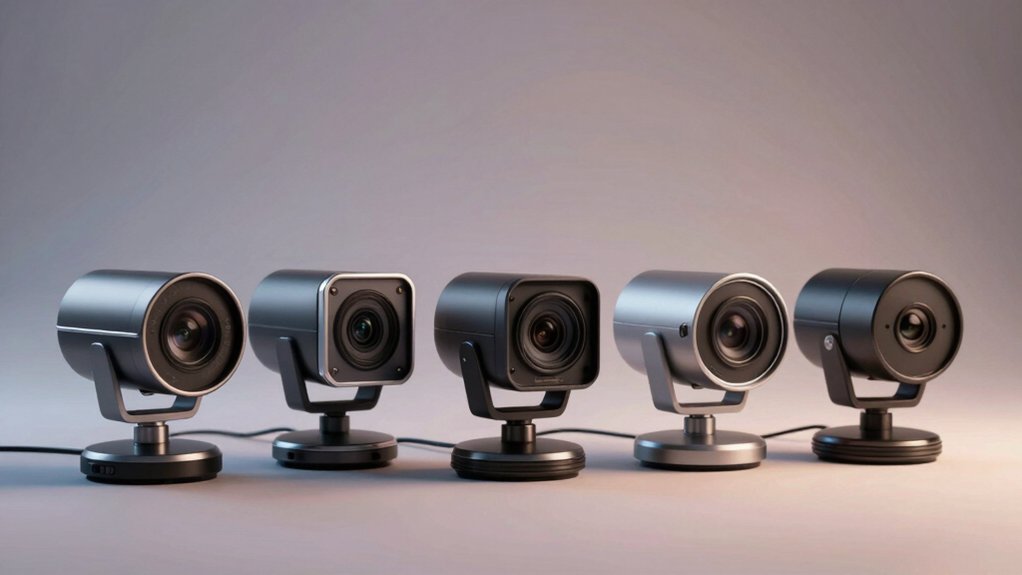

You’ll find that choosing the right webcam for Teams depends on your specific needs—whether you prioritize crystal-clear 1080p video, advanced noise reduction, or 4K quality. Each option offers distinct features that address common video call problems like poor lighting, background noise, and privacy concerns. Understanding what these five webcams deliver helps you decide which one fits your situation best, but the details matter when making your choice.
| Logitech Brio 101 Full HD Webcam with Built-in Mic |

| Best Privacy-Focused | Video Resolution: Full HD 1080p | Built-in Microphone: Built-in microphone with auto sound processing | Privacy Protection: Integrated slide privacy shutter | VIEW LATEST PRICE | Read Our Analysis |
| TRAUSI 1080P HD Webcam with Noise-Canceling Mic |

| Best for Content Creators | Video Resolution: Full HD 1080p | Built-in Microphone: Noise-reducing built-in microphone | Privacy Protection: Privacy cover | VIEW LATEST PRICE | Read Our Analysis |
| NexiGo N60 1080P Webcam with Microphone & Privacy Cover |

| Best Value | Video Resolution: Full HD 1080p | Built-in Microphone: Built-in noise-canceling microphone | Privacy Protection: USB privacy protection cover | VIEW LATEST PRICE | Read Our Analysis |
| Logitech MX Brio Ultra HD 4K Webcam |

| Premium 4K Option | Video Resolution: Ultra HD 4K (4K at 30fps or 1080p at 60fps) | Built-in Microphone: Dual beamforming microphones with AI-assisted clarity | Privacy Protection: Built-in rotating webcam cover | VIEW LATEST PRICE | Read Our Analysis |
| Anker PowerConf C200 2K Webcam for PC/Laptop/Mac |

| Best Low-Light Performance | Video Resolution: 2K Ultra-Clear | Built-in Microphone: Dual microphones with AI noise cancellation | Privacy Protection: Integrated privacy cover with slide mechanism | VIEW LATEST PRICE | Read Our Analysis |
More Details on Our Top Picks
Logitech Brio 101 Full HD Webcam with Built-in Mic
Looking to upgrade your video calls without complicated setup or extra equipment? The Logitech Brio 101 delivers Full HD 1080p video directly through its USB-A connection—no drivers required. Its built-in microphone captures clear audio for Teams, Zoom, and Google Meet. RightLight technology boosts brightness up to 50%, eliminating shadows in poor lighting. You’ll find a privacy shutter that slides closed when you’re not on camera. The device works on Windows, macOS, and Chrome OS. You can adjust framing and zoom through the Logi Options+ app. Made with 77% post-consumer recycled plastic, it combines functionality with sustainability.
- Video Resolution:Full HD 1080p
- Built-in Microphone:Built-in microphone with auto sound processing
- Privacy Protection:Integrated slide privacy shutter
- Platform Compatibility:Windows, macOS, Chrome OS, Nintendo Switch 2
- Setup Type:USB-A plug-and-play with built-in cable
- Auto Image Enhancement:RightLight brightness boost (50%), auto white balance, auto exposure
- Additional Feature:Integrated privacy shutter slide
- Additional Feature:RightLight 50% brightness boost
- Additional Feature:Recycled plastic construction (77%)
TRAUSI 1080P HD Webcam with Noise-Canceling Mic
Need a webcam that handles both crystal-clear video and professional-quality audio without the distraction of background noise? The TRAUSI 1080P HD Webcam delivers 1080P resolution at 30 frames per second, ensuring smooth video during calls. Its noise-canceling microphone filters out ambient sound, keeping your voice crisp in busy environments. Setup requires no drivers—simply plug it into any USB 2.0, 3.0, or 3.1 port on your laptop or desktop. The built-in privacy cover protects your lens when not in use, and automatic light correction adjusts video brightness for any room lighting. This webcam suits webinars, conferences, and team meetings effectively.
- Video Resolution:Full HD 1080p
- Built-in Microphone:Noise-reducing built-in microphone
- Privacy Protection:Privacy cover
- Platform Compatibility:Windows, macOS, multiple devices via USB 2.0/3.0/3.1
- Setup Type:Plug-and-play with no drivers required
- Auto Image Enhancement:Automatic light correction for brightness and color
- Additional Feature:Noise-reducing built-in microphone
- Additional Feature:Automatic light correction technology
- Additional Feature:Wide-angle lens design
NexiGo N60 1080P Webcam with Microphone & Privacy Cover
If you’re juggling multiple video calls across Zoom, Microsoft Teams, or Google Meet and you want a straightforward webcam that’ll work straight out of the box, the NexiGo N60 delivers the essentials without complexity. Plug the USB cable into your computer, and you’re ready within one minute—no driver installation required. The 1080P resolution at 30fps handles video conferencing clearly, while the built-in noise-canceling microphone captures your voice without background interference. The 3.6mm glass lens focuses properly from about 19.6 inches to 13 feet, covering typical desk distances. The included privacy cover blocks the lens when you’re not using it. Windows, Mac, Linux, and Chrome OS all support this webcam, making it compatible with most setups.
- Video Resolution:Full HD 1080p
- Built-in Microphone:Built-in noise-canceling microphone
- Privacy Protection:USB privacy protection cover
- Platform Compatibility:Windows, macOS, Chrome OS, Linux, Android
- Setup Type:USB 2.0/3.0 plug-and-play, no extra drivers
- Auto Image Enhancement:Fixed focus lens optimized for indoor range
- Additional Feature:Glass lens indoor optimization
- Additional Feature:19.6 inches to 13 feet range
- Additional Feature:USB privacy protection cover
Logitech MX Brio Ultra HD 4K Webcam
The Logitech MX Brio Ultra HD 4K Webcam delivers the sharpest video quality you’ll get in a compact form factor, making it ideal for professionals who need crystal-clear footage during video calls and presentations. You can record at 4K 30fps or 1080p 60fps, depending on your needs. The camera features 70% larger pixels and dual beamforming microphones that reduce background noise. You’ll access fine controls through Logitech software to adjust lighting, white balance, ISO, and shutter speed. The built-in privacy cover rotates to block the camera when you’re not using it. Show Mode lets you tilt the camera down to share desk notes and sketches during collaboration. It’s certified for Zoom, Microsoft Teams, and Google Meet, connecting via USB-C to Windows, macOS, and Chrome OS devices.
- Video Resolution:Ultra HD 4K (4K at 30fps or 1080p at 60fps)
- Built-in Microphone:Dual beamforming microphones with AI-assisted clarity
- Privacy Protection:Built-in rotating webcam cover
- Platform Compatibility:Windows, macOS, Chrome OS, Linux, Nintendo Switch 2
- Setup Type:USB-C plug-and-play
- Auto Image Enhancement:AI-enhanced with 2x better face visibility, auto-exposure, auto white balance, noise reduction, autofocus
- Additional Feature:4K at 30fps capability
- Additional Feature:Show Mode desk sharing
- Additional Feature:Dual beamforming microphones
Anker PowerConf C200 2K Webcam for PC/Laptop/Mac
Looking for a webcam that delivers professional video quality without demanding perfect lighting conditions? The Anker PowerConf C200 captures 2K resolution for sharp, detailed video during team meetings. Its dual microphones use AI noise cancellation to keep your voice clear even in busy offices. You’ll adjust the viewing angle to 65°, 78°, or 95° through software settings based on your workspace setup. The webcam performs well in low-light environments without requiring additional lighting equipment. For security, slide the integrated privacy cover over the lens when you’re not on camera. It’s compatible with Windows 7 or later and macOS 10.11 or later, connecting easily to your existing devices.
- Video Resolution:2K Ultra-Clear
- Built-in Microphone:Dual microphones with AI noise cancellation
- Privacy Protection:Integrated privacy cover with slide mechanism
- Platform Compatibility:Windows 7+, macOS 10.11+
- Setup Type:Plug-and-play setup
- Auto Image Enhancement:Superior low-light performance
- Additional Feature:Customizable 65°/78°/95° viewing angles
- Additional Feature:AI Noise Cancellation technology
- Additional Feature:Superior low-light performance
Factors to Consider When Choosing Webcams for Teams
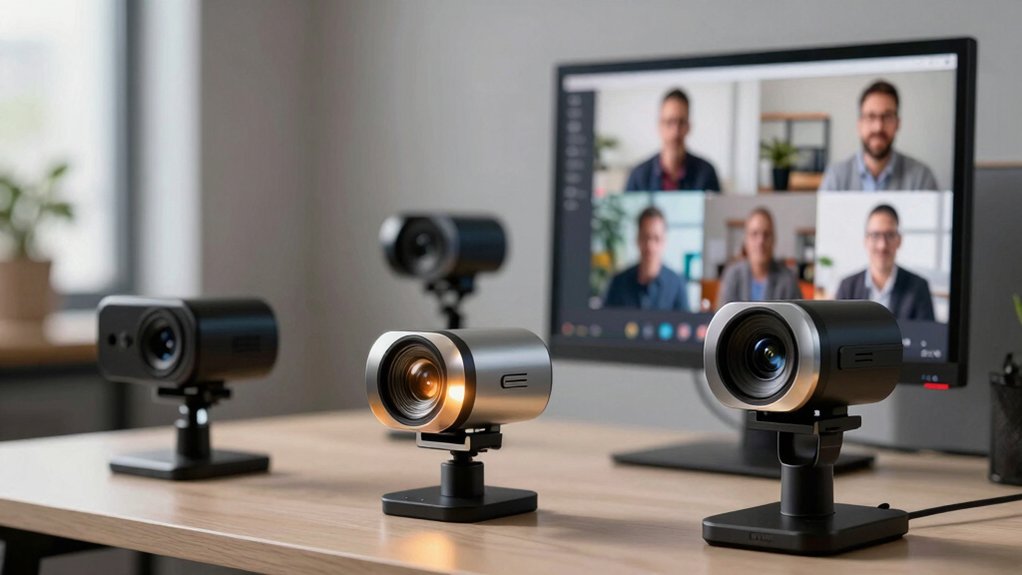
Before you purchase a webcam for your team, you’ll need to evaluate video quality and resolution, audio performance standards, compatibility with your platforms, privacy and security features, and how each option fits your budget. Start by assessing your primary use—whether you’re running daily video calls, conducting presentations, or hosting large meetings—because this determines which specifications matter most. Next, check that your chosen webcam works with your devices and software, review the security protections it offers, and compare prices against the features you actually need rather than paying for unnecessary extras.
Video Quality and Resolution
Why does video quality matter so much for Teams meetings? Better resolution delivers sharper details during presentations and group conversations. You’ll want to choose between 1080p or 4K webcams depending on your needs. 1080p at 60fps reduces motion blur during fast-paced discussions, while 1080p at 30fps works for standard meetings. If you need enhanced detail for zoomed-in faces and slides, consider 2K or 4K options, though they require more bandwidth. Frame rate and exposure controls affect smoothness and brightness in different lighting. Look for webcams with auto white balance and auto exposure features to maintain natural color and brightness automatically across various environments without manual adjustment during meetings.
Audio Performance Standards
What makes audio quality just as critical as video for your Teams calls? Your microphone captures every word you speak, and poor audio can derail even crystal-clear video. Look for webcams with dual microphones and noise-cancellation technology to reduce background sounds during meetings. Check the microphone’s pickup pattern—cardioid patterns focus on your voice while rejecting room noise, whereas omnidirectional patterns pick up sound from all directions. Verify that the webcam includes AI-driven features like automatic gain control and echo cancellation, which enhance intelligibility in noisy environments. Confirm USB plug-and-play compatibility with Teams to ensure low latency and seamless integration. Test sensitivity and frequency response specifications to guarantee your voice reproduces naturally without distortion during calls.
Compatibility and Platform Support
Once you’ve confirmed your webcam delivers excellent audio, you’ll want to verify it works seamlessly with the platforms your team actually uses. Check compatibility with Microsoft Teams, Zoom, and Google Meet by reviewing the manufacturer’s specifications. Confirm cross-platform support for Windows, macOS, ChromeOS, and Linux devices your team relies on. Verify the USB connection type—USB-A or USB-C—matches your equipment, and confirm plug-and-play functionality to avoid driver installation delays. Look for platform-specific certifications like “Certified for Zoom” or “Works with Teams” that guarantee tested compatibility. Finally, confirm that features such as privacy shutters function properly within your conferencing app’s environment. These steps ensure your webcam integrates smoothly into your team’s existing workflow.
Privacy and Security Features
How do you know your camera isn’t recording when you’re not in a meeting? Look for webcams with physical lens covers or sliding shutters that you can close manually. These hardware barriers prevent accidental video capture and give you immediate visual confirmation that the camera is blocked.
Many models include built-in covers as standard components. You simply slide or flip them shut when you’re finished. Some webcams also feature USB privacy covers that provide an additional layer of protection at the hardware level.
Beyond physical barriers, certain models include software indicators on your screen. These show whether your camera is active or disabled. Check your webcam’s settings to enable these prompts. Combined hardware and software features offer the strongest protection for your privacy during work.
Budget and Value Proposition
After you’ve confirmed your camera’s privacy protections are in place, you’ll want to evaluate what you’re actually paying for and whether it matches your needs. Start by comparing resolution options: 720p models cost less but deliver basic clarity, while 1080p offers noticeably sharper video, and 2K/4K provides premium quality at higher prices. Next, assess built-in features that eliminate extra purchases. A webcam with integrated stereo microphones reduces your need for separate audio equipment. Then examine performance capabilities like low-light adjustment and automatic white balance, which improve consistency during varying meeting conditions. Finally, verify plug-and-play compatibility across your devices—Windows, macOS, or Chrome OS—to avoid driver installation costs and deployment delays. This systematic approach ensures you’re investing in features you’ll actually use.
Final Thoughts
You’ll find the right webcam by comparing resolution, microphone quality, and ease of setup. Start with your budget and lighting conditions. If you need basic performance, choose the TRAUSI or NexiGo N60. For premium features, pick the Logitech MX Brio or Anker PowerConf C200. Test privacy features and driver requirements before purchasing. Match your choice to your specific Teams usage needs.

Meet Ry, “TechGuru,” a 36-year-old technology enthusiast with a deep passion for tech innovations. With extensive experience, he specializes in gaming hardware and software, and has expertise in gadgets, custom PCs, and audio.
Besides writing about tech and reviewing new products, he enjoys traveling, hiking, and photography. Committed to keeping up with the latest industry trends, he aims to guide readers in making informed tech decisions.