
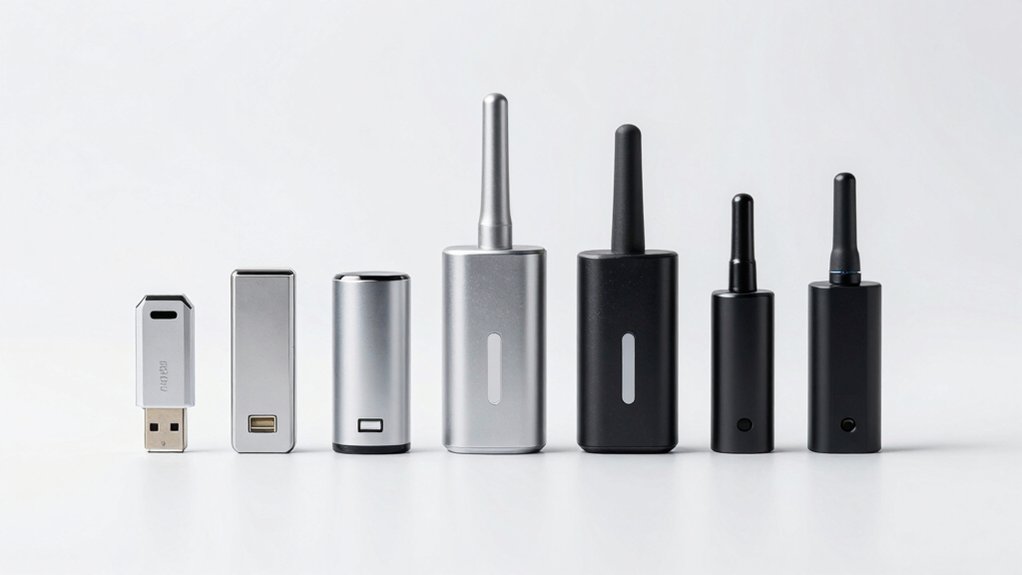

You’ll want to choose a Linux-compatible WiFi adapter carefully to avoid driver headaches after purchase. Start by checking your Linux distribution’s hardware support documentation, then verify the adapter’s chipset compatibility with your system architecture. Look for models with proven kernel support and available drivers before committing to any purchase. The right choice depends on your specific needs—whether you’re prioritizing speed, portability, or network capacity—and each option comes with its own set of tradeoffs.
| BrosTrend AXE3000 Tri-Band WiFi-6E Linux USB Adapter |

| Best Overall | Maximum Speed (Mbps): 3000 Mbps (combined tri-band) | WiFi Standard: WiFi 6E (802.11ax) | Frequency Bands: Tri-band (6GHz, 5GHz, 2.4GHz) | VIEW LATEST PRICE | Read Our Analysis |
| TP-Link USB WiFi Adapter (TL-WN725N) N150 Nano |

| Budget-Friendly Pick | Maximum Speed (Mbps): 150 Mbps | WiFi Standard: WiFi 4 (802.11n) | Frequency Bands: Single-band (2.4GHz only) | VIEW LATEST PRICE | Read Our Analysis |
| BrosTrend AX900 Mini USB WiFi 6 Adapter |

| Most Compact | Maximum Speed (Mbps): 886 Mbps (combined dual-band) | WiFi Standard: WiFi 6 (802.11ax) | Frequency Bands: Dual-band (5GHz, 2.4GHz) | VIEW LATEST PRICE | Read Our Analysis |
| BrosTrend Linux USB WiFi Adapter AC1200 |
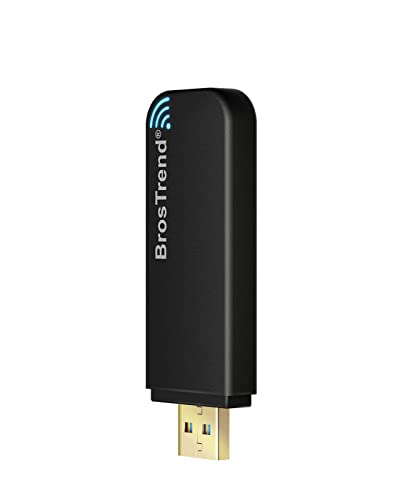
| Best Multi-Distro Support | Maximum Speed (Mbps): 1167 Mbps (combined dual-band) | WiFi Standard: WiFi 5 (802.11ac) | Frequency Bands: Dual-band (5GHz, 2.4GHz) | VIEW LATEST PRICE | Read Our Analysis |
| AC600 Mbps Dual Band USB WiFi Adapter |

| Best Value | Maximum Speed (Mbps): 600 Mbps | WiFi Standard: WiFi 5 (802.11ac) | Frequency Bands: Dual-band (5GHz, 2.4GHz) | VIEW LATEST PRICE | Read Our Analysis |
| Edimax Wi-Fi 4 N150 Nano USB Adapter |

| Plug-and-Play Choice | Maximum Speed (Mbps): 150 Mbps | WiFi Standard: WiFi 4 (802.11n) | Frequency Bands: Single-band (2.4GHz) | VIEW LATEST PRICE | Read Our Analysis |
More Details on Our Top Picks
BrosTrend AXE3000 Tri-Band WiFi-6E Linux USB Adapter
Want a WiFi adapter that works immediately on Linux without driver hunting or kernel compilation? The BrosTrend AXE3000 offers plug-and-play installation on kernel 5.18 and newer across Ubuntu, Fedora, Mint, Debian, Arch, Kali, and Raspberry Pi OS. This USB 3.0 adapter delivers speeds up to 1201 Mbps on both 6 GHz and 5 GHz bands, plus 574 Mbps on 2.4 GHz. Dual adjustable antennas with Beamforming strengthen signal reliability. It supports x86_64, x86_32, aarch64, and armhf architectures, making it compatible with standard PCs, VirtualBox, and Raspberry Pi 2 and newer devices. Access Point mode is available on Linux. The adapter includes a two-year registered warranty.
- Maximum Speed (Mbps):3000 Mbps (combined tri-band)
- WiFi Standard:WiFi 6E (802.11ax)
- Frequency Bands:Tri-band (6GHz, 5GHz, 2.4GHz)
- Form Factor:Full-size USB dongle with dual antennas
- Linux Kernel Requirement:Kernel 5.18+
- USB Interface Type:USB 3.0
- Additional Feature:WiFi-6E 6GHz band support
- Additional Feature:Dual adjustable antennas with beamforming
- Additional Feature:Access Point mode supported
TP-Link USB WiFi Adapter (TL-WN725N) N150 Nano
If you’re running Linux on a desktop computer without built-in WiFi, the TP-Link TL-WN725N offers a straightforward plug-and-play solution that doesn’t require opening your case or dealing with internal hardware installation. This nano-sized adapter delivers N150 speeds up to 150 Mbps on the 2.4 GHz band, covering your entire home. You’ll need to download and install the latest driver from TP-Link’s website for Linux kernel 2.6.18–4.4.3. The adapter supports both ad hoc and infrastructure modes, giving you flexible connection options. Security features include WEP, WPA, and WPA2 encryption standards. TP-Link provides free 24/7 technical support and a two-year warranty, making this budget-friendly option reliable for basic Linux connectivity needs.
- Maximum Speed (Mbps):150 Mbps
- WiFi Standard:WiFi 4 (802.11n)
- Frequency Bands:Single-band (2.4GHz only)
- Form Factor:Nano-size USB dongle
- Linux Kernel Requirement:Kernel 2.6.18–4.4.3
- USB Interface Type:USB 2.0
- Additional Feature:24/7 free technical support
- Additional Feature:Ad hoc and infrastructure modes
- Additional Feature:Mini plug-and-forget design
BrosTrend AX900 Mini USB WiFi 6 Adapter
The BrosTrend AX900 Mini USB WiFi 6 Adapter works best for Linux users who need a compact dongle that won’t block adjacent USB ports and supports a wide range of Debian-based distributions. This adapter delivers dual-band speeds up to 600 Mbps on 5 GHz and 286 Mbps on 2.4 GHz using WiFi 6 technology. Before plugging in the adapter, download and install the Linux driver—an internet connection is required for this step. The adapter supports Ubuntu, Debian, Linux Mint, Zorin OS, and Raspberry Pi OS on both x86 and ARM systems. Note that it isn’t compatible with Arch Linux, Fedora, Pop! OS, or openSUSE distributions.
- Maximum Speed (Mbps):886 Mbps (combined dual-band)
- WiFi Standard:WiFi 6 (802.11ax)
- Frequency Bands:Dual-band (5GHz, 2.4GHz)
- Form Factor:Mini USB dongle
- Linux Kernel Requirement:Kernel up to 6.17
- USB Interface Type:USB 2.0 (backward compatible with USB 3.0)
- Additional Feature:MU-MIMO and BSS Color technology
- Additional Feature:Extremely compact 1.4×0.7×0.3 inches
- Additional Feature:Beamforming for link stability
BrosTrend Linux USB WiFi Adapter AC1200
Looking for a WiFi adapter that supports extensive Linux distributions without driver headaches? The BrosTrend Linux USB WiFi Adapter AC1200 delivers dual-band connectivity across 5GHz (867Mbps) and 2.4GHz (300Mbps). It’s compatible with Linux kernel 6.2 and later, supporting Ubuntu, Debian, Linux Mint, Raspberry Pi OS, Kali, and numerous other distributions. The adapter uses Realtek RTL8812BU or RTL8822BU chipsets and works on x86_64, x86_32, aarch64, and armhf architectures. You’ll get WPA3-SAE encryption, multiple working modes including AP and P2P capabilities, and Windows compatibility as a bonus. Skip RHEL, CentOS, and openSUSE Leap; they’re not supported.
- Maximum Speed (Mbps):1167 Mbps (combined dual-band)
- WiFi Standard:WiFi 5 (802.11ac)
- Frequency Bands:Dual-band (5GHz, 2.4GHz)
- Form Factor:Not specified
- Linux Kernel Requirement:Kernel 6.2+
- USB Interface Type:Not specified
- Additional Feature:Multiple working modes (IBSS, AP, P2P)
- Additional Feature:WPA3-SAE advanced encryption security
- Additional Feature:Supports kernel 6.2+ (Feb 2023)
AC600 Mbps Dual Band USB WiFi Adapter
Need a straightforward WiFi solution that works right away on Linux without complicated setup? The Nipeal AC600 adapter delivers dual-band connectivity at 600 Mbps across 2.4GHz and 5GHz frequencies. Installation requires three steps: obtain the driver from the included mini CD or contact the seller via Amazon message, insert the USB adapter into your PC, and complete the driver installation. This adapter supports Ubuntu 22.04 and Armbian distributions. You’ll receive the USB adapter, antenna, and driver CD in your package. The 30-day return guarantee covers your purchase if compatibility issues arise with your specific Linux system.
- Maximum Speed (Mbps):600 Mbps
- WiFi Standard:WiFi 5 (802.11ac)
- Frequency Bands:Dual-band (5GHz, 2.4GHz)
- Form Factor:Standard USB dongle with antenna
- Linux Kernel Requirement:Kernel 6.6.6 (Ubuntu 22.04)
- USB Interface Type:USB 2.0
- Additional Feature:Soft AP hotspot functionality
- Additional Feature:Bundled mini CD with drivers
- Additional Feature:Broad OS compatibility (Windows/Mac/Linux)
Edimax Wi-Fi 4 N150 Nano USB Adapter
Want a Wi-Fi adapter that plugs directly into your Linux machine without fuss? The Edimax Wi-Fi 4 N150 Nano USB Adapter delivers reliable connectivity with its compact design. This model supports 150 Mbps speeds on 2.4 GHz and works with Ubuntu and Mint on kernel 5.15 and above as plug-and-play. The adapter includes WPA3 and WPA2 security protocols. Its nano size minimizes port obstruction. Check the Edimax website for the latest drivers before installation. For Fedora users, third-party drivers may be necessary. The RTL8188EUS chipset powers dependable performance across multiple Linux distributions.
- Maximum Speed (Mbps):150 Mbps
- WiFi Standard:WiFi 4 (802.11n)
- Frequency Bands:Single-band (2.4GHz)
- Form Factor:Nano-size USB dongle
- Linux Kernel Requirement:Kernel 5.15+
- USB Interface Type:USB 2.0
- Additional Feature:Windows 11/10 plug-and-play
- Additional Feature:WPA3 security support included
- Additional Feature:Smallest N150 adapter available
Factors to Consider When Choosing WiFi Adapters for Linux
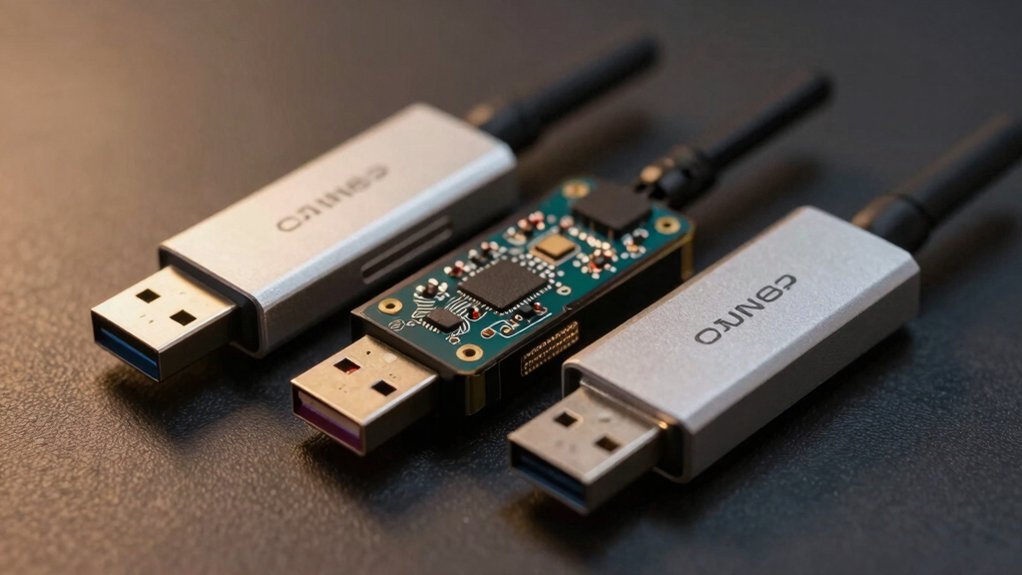
When you’re selecting a WiFi adapter for Linux, you’ll need to verify that it’s compatible with your kernel version, supports your specific Linux distribution, and matches your system’s hardware architecture—whether that’s x86, ARM, or another processor type. Next, check the adapter’s wireless speed specifications against your performance needs, then research the driver installation requirements to understand whether you’ll need to compile drivers from source, use pre-built packages, or rely on built-in kernel support. Taking these five factors into account before purchasing ensures you won’t install hardware that won’t function properly on your system.
Kernel Version Compatibility
Because Linux kernel versions determine whether a WiFi adapter’s driver will load without extra installation steps, you’ll need to verify your system’s kernel version before purchasing or installing any wireless hardware. Check your current kernel by running `uname -r` in your terminal. Many adapters require kernel 5.18 or newer for native driver support, though some models function on older versions. Review the adapter’s documentation to confirm it explicitly supports your exact kernel version and distribution. If your kernel falls below the minimum requirement, you can either upgrade your system or select a different adapter with broader compatibility. For VM users, ensure your virtualization settings expose the device with compatible driver support.
Supported Linux Distributions
Before you buy a WiFi adapter, you’ll need to check whether it’s compatible with your specific Linux distribution and architecture. Manufacturers often list tested distributions like Ubuntu, Debian, Fedora, Arch, and Raspberry Pi OS on their product pages. Your architecture matters too—x86_64 systems differ from ARM-based devices like Raspberry Pi. Visit the adapter’s support page and match your distro and hardware type against the compatibility list. If your distribution isn’t mentioned, contact the manufacturer for confirmation. Some adapters work across multiple distros, while others have strict limitations. Don’t assume compatibility; verify it before purchasing. This step prevents wasted money and installation frustration later.
Wireless Speed And Performance
After you’ve confirmed your adapter works with your Linux distribution, you’ll want to evaluate its wireless speed and performance capabilities. Check whether your adapter supports dual-band (2.4 GHz and 5 GHz) or tri-band (adding 6 GHz) designs, as these reduce interference and provide more bandwidth. Verify the adapter uses modern features like MU-MIMO and Beamforming, which improve throughput on congested networks. Examine the USB interface type—USB 3.0 or 3.1 won’t bottleneck speeds, while USB 2.0 may cap performance. Review the maximum theoretical speed across all bands combined. Confirm your kernel version meets the adapter’s requirements, preferably 5.18 or newer, to access peak speeds. These factors directly impact real-world performance on your Linux system.
Hardware Architecture Support
Your system’s CPU architecture determines which WiFi adapter drivers will function properly, so you’ll need to verify compatibility before purchasing. Check whether your device runs x86_64 or x86_32 for PCs, or aarch64 and armhf for ARM devices like Raspberry Pi. Match these specifications against the adapter’s supported architectures listed on the manufacturer’s website or product documentation. Mismatched architecture means the driver won’t install or operate correctly. Visit your Linux distribution’s hardware compatibility list to confirm support. Contact the adapter manufacturer directly if architecture information isn’t clearly stated. This verification step prevents purchasing incompatible hardware and ensures your adapter functions without installation errors or performance issues.
Driver Installation Requirements
What kernel version does your system run, and does it match your adapter’s minimum requirements? Some adapters need kernel 5.18 or newer for proper functionality. Before plugging in your USB adapter, install the driver software first. This ensures your kernel recognizes the device correctly. Check your adapter’s documentation for distribution-specific drivers or community-maintained options, especially for Raspberry Pi or specialized Linux distributions. Certain models only work officially on select kernels or distros. Visit the manufacturer’s website or community forums to download the correct driver version. Install it using your package manager or compilation instructions provided. After installation completes, plug in the adapter and verify it appears in your network settings. Test connectivity to confirm the driver loaded successfully and all features function as intended.
Dual-Band Versus Tri-Band
Once you’ve confirmed your driver installation and kernel compatibility, you’ll need to decide between dual-band and tri-band adapter models. Dual-band adapters operate on 2.4 GHz and 5 GHz frequencies, delivering reliable performance for everyday use and light interference environments. Tri-band models add a 6 GHz band, offering additional spectrum and reduced congestion in crowded networks. Before selecting tri-band, verify your Linux kernel supports 6 GHz connectivity, as older versions may lack this capability. Tri-band adapters can deliver up to 1200 Mbps on 6 GHz and 5 GHz combined, plus 574 Mbps on 2.4 GHz. Choose dual-band for standard usage and tri-band for high-density networks where modern devices can leverage the extra spectrum effectively.
Physical Size And Design
How you’ll physically interact with your WiFi adapter depends largely on your Linux system’s setup and portability needs. Compact nano-sized adapters minimize port blockage on laptops, while full-size dual-antenna dongles offer better signal strength for stationary setups. Tiny USB sticks fit behind keyboards or in tight spaces, keeping your desk uncluttered. Consider antenna configurations: dual antennas provide flexible placement options, whereas built-in designs stay fixed. Evaluate weight—ranging from 2 to 30 grams—since heavier models become noticeable when plugged in. Low-profile designs reduce snag risk and improve portability on crowded desks. Match the adapter’s form factor to your workspace. If you move your system frequently, choose compact designs. For stationary Linux machines, prioritize antenna performance over size.
Security Protocol Standards
Because WiFi security directly impacts your system’s protection against unauthorized access and data interception, you’ll want to verify that any adapter you choose supports current encryption standards. Check that your adapter handles WPA3-SAE, WPA2, and AES-PSK encryption protocols. Review the driver and kernel compatibility pages to confirm support for WPA3 and 802.11w Protected Management Frames, which prevent downgrade vulnerabilities. Look for adapters offering 802.11i security with per-user key management. If you need seamless roaming between access points, verify IEEE 802.11r support. Examine the manufacturer’s firmware update history and Linux driver documentation for listed security enhancements and patches. Choose adapters with configurable security modes rather than those that default to weaker encryption fallbacks on Linux systems.
Final Thoughts
You’ll want to verify Linux driver support before purchasing any adapter. Check your distro’s documentation and confirm chipset compatibility with your system architecture. Test the adapter’s AP-mode capability if you need it. Prioritize models with WPA3 security and established manufacturer support. Start with USB dongles for flexibility, then upgrade to tri-band options if you’re managing crowded networks. Cross-reference user reviews on Linux forums for real-world performance data.

Meet Ry, “TechGuru,” a 36-year-old technology enthusiast with a deep passion for tech innovations. With extensive experience, he specializes in gaming hardware and software, and has expertise in gadgets, custom PCs, and audio.
Besides writing about tech and reviewing new products, he enjoys traveling, hiking, and photography. Committed to keeping up with the latest industry trends, he aims to guide readers in making informed tech decisions.