
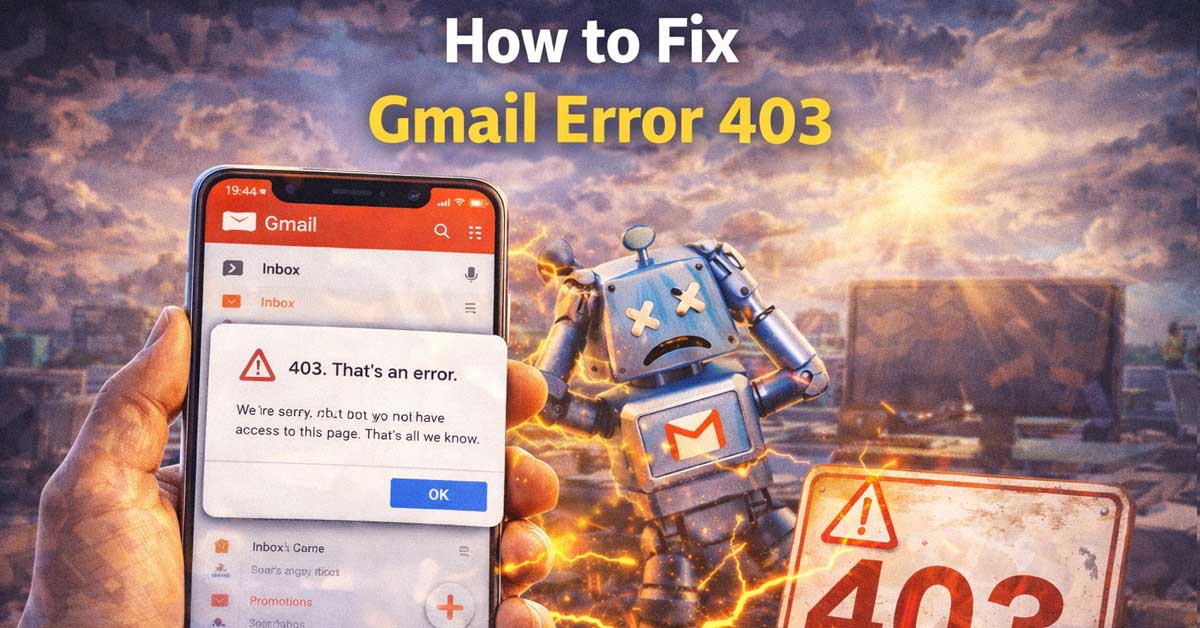

A permissions and access problem — here’s what’s blocking you and how to clear it
A 403 error in Gmail means something different from a 404. Where a 404 says “this page doesn’t exist,” a 403 says “this page exists but you’re not allowed to access it.” It’s a permissions and authorization failure, not a missing resource. In Gmail that distinction matters because it points to a completely different set of causes — and a different set of fixes.
Here’s what’s actually causing it and how to work through it.
What a 403 Error Means in Gmail Specifically
A 403 — Forbidden — occurs when Google’s servers receive your request, understand it, but refuse to fulfill it based on authorization. In Gmail’s context this happens when:
- Your current session isn’t recognized as having permission to access what you’re requesting
- A browser extension or script is sending requests that Google flags as unauthorized
- You’re accessing Gmail through a third-party app or integration that has lost permission
- Your Google account has a security restriction that’s blocking the request
- You’re hitting a rate limit or suspicious activity block that Google has applied to your session
- A Gmail API integration is using expired or insufficient credentials
The 403 is Google saying no — not Google saying it can’t find what you’re looking for. That distinction tells you where to look for the fix.
Start With the Basics
Hard reload the page first. Press Ctrl + Shift + R on Windows or Cmd + Shift + R on Mac. A forced reload bypasses cached resources and sends a fresh request to Google’s servers. If the 403 was caused by a temporary glitch or a stale cached request, a hard reload clears it immediately.
Navigate directly to mail.google.com. Don’t use a bookmark, a shared link, or the back button. Type the URL directly into the address bar and load Gmail fresh. If the 403 only appears when using a specific link or navigating from a specific location, the issue is with that path rather than Gmail itself.
Check your internet connection. An unstable connection can cause incomplete requests that Google interprets as unauthorized. Make sure your connection is stable before deeper troubleshooting.
Sign Out and Sign Back In
This is the most effective first real step for Gmail 403 errors. A 403 in Gmail frequently means your current session token has expired, become invalid, or lost the authorization credentials it needs. Signing out forces a fresh authentication that resolves this.
Click your profile picture in the top right corner of any Google page and select Sign Out. Wait 30 seconds. Navigate back to mail.google.com and sign in again with your full credentials — don’t rely on a remembered session or auto-fill that might restore the problematic session state.
If you’re signed into multiple Google accounts, sign out of all of them rather than just the active one. Multiple simultaneous sessions can create authorization conflicts that produce 403 errors. Sign out of everything, clear your cookies, then sign back into just the account you need.
Clear Browser Cookies and Cache
Corrupted session cookies are a primary cause of 403 errors in Gmail. Your browser stores authentication tokens in cookies — when those tokens become corrupted or out of sync with Google’s servers, requests fail with a 403 because Google doesn’t recognize the authorization they’re presenting.
In Chrome:
Press Ctrl + Shift + Delete, select Cookies and Other Site Data and Cached Images and Files, set time range to All Time, and clear. For a more targeted approach, click the padlock icon next to mail.google.com in the address bar, select Cookies, and remove Google’s cookies specifically without affecting other sites.
In Firefox:
Settings → Privacy & Security → Cookies and Site Data → Manage Data → search for google.com → remove all Google entries.
In Edge:
Settings → Privacy, Search and Services → Clear Browsing Data → Cookies and Cached Data → Clear Now.
After clearing, close the browser completely — not just the tab — reopen it, and log back into Gmail fresh. A complete browser close ensures no stale session data persists in memory.
Check Your Google Account Security Status
A 403 can be triggered by Google’s security systems detecting something unusual about your account or session. Google locks down access when it identifies suspicious activity — logins from new locations, unusual request patterns, or activity that resembles automated tools.
Go to myaccount.google.com/security and check:
Recent security activity. Look for any alerts about suspicious sign-ins or security events. If Google detected something unusual, it may have applied a temporary access restriction that’s causing the 403.
Devices with account access. Review which devices are signed into your account. Revoke access for any devices you don’t recognize or no longer use.
Third-party app access. Go to myaccount.google.com/permissions and review which apps and services have access to your Google account. Any app with outdated or overly broad permissions can generate 403 errors when it tries to access Gmail. Revoke access for apps you no longer use or don’t recognize.
If Google has flagged a security issue, resolve it through the security checkup process. Once the account is cleared, the 403 typically resolves.
Disable Browser Extensions
Extensions that interact with Gmail or modify browser requests are a significant source of 403 errors — particularly extensions that inject scripts into Gmail, modify HTTP headers, or intercept requests between your browser and Google’s servers. Google’s systems can flag these modified requests as unauthorized and return a 403.
Test by opening Gmail in incognito or private mode where most extensions are disabled by default. If Gmail loads without the 403 in incognito, an extension is causing it.
To identify the specific extension, disable all of them in your regular browser window and test Gmail. Re-enable one at a time until the 403 returns — that’s the culprit. Extensions most likely to cause Gmail 403 errors include:
- Email management and productivity tools that hook into Gmail’s interface
- Ad blockers modifying Google’s request headers
- VPN browser extensions routing requests through flagged IP addresses
- Cookie managers interfering with session tokens
- Script injectors and automation tools
Once identified, check for an updated version of the extension — the issue may be a known bug that’s already fixed in a newer release. If no update is available, whitelist Gmail in the extension’s settings or remove it entirely.
Check Third-Party Gmail Integrations
If you use any third-party apps connected to Gmail — CRM tools, email clients, automation platforms, productivity apps — a 403 can mean that integration’s access credentials have expired or been revoked.
This is especially common with:
- Desktop email clients like Outlook, Thunderbird, or Apple Mail connecting to Gmail via IMAP or OAuth
- Automation tools like Zapier or Make connecting to Gmail
- CRM integrations that sync Gmail data
- Browser-based email management apps
For each integration experiencing the 403, disconnect and reconnect the Gmail account through that app’s settings. This forces a fresh OAuth authorization that replaces expired credentials. The process varies by app but typically involves going to the app’s account settings, removing the Gmail connection, and re-authorizing through Google’s standard permission flow.
Gmail API: For Developers and Technical Users
If you’re accessing Gmail through the API and receiving a 403, the causes are more specific and the fixes are targeted.
Insufficient OAuth scopes. Your application may be requesting access to Gmail resources that your OAuth token doesn’t have permission for. Review your application’s requested scopes against what the Gmail API endpoint requires. Common scope issues include requesting read-only access when the operation needs write permission, or missing the specific scope for the Gmail feature you’re accessing.
Service account delegation not configured. If you’re using a service account to access Gmail on behalf of users in a Google Workspace organization, domain-wide delegation must be configured correctly in the Google Admin console. A missing or incorrect delegation setup returns a 403.
Project billing or quota issues. If your Google Cloud project has exceeded its Gmail API quota or has a billing issue, API calls return 403 errors. Check your project’s quota usage in the Google Cloud console under APIs & Services → Gmail API → Quotas.
User hasn’t granted permission. The user whose Gmail you’re trying to access via API hasn’t completed the OAuth consent flow or has revoked your application’s access. Reinitiate the authorization flow for that user.
Check Google Workspace Admin Restrictions
If you’re using Gmail through a Google Workspace account — a work or school account — your administrator may have applied restrictions that are generating the 403. Workspace admins can restrict access to specific Gmail features, third-party integrations, and certain types of requests.
Things an admin can restrict that cause 403 errors:
- Access to Gmail from outside the organization’s network or approved IP ranges
- Third-party app connections to Gmail
- Specific Gmail API functionality
- Access from certain browsers or devices that don’t meet the organization’s device policy
If you’re on a Workspace account and getting 403 errors that don’t appear on a personal Google account, contact your IT administrator. The restriction is on the admin side and you can’t resolve it from your end.
Check Google’s Service Status
Occasionally a 403 in Gmail is caused by a Google-side issue — a misconfigured authorization service, a rolling update that temporarily breaks permission checks, or an infrastructure problem affecting authentication.
Check workspace.google.com/status for any active Gmail incidents. If Google’s authorization or authentication services are listed as degraded or disrupted, the 403 is on their end and will resolve when they fix it. These incidents are typically brief — hours rather than days.
Try a Different Browser or Device
If the 403 persists through all the above steps in your current browser, test Gmail in a different browser or on a different device. If Gmail works without error elsewhere, the issue is specific to your current browser’s configuration — likely corrupted profile data or a persistent extension conflict that a cache clear didn’t fully address.
In Chrome, a corrupted browser profile can cause authorization issues that survive cache clears. Test by creating a new Chrome profile:
Go to the profile icon in the top right → Add → create a new profile → open Gmail in that profile. If the 403 doesn’t appear in the new profile, your original profile has configuration corruption. You can reset it under Settings → Reset Settings → Restore Settings to Their Original Defaults, or migrate to the new profile entirely.
Gmail App on Mobile
For 403 errors in the Gmail mobile app rather than a browser, the approach shifts:
Force close the app completely and reopen it. On iPhone, swipe up from the home bar and swipe the Gmail card away. On Android, use the recent apps button and close Gmail.
Clear the app cache. On Android, go to Settings → Apps → Gmail → Storage → Clear Cache. On iPhone, offload and reinstall via Settings → General → iPhone Storage → Gmail → Offload App, then reinstall from the App Store.
Remove and re-add your Google account. In the Gmail app, tap your profile picture → Manage Accounts → remove the affected account → add it back fresh. This forces a new OAuth authorization and resolves expired session issues.
Update the app. Check Google Play or the App Store for Gmail updates. A 403 caused by an outdated app version resolves immediately after updating.
A Quick Checklist
Work through these in order:
- Hard reload with Ctrl + Shift + R or Cmd + Shift + R
- Navigate directly to mail.google.com
- Sign out of all Google accounts and sign back into just the one you need
- Clear cookies and cache for Google completely
- Check myaccount.google.com/security for security alerts or unusual activity
- Review third-party app permissions at myaccount.google.com/permissions
- Test in incognito mode to identify extension interference
- Disable extensions one by one to find the culprit
- Reconnect third-party Gmail integrations that may have expired credentials
- Check Workspace admin restrictions if on a work or school account
- Check workspace.google.com/status for active Gmail incidents
- Test in a different browser or create a new browser profile
The Bottom Line
Gmail 403 errors point to an authorization failure — your session, your extension, your integration, or your account security status is preventing Google from fulfilling the request. Unlike a 404 which is a routing problem, a 403 means Google received and understood the request but refused it.
Sign out and back in plus a full cookie clear resolves the majority of cases by forcing fresh authentication. The extension audit and third-party integration review handle most of what remains. For Workspace accounts with admin-applied restrictions, the fix lives with your IT department rather than in your browser settings.
A 403 is Google saying no, not Google saying it can’t find what you need — fixing the authorization fixes the error.

Meet Ry, “TechGuru,” a 36-year-old technology enthusiast with a deep passion for tech innovations. With extensive experience, he specializes in gaming hardware and software, and has expertise in gadgets, custom PCs, and audio.
Besides writing about tech and reviewing new products, he enjoys traveling, hiking, and photography. Committed to keeping up with the latest industry trends, he aims to guide readers in making informed tech decisions.