


A settings change on every platform — here’s exactly where to find it
Facebook videos playing automatically as you scroll — with or without sound — is one of the platform’s most consistently complained-about behaviors.
It consumes data, drains battery, creates noise in public places, and makes scrolling feel chaotic.
Turning it off is a straightforward settings change but the location differs between desktop, iPhone, and Android. Here’s exactly where to find it on each platform.
Why Facebook Autoplays Videos
Autoplay is a deliberate engagement mechanic. Videos that start playing as you scroll past them capture attention more effectively than static thumbnails — Facebook’s internal data has consistently shown that autoplay increases video views and time spent on the platform.
From an advertiser’s perspective, autoplay means video ads are more likely to be seen. From a user’s perspective, it’s an interruption you didn’t ask for.
Facebook gives you control over it — but keeps the setting buried enough that most people never find it.

Easily video call with friends and family using your Messenger, WhatsApp or Zoom account, even if they don't have Portal. Smart Camera automatically pans and zooms to keep...
Turn Off Autoplay on Desktop (Browser)
Go to facebook.com and log in. Click the down arrow or your profile picture in the top right corner to open the account menu. Select Settings and Privacy → Settings. In the left sidebar, find and click Videos.
Look for Auto-Play Videos and change the setting to Off.
The change takes effect immediately. Videos in your feed will now display as static thumbnails with a play button — they only start playing when you click them intentionally.

Crystal Clear Sound: This wireless lavalier microphone for iPhone is built with brilliant noise cancellation chips to reduce unpleasant background noise and sponge windscreen to avoid plosives. This lightning & USB C microphone produces crystal clear sound quality and provide optimal video recording experience.
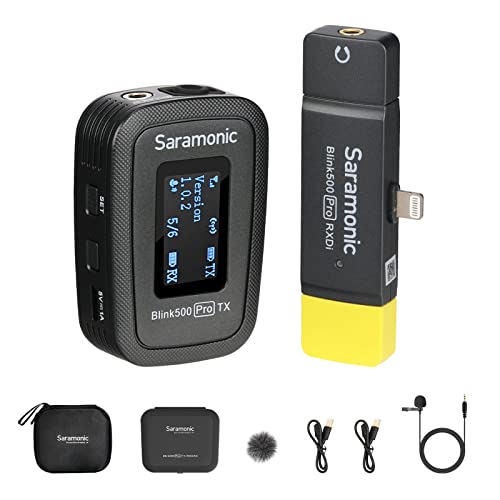
❤ Saramonic Blink500 Pro system -- Incredibly lightweight, ultracompact and easy-to-use wireless lavalier microphone for phone camera 2 person using. Blink500 Pro B3 is with 1 MFi certificated Lightning receiver & 1 transmitter, perfect for iOS iPhone Video Audio Recording Facebook YouTube Podcast Vlog Interview.

Perfect Audio Solution --- The BOYA BY-XM6 is a 2.4GHz adaptive frequency hopping wireless microphone system, consists of one transmitter and one receiver. It’s a perfect sound capturing and delivering solution for one-person vlog, YouTube video, live streaming, interview, recording, teaching etc.
Turn Off Autoplay on iPhone
Open the Facebook app and tap the three lines in the bottom right corner to open the menu. Scroll down and tap Settings and Privacy → Settings. Scroll down to the Media section and tap Videos and Photos or Media Settings depending on your app version.
Find Autoplay and tap it. Select Never Autoplay Videos.
You may also see an option for On Wi-Fi Connections Only — this is a middle ground that stops autoplay on mobile data but keeps it active on Wi-Fi. Selecting Never stops it entirely regardless of connection type.

Easily video call with friends and family using your Messenger or WhatsApp account, even if they don't have Portal.

The new Portal has a 8” HD touch-screen display in a sleek new frame. - Easily video call with friends and family using Messenger and WhatsApp even if they don’t have Portal.
Turn Off Autoplay on Android
Open the Facebook app and tap the three lines in the top right corner. Scroll down and tap Settings and Privacy → Settings. Scroll to the Media and Contacts or Media section and tap Videos and Photos.
Find Autoplay and select Never Autoplay Videos.
Same options as iPhone — Never, On Wi-Fi Only, or Always On. Select Never to stop autoplay completely.
Turn Off Video Sound Separately
Even with autoplay enabled or if you leave it on Wi-Fi only, you can stop videos from playing with sound automatically. This is a separate toggle from autoplay itself.
On desktop: In the same Settings → Videos page, look for Videos Start With Sound and toggle it off.
On iPhone and Android: In the same Videos or Media settings section, look for Videos Start With Sound or Mute Videos by Default and adjust accordingly.
With sound muted, videos may still play visually as you scroll but won’t make noise — a middle ground some people prefer over disabling autoplay entirely.
Why the Setting Sometimes Comes Back
Facebook periodically resets user preferences, particularly after app updates or account changes. If you’ve turned off autoplay before and it’s started again, the setting was likely reset.
Check the setting again after major Facebook app updates. Some users find they need to reapply the preference every few months. It’s worth checking periodically if autoplay behavior returns.
Autoplay in Facebook Watch and Videos Tab
The Videos tab and Facebook Watch section have their own autoplay behavior that’s somewhat independent of the main feed autoplay setting. Even with main feed autoplay off, videos in the dedicated Watch section may still autoplay as they’re designed for continuous viewing.
The main feed setting is the most impactful one for everyday scrolling. If you specifically use Facebook Watch and want to control autoplay there, the behavior is more like a streaming platform — each video plays, then the next queues automatically — and is less configurable than the main feed setting.
Data Savings Mode as an Alternative
If reducing data usage is your primary concern rather than the distraction of moving video, enabling Facebook’s Data Saver mode reduces video quality and limits autoplay as a side effect.
On the mobile app, go to Settings and Privacy → Settings → Videos and Photos and look for Data Saver mode. Enabling it reduces the quality and frequency of autoplay as a data conservation measure — not quite as complete as turning autoplay off entirely but useful if you want both data savings and reduced autoplay behavior.
A Quick Reference by Platform
| Platform | Path to Setting |
|---|---|
| Desktop | Settings and Privacy → Settings → Videos → Auto-Play Videos → Off |
| iPhone | Menu → Settings and Privacy → Settings → Media → Autoplay → Never |
| Android | Menu → Settings and Privacy → Settings → Media → Autoplay → Never |
The Bottom Line
Stopping Facebook autoplay is a one-time settings change that takes under a minute on any platform. The setting is in the Videos or Media section of Facebook’s settings — accessible through the main menu on mobile and through Settings on desktop.
The most complete solution is setting Autoplay to Never and also disabling Videos Start With Sound — the first stops videos from playing at all, the second ensures that if autoplay somehow reactivates after an update, at least it won’t make noise.
Facebook turns autoplay on by default because it benefits engagement — turning it off takes one settings change and gives you back control of your feed.
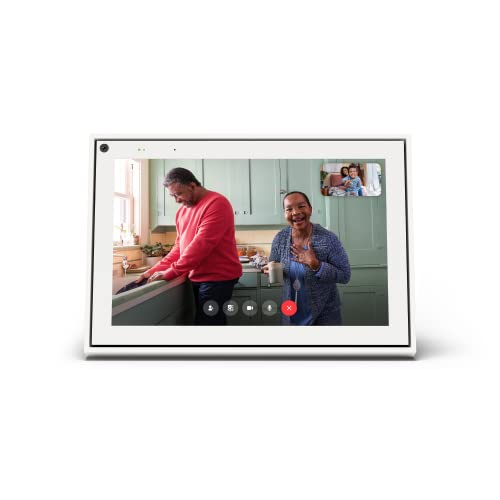
A more natural connection. Smart Camera adjusts automatically so you can move freely and stay in frame, while Smart Sound ensures you can easily be heard.

Move and talk freely with Smart Camera: With Smart Camera, you don’t have to worry about being out of frame. Whether you’re moving around the kitchen, prepping dinner or chasing the kids through the living room, Smart Camera adjusts to follow the action. And as more people enter a room, Smart Camera automatically widens to keep everyone in view, so you don’t miss a moment
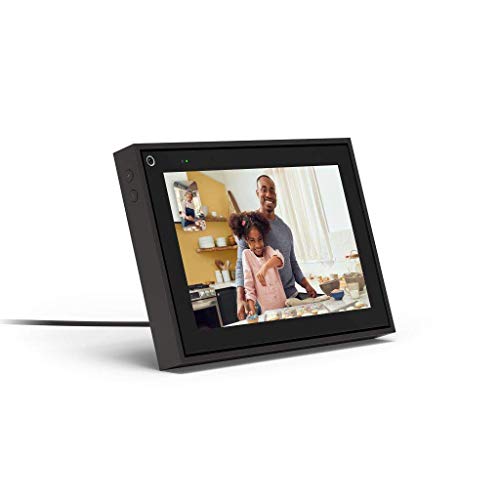
Easily video call with friends and family using your Messenger or WhatsApp account, even if they don't have Portal.

Meet Ry, “TechGuru,” a 36-year-old technology enthusiast with a deep passion for tech innovations. With extensive experience, he specializes in gaming hardware and software, and has expertise in gadgets, custom PCs, and audio.
Besides writing about tech and reviewing new products, he enjoys traveling, hiking, and photography. Committed to keeping up with the latest industry trends, he aims to guide readers in making informed tech decisions.