
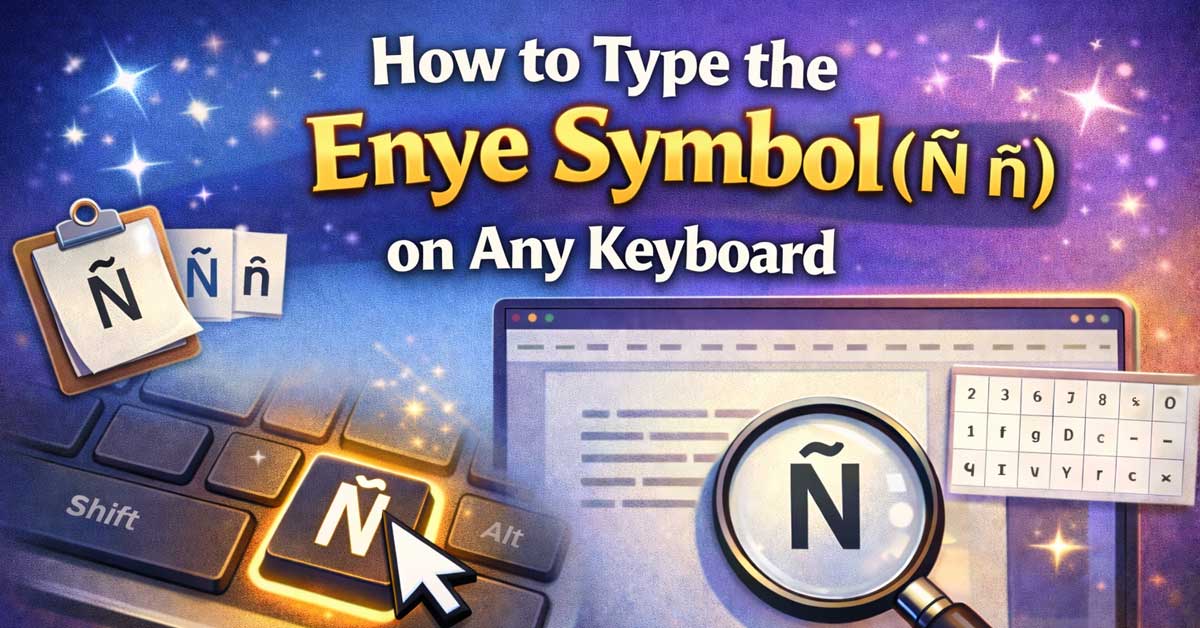

The enye — the letter N with a tilde (Ñ ñ) — is one of the most recognizable characters in the Spanish alphabet. It represents a distinct sound, carries its own place in the alphabet between N and O, and cannot simply be replaced with a plain N without changing the meaning of a word entirely. This guide covers every way to type Ñ and ñ on any device and platform.
What Is the Enye?
The enye Ñ ñ is the 15th letter of the modern Spanish alphabet. Its name comes from the word eñe — the Spanish name for the letter itself. The tilde (~) above the N evolved in medieval Spanish manuscripts as a scribal shorthand: monks copying texts would write a small N above another N to indicate a doubled NN sound, which over centuries compressed into the tilde mark we use today.
The sound it represents — a palatal nasal, written /ɲ/ in the International Phonetic Alphabet — does not exist as a standalone letter in English, though it appears in words borrowed from Spanish like canyon (from cañón) and piñata.
The enye appears in:
| Language | Example Words |
|---|---|
| Spanish | año (year), mañana (tomorrow), niño (child), señor (sir) |
| Filipino (Tagalog) | Iñigo, Niño, ñoño |
| Galician | señor, España |
| Basque | ñabarra, ñiñi |
| Breton | borrowed usage in loanwords |
| Guaraní | ñande (our), ñu (field) |
| Symbol | Name | Unicode |
|---|---|---|
| Ñ | Latin capital letter N with tilde | U+00D1 |
| ñ | Latin small letter n with tilde | U+00F1 |

💻 ✔️ EVERY ESSENTIAL SHORTCUT - With the SYNERLOGIC Mac OS Reference Keyboard Shortcut Sticker, you have the most important shortcuts conveniently placed right in...
How to Type Enye on Windows
Method 1: Alt Code (Fastest on Windows)
Make sure Num Lock is on, hold Alt, type the code on the numeric keypad, then release Alt:
- Alt + 164 → ñ (lowercase)
- Alt + 165 → Ñ (uppercase)
These are among the shorter and more memorable Alt codes — 164 and 165 are easy to commit to memory if you type in Spanish regularly.
For the four-digit versions: Alt + 0241 → ñ and Alt + 0209 → Ñ. Both sets work on most Windows systems.
Method 2: Unicode Input (Microsoft Word)
- Type the Unicode code point:
- 00F1 for ñ
- 00D1 for Ñ
- Immediately press Alt + X
- Word converts it instantly
Method 3: Copy and Paste
Copy directly from this page and paste anywhere: ñ Ñ
Works in every browser, app, text field, and document editor.
Method 4: Character Map
- Open Start and search “Character Map”
- Search for “n with tilde” or “enye”
- Select ñ or Ñ
- Click Select, then Copy
- Paste into your document
Method 5: Windows Emoji Panel
- Press Windows key + . (period)
- Go to the Symbols tab
- Search for “tilde” or “enye”
- Click to insert
Method 6: Add a Spanish Keyboard Layout
For regular Spanish typing, switching your keyboard layout is the most natural long-term solution:
- Go to Settings > Time & Language > Language & Region
- Click Add a language and choose Spanish
- Switch layouts using Windows key + Space
- On a Spanish keyboard layout, ñ has its own dedicated key — typically to the right of the L key

Escritura cómoda: escribe cómodamente y fácilmente en el diseño ergonómico estándar del teclado. También puedes utilizar el mecanismo de inclinación ajustable para posiciones de escritura cómodas. El teclado tiene una vida útil de 10.000.000 pulsaciones de tecla

Spanish Teaching:For those who need Spanish or are not familiar with it, this will be a good choice to help you learn more basic Spanish.

⏩ HOT SWAP SWITCHES: Change, lube or upgrade your switches in an instant using the included tools without soldering.
How to Type Enye on Mac
Method 1: Press and Hold (Easiest)
On macOS, press and hold the N key and a popup appears with accent options. Press 1 or click ñ to insert it.
This is the fastest method and works in every app on macOS with no configuration required.
For uppercase Ñ: press and hold Shift + N and select from the popup, or press Shift after inserting ñ.
Method 2: Option Key Shortcut
Mac has a two-step shortcut for the enye:
- Press Option + N — this types a “floating” tilde accent
- Immediately press N again
- The two combine to produce ñ
For uppercase:
- Press Option + N
- Press Shift + N
- Produces Ñ
This is a classic Mac dead-key sequence — the Option + N acts as an accent modifier rather than producing a visible character immediately.
Method 3: Character Viewer
- Press Control + Command + Space
- Search for “enye” or “n with tilde”
- Double-click ñ or Ñ to insert
Method 4: Unicode Hex Input
- Enable Unicode Hex Input under System Settings > Keyboard > Input Sources
- Hold Option and type 00F1 → ñ
- Or type 00D1 → Ñ
Method 5: Spanish Keyboard Layout on Mac
- Go to System Settings > Keyboard > Input Sources
- Click + and add Spanish
- Switch using the input menu in the menu bar
- On the Spanish layout, ñ has its own dedicated key next to L

Budget Apple Keyboard Replacement: With An Affordable Price & Powerful Features, It Is The Perfect Alternative To Any Mac Keyboard Or Pc Keyboard. You Will Have The Ability To Complete All Tasks For A Fraction Of The Cost.

THE PERFECT COMPANION TO YOUR MAC COMPUTERS & MACBOOKS: With 104 keys, 16 Apple specific shortcut keys, and a numeric pad, our mac wired keyboard is a perfect and sleek external kb match to your Apple device.

Aesthetic and Functional: Elevate your workstation with this 104-key, full-sized keyboard for Mac, featuring a built-in numeric keypad, sleek low-profile body, and responsive scissor-switch keycaps.
How to Type Enye on iPhone and iPad
Method 1: Press and Hold (Built-In — Easiest)
The iOS keyboard supports accent popups natively — no setup needed:
- Press and hold the N key
- A popup row appears showing ñ
- Slide to ñ and release
For uppercase Ñ:
- Tap Shift first to enable caps, then press and hold N
- Or press and hold N and the popup will show Ñ when Shift is active
This is the standard method for the vast majority of iPhone users typing occasional Spanish words.
Method 2: Add a Spanish Keyboard
For frequent Spanish writing, adding the Spanish keyboard gives you a dedicated ñ key:
- Go to Settings > General > Keyboard > Keyboards
- Tap Add New Keyboard
- Select Spanish (choose Spanish – Spain or Spanish – Latin America depending on your preference)
- While typing, tap the globe icon to switch to the Spanish keyboard
- The ñ key appears to the right of the L key, exactly where it sits on a physical Spanish keyboard
Method 3: Text Replacement Shortcut
For a quicker workaround without switching keyboards:
- Go to Settings > General > Keyboard > Text Replacement
- Tap +
- In Phrase, paste ñ
- In Shortcut, type something like
nnornyt - Tap Save
Typing your chosen shortcut will now auto-suggest ñ.
How to Type Enye on Android
Method 1: Press and Hold (Built-In — Easiest)
Like iOS, most Android keyboards support long-press accent popups:
- Press and hold the N key
- A row of variants appears including ñ
- Slide to ñ and release
This works on Gboard and most other major Android keyboards out of the box.
Method 2: Add Spanish to Gboard
- Open Gboard
- Tap the globe icon or go to Gboard Settings > Languages
- Tap Add Keyboard
- Select Spanish
- Tap Done
- Switch to Spanish while typing using the globe icon
- The ñ key will appear on the keyboard as its own dedicated character
Method 3: Personal Dictionary Shortcut
For a quick shortcut without switching keyboards:
- Go to Gboard Settings > Dictionary > Personal Dictionary
- Select your language
- Tap +
- Add ñ as the word and
nnas the shortcut - Tap the checkmark to save
Gboard will suggest ñ whenever you type nn.
How to Type Enye in Microsoft Word
Method 1: Alt + X (Fastest in Word)
Type 00F1 then press Alt + X — Word instantly converts it to ñ. For uppercase: type 00D1 then Alt + X → Ñ
Method 2: Built-In Word Shortcut
Word has a dedicated shortcut for tilde accents:
- Press Ctrl + Shift + ~
- Then press N
- Produces ñ
For uppercase:
- Press Ctrl + Shift + ~
- Then press Shift + N
- Produces Ñ
This is the cleanest method in Word and works regardless of your system keyboard layout.
Method 3: AutoCorrect Setup
Set Word to automatically replace a key sequence with ñ:
- Go to File > Options > Proofing > AutoCorrect Options
- In Replace, type something like
(enye)or~n - In With, paste ñ
- Click Add, then OK
Method 4: Insert > Symbol
- Go to Insert > Symbol > More Symbols
- Set Subset to Latin-1 Supplement
- Find ñ or Ñ
- Click Insert
How to Type Enye in Google Docs
Method 1: Insert > Special Characters
- Go to Insert > Special Characters
- Search for “n with tilde” or “enye”
- Click ñ or Ñ to insert
Method 2: Copy and Paste
Copy ñ or Ñ from this article and paste directly into your Google Doc.
Method 3: Substitutions
- Go to Tools > Preferences > Substitutions
- In Replace, type
~n - In With, paste ñ
- Add a second rule: Replace
~NWith Ñ - Click OK
Google Docs will auto-replace these sequences as you type.
Enye in HTML and CSS
For web developers and publishers building Spanish-language content:
| Character | Named Entity | Hex Entity | Decimal Entity |
|---|---|---|---|
| ñ | ñ | ñ | ñ |
| Ñ | Ñ | Ñ | Ñ |
CSS example:
css
/* Using the enye in generated content */
.spanish-label::after {
  content: "\00F1";
}
Best practice:
ñis one of the original named HTML entities dating back to HTML 2.0, making it universally supported across every browser and platform. Use it freely. If your file is UTF-8 encoded (always include<meta charset="UTF-8">in your<head>), you can also paste ñ directly into your HTML without an entity.
Why the Enye Matters: Never Substitute a Plain N
Unlike some accent marks that are sometimes omitted in informal digital writing, the tilde on the enye is never optional — it changes the letter entirely and with it the meaning of the word. Here are some examples of how critical the distinction is:
| With Ñ | Meaning | Without Ñ | Meaning |
|---|---|---|---|
| año | year | ano | anus |
| mañana | tomorrow / morning | manana | not a word |
| ñoño | bland / square | nono | ninth (ordinal) |
| cañón | canyon | canon | canon / rule |
| pañal | diaper | panal | honeycomb |
| niño | child | nino | godfather |
| señor | sir / mister | senor | not standard |
| dueño | owner | dueno | not a word |
As the table makes clear, dropping the tilde on ñ is not a minor formatting issue — in several cases it produces a completely different word, and in the most notable example (año vs ano), an embarrassing one.
The Enye on a Physical Spanish Keyboard
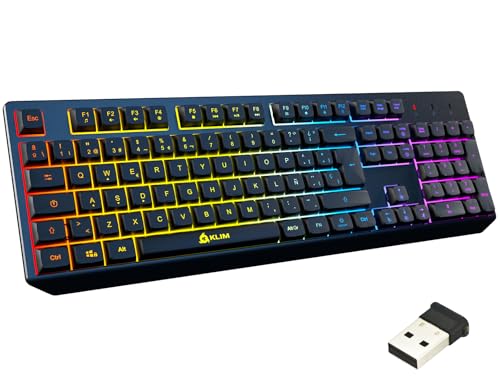
On a physical Spanish keyboard — used throughout Spain and Latin America — the enye is a first-class citizen with its own dedicated key. It sits in the same position as the semicolon key on a US English keyboard: immediately to the right of the L key on the home row.
If you type Spanish regularly, switching to or purchasing a Spanish keyboard layout is the single biggest quality-of-life improvement you can make. Spanish keyboards also reposition symbols like @, brackets, and the backslash to accommodate the additional letters (ñ, accent marks, ¿, ¡), so there is a short adjustment period coming from a US layout.
Related Spanish Characters You May Also Need
While you’re here, these other Spanish-specific characters are worth having at your fingertips:
| Symbol | Name | Unicode | Mac Shortcut | Windows Alt Code | HTML Entity |
|---|---|---|---|---|---|
| ñ | Enye (lowercase) | U+00F1 | Option + N, N | Alt + 164 | ñ |
| Ñ | Enye (uppercase) | U+00D1 | Option + N, Shift+N | Alt + 165 | Ñ |
| á | A with acute | U+00E1 | Option + E, A | Alt + 160 | á |
| é | E with acute | U+00E9 | Option + E, E | Alt + 130 | é |
| í | I with acute | U+00ED | Option + E, I | Alt + 161 | í |
| ó | O with acute | U+00F3 | Option + E, O | Alt + 162 | ó |
| ú | U with acute | U+00FA | Option + E, U | Alt + 163 | ú |
| ü | U with umlaut | U+00FC | Option + U, U | Alt + 129 | ü |
| ¿ | Inverted question mark | U+00BF | Option + Shift + ? | Alt + 168 | ¿ |
| ¡ | Inverted exclamation | U+00A1 | Option + 1 | Alt + 173 | ¡ |
Quick Reference: Enye Cheat Sheet
| ñ | Ñ | |
|---|---|---|
| Unicode | U+00F1 | U+00D1 |
| HTML entity | ñ | Ñ |
| HTML numeric | ñ | Ñ |
| Windows Alt code | Alt + 164 | Alt + 165 |
| Word shortcut | Ctrl+Shift+~ then N | Ctrl+Shift+~ then Shift+N |
| Word (Alt+X) | Type 00F1 + Alt+X | Type 00D1 + Alt+X |
| Mac shortcut | Option + N, then N | Option + N, then Shift+N |
| Mac (press & hold) | Hold N, select ñ | Hold Shift+N, select Ñ |
| iPhone / Android | Hold N, slide to ñ | Hold Shift+N, slide to Ñ |
| Spanish keyboard | Dedicated key (right of L) | Shift + dedicated key |
| CSS escape | \00F1 | \00D1 |
Final Thoughts
The enye is one of the most important characters in the Spanish language — and unlike many special symbols that can be approximated or skipped in casual writing, ñ must never be replaced with a plain n. The meaning changes, sometimes dramatically. For casual or occasional use, press and hold on Mac, iPhone, and Android gets you there instantly with no setup. Windows users can memorize the short Alt + 164 code for ñ — one of the easier Alt codes to remember. For anyone who writes in Spanish regularly, adding the Spanish keyboard layout to your device is the single best investment, giving ñ its own dedicated key exactly where it belongs. Developers building Spanish-language web content should use ñ — a named entity with universal browser support since the earliest days of HTML.

【ENHANCE YOUR WORKSPACE】Whether you are working from home or taking online courses, our keyboard will give you slim size, comfortable and ergonomic feel. Purpose built for Windows/Apple/Androids Systems, it features a 78-key layout, 6 multimedia keys, 10 languages, 13 shortcut keys, and visually stunning aluminum body.

800+ Emoji & Emoticons

Meet Ry, “TechGuru,” a 36-year-old technology enthusiast with a deep passion for tech innovations. With extensive experience, he specializes in gaming hardware and software, and has expertise in gadgets, custom PCs, and audio.
Besides writing about tech and reviewing new products, he enjoys traveling, hiking, and photography. Committed to keeping up with the latest industry trends, he aims to guide readers in making informed tech decisions.