

Almost always a connectivity or sync issue — here’s what’s holding your messages back
You hit send in Gmail and instead of the email going out, it sits in a queue. Sometimes it says “Sending” indefinitely. Sometimes it shows up in your outbox waiting. Sometimes it disappears into a queue without explanation and goes out later on its own — or doesn’t go out at all.
Queued emails in Gmail almost always point to a connection problem, a sync issue, or something blocking Gmail from completing the send. Here’s what’s causing it and how to get your emails moving again.
Check Your Internet Connection First
This is the most common cause by a significant margin. Gmail requires an active, stable internet connection to send email. If the connection drops, slows significantly, or becomes unstable at the moment you hit send, Gmail queues the message to send when the connection recovers.
Open a browser tab and load a website that isn’t Google — if it loads slowly or not at all, the connection is the problem rather than Gmail itself. On mobile, check whether you’re on Wi-Fi or mobile data and whether the signal is strong.
Try switching connections — move from Wi-Fi to mobile data or vice versa. If the queued email sends immediately after switching, your original connection was the problem. Restarting your modem and router with a full 60-second power cycle clears connection issues that cause intermittent Gmail sending failures.
The Gmail App Needs to Sync
On mobile, Gmail queues emails when the app can’t sync with Google’s servers — even if your general internet connection appears fine. Gmail syncs on a schedule and sometimes that sync is delayed, paused, or stuck.
Force a sync manually by pulling down on the inbox screen to refresh. On Android, go to Settings → Accounts → Google → your account → Sync Now. If sync is turned off for Gmail, turn it back on.
Also check that Background App Refresh is enabled for Gmail on iPhone — go to Settings → General → Background App Refresh and make sure Gmail is allowed. Without background refresh, Gmail can’t sync or send while not in the foreground.
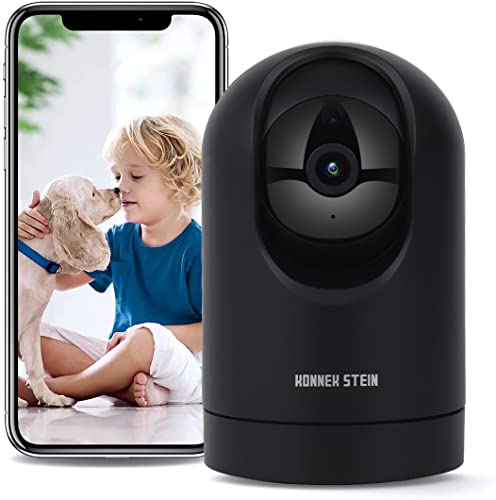
【1080p HD & Night Vision】-- 1080p HD security camera provides crystal clear videos and recordings, capturing more detail of distant objects without impairing image quality while zoom in and out. Night vision reaches up to 30 ft, lets you see everything clearly even in the dark. You can also turn on the Privacy mode on the APP to protect your privacy.

VALUE BUNDLE INCLUDES: Google Nest Hub 2nd Generation with English, Spanish, French and Portuguese Global Language Compatibility so it works everywhere, Universal Power Adapter and Quick Start Guide with International Manual for Global Users
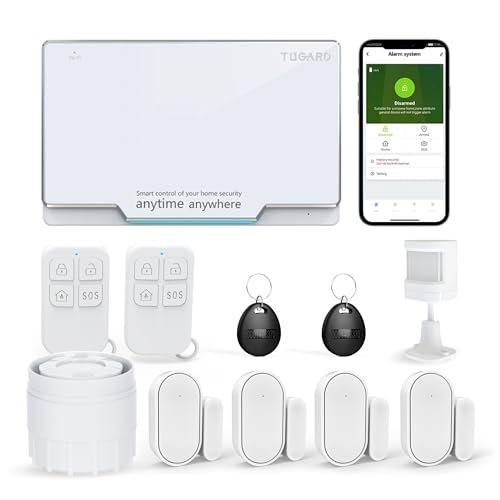
10 PIECES HOME ALARM & ANTI-THEFT KITS: WiFi Control Panelx1, Window & Door Sensorx4, Wireless PIR Motion Sensorx1, Remote Controlx2, Wired Siren x1, USB Cable x1.The real time main interface status bar are displayed, and the host status is very clear. It supports multilingual menu, voice operation and SMS alert.NO Monthly Fees.
Gmail Storage Is Full
If your Google account storage is at or near 100% capacity, Gmail stops sending emails. Google gives each account 15GB of storage shared across Gmail, Google Drive, and Google Photos. When that runs out, new emails can’t be sent and existing drafts queue indefinitely.
Go to one.google.com/storage to check your current usage. If you’re at or near the limit, you need to free up space before sending resumes.
In Gmail, search for larger:5mb to find large emails taking up significant space. Delete old emails with large attachments and empty the trash afterward — deleted emails count against storage until the trash is emptied. If your Drive or Photos are taking up most of the space, clear those as well.
Once storage drops below the limit, queued emails should send automatically.

The Email Has an Attachment That’s Too Large
Gmail has a 25MB attachment limit per email. Emails with attachments exceeding this limit queue and fail to send. If you’re trying to send a large file, Gmail may queue the message and keep retrying without ever succeeding.
Check the size of any attachments in the queued email. If they exceed 25MB, remove the attachment and share the file via Google Drive instead — insert a Drive link into the email rather than attaching the file directly. Gmail does this automatically if you try to attach a large file through the web interface, but the mobile app sometimes handles this differently.
A Sync or Account Authentication Issue
If Gmail can’t verify your account credentials with Google’s servers, it queues emails rather than sending them. This happens after a password change, after a security event on your account, or when your session token expires.
Sign out of Gmail completely and sign back in. On mobile, go to your device’s account settings, remove the Google account, and add it back. This forces a fresh authentication that resolves credential-related sending failures.
Also check myaccount.google.com/security for any security alerts or unusual activity notifications. If Google has flagged something on your account, it may be restricting sending until you verify your identity.
Third-Party Apps and SMTP Issues
If you send Gmail through a third-party email client — Outlook, Apple Mail, Thunderbird, or a mobile email app — queuing issues often stem from incorrect SMTP settings or an authentication failure between the client and Gmail’s servers.
Gmail requires specific SMTP settings for third-party clients:
- SMTP server: smtp.gmail.com
- Port: 587 (TLS) or 465 (SSL)
- Authentication: Required — use your full Gmail address and password or an app-specific password if two-factor authentication is enabled
If you have two-factor authentication on your Google account, third-party email clients can’t use your regular password to connect. You need to generate an App Password — go to myaccount.google.com/apppasswords, generate a password for your email client, and use that instead of your regular password in the client’s account settings.
Gmail also requires that Less Secure App Access is handled through App Passwords in accounts with 2FA. Without the app-specific password, the client fails authentication and queues all outgoing mail.
Gmail’s Sending Limits
Gmail imposes daily sending limits to prevent spam. Free Gmail accounts can send to a maximum of 500 recipients per day. Google Workspace accounts have higher limits depending on the plan.
If you’ve been sending a high volume of emails — newsletters, bulk outreach, or many individual messages — you may have hit the daily limit. Gmail queues additional emails and sends them once the limit resets, typically after 24 hours.
If you’re regularly hitting sending limits, a dedicated email service like Mailchimp, SendGrid, or Google Workspace with higher limits is more appropriate than a standard Gmail account for high-volume sending.
Airplane Mode or Battery Saver Interference
On mobile devices, Airplane Mode obviously prevents sending — but it’s easy to forget it’s on, especially if you were on a flight recently. Check that Airplane Mode is off in your device’s quick settings.
Battery Saver mode on Android restricts background processes including Gmail sync, which can prevent queued emails from sending. When Battery Saver is active, Gmail may not be able to sync and send in the background even when you’re connected to the internet.
Go to Settings → Battery → Battery Saver and check whether it’s on. Disable it temporarily and see if the queued emails go out. If they do, you can add Gmail as an exception in Battery Saver settings to allow it to sync normally even when the mode is active.
The Gmail App Has a Bug or Needs Updating
Outdated Gmail app versions can develop sending bugs that cause emails to queue indefinitely. Gmail updates frequently and sending-related fixes appear in these updates regularly.
Check the App Store or Google Play for pending Gmail updates and install them. After updating, restart the app completely and check whether queued emails send.
If updating doesn’t help, clearing the Gmail app cache resolves many sending issues caused by corrupted local data. On Android, go to Settings → Apps → Gmail → Storage → Clear Cache. On iPhone, offload and reinstall the app via Settings → General → iPhone Storage → Gmail → Offload App.
Check Gmail’s Server Status
Occasionally Gmail’s sending infrastructure has issues that cause widespread queuing across many accounts simultaneously. If your email is queuing and you can’t find any local cause, check whether Google is experiencing a service disruption.
Go to workspace.google.com/status and check the status of Gmail. If sending or delivery is listed as disrupted, the queue will clear automatically once Google resolves the issue — no local troubleshooting will help in the meantime.
A Quick Checklist
Work through these before spending more time troubleshooting:
- Check your internet connection — switch between Wi-Fi and mobile data to test
- Restart modem and router with a full 60-second power cycle
- Pull to refresh in Gmail to force a sync
- Check Google account storage at one.google.com/storage — free up space if full
- Check attachment size — remove anything over 25MB and share via Drive link instead
- Sign out and sign back in to refresh account authentication
- Check myaccount.google.com/security for any account alerts
- Check SMTP settings if using a third-party email client
- Generate an App Password if using 2FA with a third-party client
- Check sending volume — you may have hit Gmail’s daily limit
- Disable Battery Saver temporarily on Android
- Update the Gmail app and clear its cache
- Check workspace.google.com/status for active Gmail incidents
The Bottom Line
Gmail queuing emails is almost always a connection problem, a full storage quota, or an authentication issue — not a bug in Gmail itself and not something permanently wrong with your account. The internet connection check and storage check resolve the majority of cases immediately.
For third-party email clients specifically, App Passwords for two-factor authenticated accounts is the fix that most people miss — without it, the client fails authentication silently and queues everything indefinitely.
Gmail queues when it can’t complete the send — fix what’s blocking it and everything in the queue goes out automatically.

Get access to files anywhere through secure cloud storage and file backup for your photos, videos, files and more with Google Drive.

Capture the perfect shot every time, get things done with the Google Assistant,1 enjoy an all-day battery, and more.

Capture the perfect shot every time, get things done with the Google Assistant,1 enjoy an all-day battery, and more.

Meet Ry, “TechGuru,” a 36-year-old technology enthusiast with a deep passion for tech innovations. With extensive experience, he specializes in gaming hardware and software, and has expertise in gadgets, custom PCs, and audio.
Besides writing about tech and reviewing new products, he enjoys traveling, hiking, and photography. Committed to keeping up with the latest industry trends, he aims to guide readers in making informed tech decisions.