
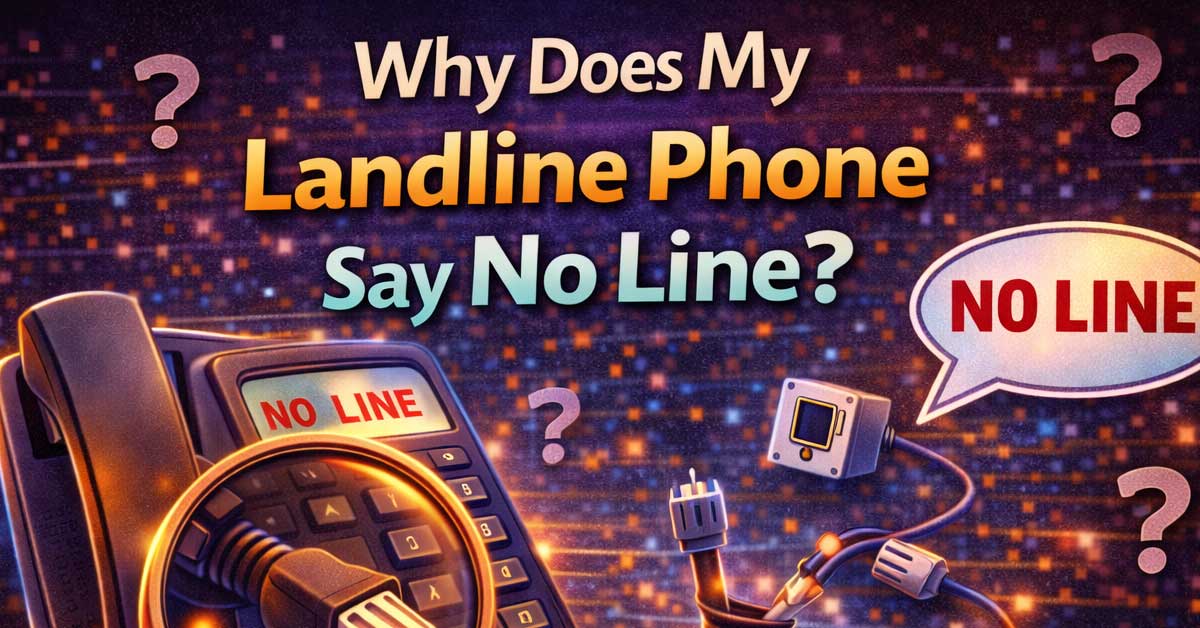

Usually a wiring or service issue — here’s how to find it fast
When your landline phone displays “No Line” or shows no dial tone, it means the phone isn’t detecting an active telephone line signal coming into the handset. It’s not necessarily a broken phone. In most cases the phone itself is fine — the problem is somewhere between the phone and the telephone network, and narrowing down exactly where takes only a few minutes of basic testing.
Here’s how to work through it systematically.
Start With the Simplest Test
Before checking anything else, try a different phone and a different wall jack.
Plug a known working phone — ideally a basic corded phone — directly into a different wall jack in your home. If that phone gets a dial tone, the problem is either the original phone or the specific jack you were using. If no phone gets a dial tone on any jack in the house, the problem is the incoming line — either your service provider’s equipment or the wiring where it enters your home.
This single test tells you whether the problem is inside your home or outside it, which determines everything about how you fix it.

2-in-1 Charging Station - 2-pack 10,000mAh portable charger with a shared charging base, which can always provide 100% power status for the power bank, put it back to its original place when it's used up, and the charging station will recharge for you automatically.

The Package Length of the Product is 9.906 centimeters

One for All : The usb tower equipped with 4 AC outlets and 3 USB charging ports on different directions to make full use of usb outlet. Providing power for up to 7 devices simultaneously and all side outlet is design for big adapters charging without blocking each other, save your space and keep your desktop organized. You can charge your phone, lamp, laptop and other devices together
The Phone Itself
Cordless phones are the most common source of “No Line” errors — and the most commonly overlooked.
Dead or Failing Battery
A cordless handset with a weak or dead battery may display “No Line” even when the line itself is perfectly functional. The base station needs power and the handset needs enough charge to communicate with it properly.
Put the handset on the charging base for at least 30 minutes and try again. If the battery is old — more than a year or two — it may no longer hold a charge adequately and needs to be replaced. Replacement batteries for most cordless phone models are inexpensive and available online.
The Base Station Lost Power
The base station of a cordless phone needs to be plugged in and powered on for the handset to work. Check that the base station is firmly plugged into both the wall outlet and the phone jack. If the outlet is on a power strip, make sure the strip is switched on.
The Phone Is Faulty
If you have another phone to test with, plug it into the same jack. If the other phone works fine, the original phone has a fault — either in the handset, the base station, or the cable connecting the base to the wall.
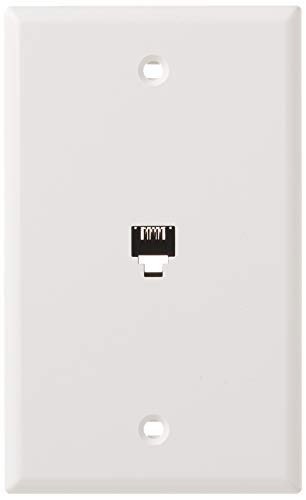
High quality ABS plastic or nylon which provides superior resistance to impacts, chemicals, and solvents as compared to other plastics

6P4C TELEPHONE WP STAINLESS STEEL

★ Round wall phone jack face plate to cover old telephone jack, 4 screw terminals inside for wire termination
Check the Wall Jack
A loose, damaged, or failed wall jack is a common cause of no line errors — especially in older homes where jacks haven’t been touched in years.
Unplug the phone cable from the wall jack and plug it back in firmly. Look at the jack itself — if the plastic is cracked, the contacts look corroded or dirty, or the cable feels loose when plugged in, the jack may need to be replaced.
Also check the cable between the phone and the wall. Phone cables are easy to damage — they get pinched under furniture, chewed by pets, kinked from being stepped on, or simply degrade over time. Replace the cable with a new one and test. Phone cables are cheap and a surprisingly frequent cause of no line errors.
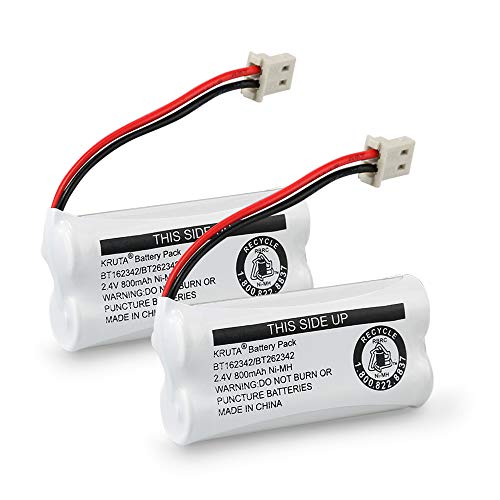
Voltage: 2.4V - Capacity: 800mAh - Type: AAA*2 . Connector Type:5264; Jack: Round. - (Tips: This battery model not suit for all cordless phone model, please kindly read our listing in details and confirm your old battery model, then select correct battery model.)

Compatible with BT-1021 BT1021 BT-1008 BT1008 BT-1016 BT1016 BT-1025 BT1025 BBTG0798001 Empire CPH-515B CPH515B
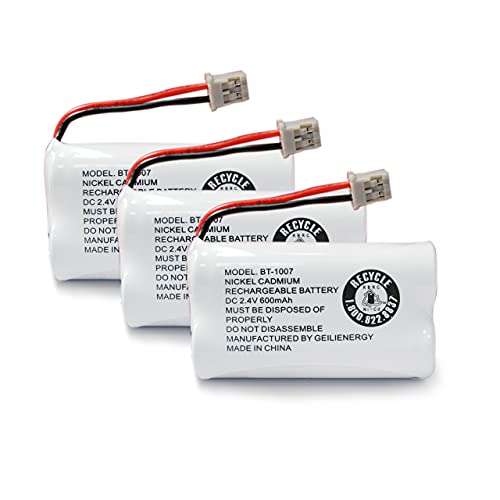
❤Capacity: 600mAh,Voltage: 2.4V,Battery Type:NI-CD
Check the NID — Your Network Interface Device
Every home has a Network Interface Device (NID) — a small grey or beige box mounted on the outside of your home where the telephone company’s line connects to your internal wiring. This is the dividing line between what your phone company owns and what you own.
Most NIDs have a customer access section that lets you test whether the problem is on your side or the phone company’s side.
To test:
Find the NID on the outside of your home — usually near the electrical meter or where utility lines enter the building. Open the customer access panel (it usually unlatches without tools). Inside you’ll find a modular phone jack. Unplug the short cable connected to it — this disconnects your home’s internal wiring from the phone company’s line. Plug a working phone directly into that jack.
If you get a dial tone: the phone company’s line is working fine and the problem is inside your home — your internal wiring, jacks, or phones.
If you get no dial tone: the problem is on the phone company’s side and you need to call your service provider. Don’t attempt to repair anything past the NID — that side belongs to the carrier.
Internal Wiring Problems
If the NID test confirms the incoming line is fine but no jacks in your home are working, the fault is in your home’s internal phone wiring.
Common causes include:
A faulty splitter or junction. If your home’s phone wiring runs through splitters or junction boxes, a failed connection at any one of them can take out all the jacks downstream. Check any visible splitters or junction points.
A damaged wire run. Wiring inside walls can be damaged by pests, nails, renovation work, or age. This is harder to diagnose without tracing the wire run and may require a technician.
Too many devices on the line. Older phone systems have a “ringer equivalence” limit — too many phones, fax machines, or DSL filters connected simultaneously can overload the line and cause it to drop. Unplug every device connected to a phone jack in your home, then test with just one phone plugged directly into the wall. If the line comes back, add devices back one at a time to find the one causing the overload.
DSL Filters
If you have DSL internet service sharing your phone line, missing or faulty DSL filters can cause a no line error.
DSL and voice service run on the same copper line at different frequencies. DSL filters separate them so each works correctly. Without a filter — or with a failed one — the DSL signal can interfere with the voice line and cause it to appear dead.
Make sure every phone and device connected to a phone jack has a DSL filter installed between the device and the wall jack. If filters are already in place, try replacing them — filters are inexpensive and do fail over time.
If you have fiber or cable internet rather than DSL, this doesn’t apply.
VoIP and Digital Phone Service
If your phone service comes through your internet provider rather than traditional copper wire, a “No Line” error almost always means the equipment has lost power or your internet connection is down.
Check that your modem, router, and any phone adapter (ATA device) are all powered on and showing normal indicator lights. If the internet is down, your phone service goes with it. Restart the modem and router with a full 60-second power cycle and wait for everything to come back up.
Also check the phone port on your modem or ATA adapter. Make sure the cable running from the adapter to your phone or wall jack is firmly connected. Some adapters have two phone ports — make sure you’re using the correct one, which is usually labeled Phone 1.
If your VoIP equipment has a battery backup, check whether the battery is still functional — a dead backup battery can cause the adapter to behave erratically during normal operation even when power is present.
Weather and External Line Damage
Severe weather, fallen trees, and utility work can damage the telephone line running to your home. If the “No Line” error appeared suddenly after a storm, high winds, or nearby construction, the external line is a likely cause.
The NID test described above will confirm this quickly. If the incoming line is dead at the NID, call your service provider and report the outage. External line repairs are the carrier’s responsibility and are typically handled at no charge.
When to Call Your Phone Provider
Call your provider when:
- The NID test shows no dial tone on the incoming line
- The error appeared after a storm or utility work in your area
- You’ve tested with multiple phones and cables and nothing works
- Your provider’s outage checker shows a known issue in your area
When you call, specifically mention that you’ve tested at the NID and confirm whether the dial tone is present there or not. This tells the technician exactly where the fault is and speeds up the repair process considerably.
If the technician finds the fault is inside your home rather than on the carrier’s side, there may be a charge for the visit — something worth clarifying before scheduling if cost is a concern.
A Quick Checklist
Work through these before calling anyone:
- Test a different phone on a different jack — rules out a single phone or jack as the problem
- Charge the cordless handset and check the base station is powered
- Check the phone cable — replace it if it looks damaged or feels loose
- Check the wall jack — reseat the cable firmly, inspect for damage
- Test at the NID — determines if the fault is inside or outside your home
- Unplug all phone devices and test with just one to rule out line overload
- Check DSL filters if you have DSL internet
- Check modem and ATA adapter if you have VoIP service
The Bottom Line
“No Line” almost always points to one of four things: a dead cordless handset battery, a bad cable or wall jack, a fault in your home’s internal wiring, or a problem on the carrier’s line coming into your home. The NID test is the most useful single diagnostic step because it tells you immediately which side of the problem you’re dealing with.
Work from the phone outward — handset, cable, jack, internal wiring, NID — and you’ll find the fault without needing to call anyone in most cases. If the problem is past the NID, that’s the phone company’s job to fix.
A “No Line” message is the phone’s way of saying it can’t find the network — start at the handset and work outward until you find where the signal disappears.

RJ11 6P4C: The connector is compatible with 4 cords telephone cables, making it suitable for use with telephones, fax machines, modems, and other devices that use RJ11 connections.

★ Standard RJ11 6P4C connectors for assembly of telephone cords
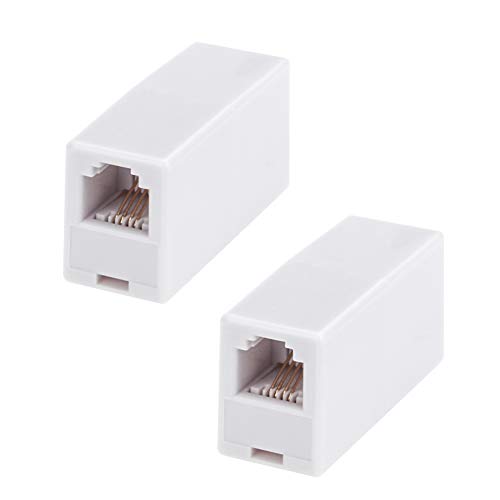
RJ11 inline coupler is used to connect and extend two existing telephone lines with R11 telephone connector at both ends through telephone through box.

Meet Ry, “TechGuru,” a 36-year-old technology enthusiast with a deep passion for tech innovations. With extensive experience, he specializes in gaming hardware and software, and has expertise in gadgets, custom PCs, and audio.
Besides writing about tech and reviewing new products, he enjoys traveling, hiking, and photography. Committed to keeping up with the latest industry trends, he aims to guide readers in making informed tech decisions.