
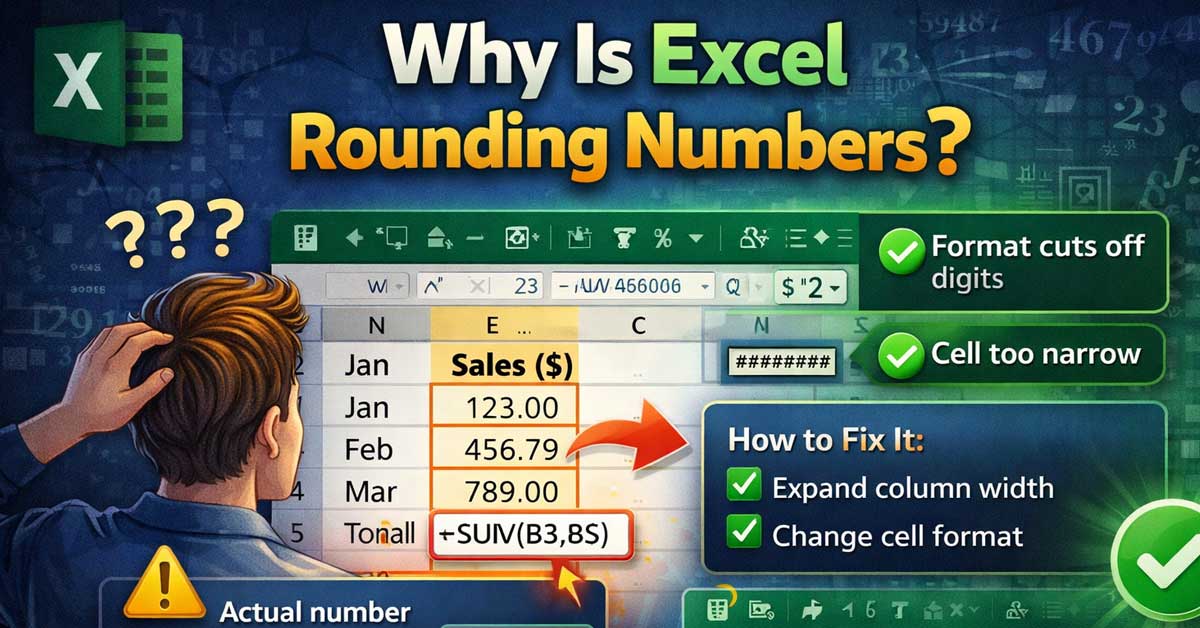

Almost always a column width or formatting issue — here’s what’s causing it and how to stop it
Entering a precise number in Excel and having it display as something different — rounded to fewer decimal places, showing as a whole number, or appearing as a string of #### symbols — is a common source of confusion.
Excel almost never actually changes the underlying value.
What looks like rounding is almost always a display issue — the number is stored correctly but displayed in a way that doesn’t show all the precision.
Here’s what’s causing each scenario and how to fix it.
The Column Is Too Narrow to Display the Full Number
This is the most common cause of apparent rounding in Excel. When a column is too narrow to display a number, Excel doesn’t show a truncated version — it either rounds the displayed value to fit the available space, shows the number in scientific notation, or displays #### symbols.
The underlying value is stored with full precision. Only the display is affected.
The fix: Widen the column. Double-click the column border in the header row — the line between column letters — to auto-fit the column to its widest content. Or drag the border manually to make the column wider. Or right-click the column header, select Column Width, and enter a larger value.
After widening, the full number appears.
The Cell Is Formatted to Show Fewer Decimal Places
Excel’s number formatting controls how many decimal places display — and the default formatting often shows fewer decimal places than the number actually contains. A value of 3.14159265 stored in a cell formatted to show two decimal places displays as 3.14. The full value is there — you just can’t see it.
To check: Click the cell and look at the formula bar. The formula bar always shows the actual stored value regardless of cell formatting. If the formula bar shows more decimal places than the cell displays, formatting is the cause.
To fix: Select the cell or cells. Go to Home → Number group and click the Increase Decimal Places button (the icon showing .0 with an arrow pointing left adding a zero). Click it until all desired decimal places appear. Or press Ctrl + 1 to open Format Cells, go to the Number tab, and set the number of decimal places manually.
The General Format Is Auto-Formatting the Number
Excel’s General format — the default for new cells — automatically chooses how to display numbers based on the column width and the number’s magnitude. For large numbers or numbers with many decimal places, General format rounds the display to fit the available space.
A number like 123456789.123456 in a standard-width column formatted as General might display as 123456789.1 or even 1.23457E+08 (scientific notation) depending on the column width.
The fix: Either widen the column to give General format more room, or change the format from General to Number with a specific decimal place setting. Go to Home → Number Format dropdown → Number and set the desired decimal places.
Excel’s 15 Significant Digit Precision Limit
This is the one scenario where Excel genuinely changes the stored value, not just the display — and it’s a fundamental limitation rather than a setting you can change.
Excel stores numbers using the IEEE 754 double-precision floating-point standard, which provides approximately 15 significant digits of precision. Any digits beyond the 15th are not just hidden — they’re replaced with zeros in the stored value.
If you enter the number 1234567890123456789 (19 digits), Excel stores it as 1234567890123456000 — the last four digits become zeros because they’re beyond the 15-digit precision limit.
This affects:
- Very large integers with more than 15 digits
- Credit card numbers, ID numbers, and long numeric codes
- Scientific calculations requiring more than 15 significant figures
For long numeric codes like credit card numbers or ID numbers: Format the cells as Text before entering the numbers. This tells Excel to treat the entry as a text string and store every digit exactly as entered, with no precision limit. Go to Home → Number Format → Text before typing. Note that text-formatted numbers can’t be used in calculations.
For scientific calculations: Excel’s 15-digit limit is usually sufficient for most purposes but specialized scientific software handles higher precision if needed.
The ROUND Function Is in the Formula
Sometimes the rounding is deliberate — a ROUND, ROUNDUP, ROUNDDOWN, INT, TRUNC, or FLOOR function is in the formula producing the result. The formula is explicitly rounding the value as part of its calculation.
Click the cell and look at the formula bar. If you see any of these functions in the formula, the rounding is intentional and built into the calculation:
=ROUND(A1, 2)        rounds to 2 decimal places
=ROUNDUP(A1, 0)      rounds up to nearest integer
=ROUNDDOWN(A1, 1)    rounds down to 1 decimal place
=INT(A1)             removes decimal portion
=TRUNC(A1, 2)        truncates to 2 decimal places
If the rounding is unintentional, edit the formula to remove or adjust the rounding function.
Precision as Displayed Is Enabled
Excel has a setting called Precision as Displayed that changes the actual stored values to match what’s currently displayed — permanently altering your data to match the rounded display format. If this setting is active, Excel genuinely rounds the stored values rather than just their display.
This is a dangerous setting because it permanently modifies your data and can’t be undone simply by changing formatting.
To check: Go to File → Options → Advanced. Scroll down to When Calculating This Workbook and look for Set Precision as Displayed. If it’s checked, uncheck it.
Warning: If this setting was active and you’ve been working in the file, the stored values may already have been rounded. Turning off the setting prevents future rounding but doesn’t restore precision that was already lost.
Floating-Point Arithmetic Producing Unexpected Results
This is a fundamental computer science issue that affects Excel and virtually every other software that uses floating-point arithmetic. Certain decimal numbers cannot be represented exactly in binary floating-point — they’re stored as the closest approximation, which introduces tiny rounding errors.
The classic example:
=0.1 + 0.2Should equal 0.3 exactly but in binary floating-point evaluates to 0.30000000000000004 — visible if you format the cell to show 17 decimal places.
For most practical purposes these errors are invisible because Excel’s display rounds them away. But they can cause issues in comparisons (=A1=0.3 returning FALSE when A1 contains 0.1+0.2) and in calculations that accumulate many such errors.
Practical fixes: Use the ROUND function to round results to the precision you actually need before comparisons or further calculations. Use =ROUND(A1,10)=ROUND(B1,10) for comparisons rather than exact equality. For financial calculations, working in integer units (cents rather than dollars) eliminates floating-point fraction issues entirely.
Numbers Pasted From Another Source
When pasting numbers from external sources — websites, other applications, PDFs — the pasted values sometimes arrive with limited precision even if the source had more. The rounding happened in the copy-paste process rather than in Excel.
Check the original source and re-enter the value manually if full precision is needed. When pasting, use Paste Special → Values rather than a standard paste to avoid bringing in formatting from the source that might affect how the number is treated.
A Quick Checklist
Match your symptom to the most likely cause:
- Number displays fewer decimals than entered — widen the column or increase decimal places in formatting
- Formula bar shows more precision than the cell — cell formatting is limiting display, not the stored value
- #### symbols in the cell — column is too narrow, widen it
- Number in scientific notation unexpectedly — column too narrow or General format auto-scaling, widen or change format
- Long number ends in zeros — exceeds 15-digit precision limit, format as Text before entry
- Calculation results seem rounded — check for ROUND function in formula
- Entire workbook values seem permanently rounded — check Precision as Displayed setting in Options
- Comparison formulas returning wrong results — floating-point arithmetic issue, use ROUND in comparisons
The Bottom Line
Excel almost never actually rounds your numbers — it almost always rounds the display. The formula bar is the truth — if it shows your full number, the value is stored correctly and the fix is a formatting or column width change.
The exceptions are the 15-digit precision limit for very long numbers and the Precision as Displayed setting — both of these genuinely alter stored values. For long numeric codes, formatting cells as Text before entry is the prevention. For the precision setting, checking that it’s off before working in a file protects against accidental data modification.
The formula bar doesn’t lie — if your number is there in full, Excel knows the real value. Change the formatting to show it.

Meet Ry, “TechGuru,” a 36-year-old technology enthusiast with a deep passion for tech innovations. With extensive experience, he specializes in gaming hardware and software, and has expertise in gadgets, custom PCs, and audio.
Besides writing about tech and reviewing new products, he enjoys traveling, hiking, and photography. Committed to keeping up with the latest industry trends, he aims to guide readers in making informed tech decisions.