
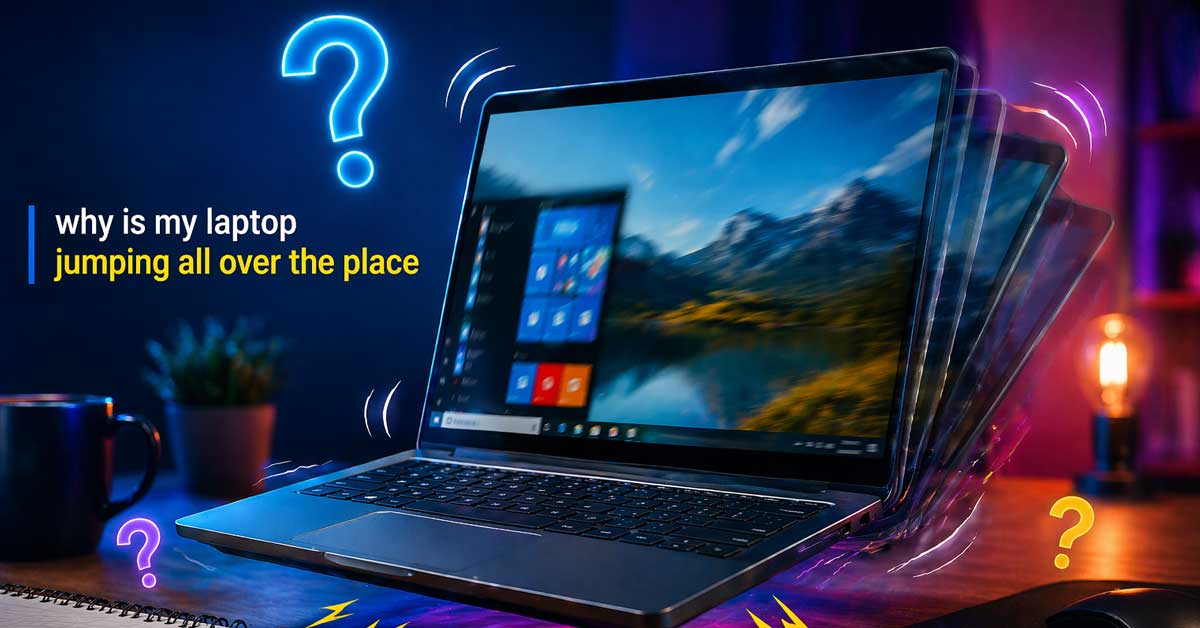

Usually a touchpad, driver, or interference issue — here’s how to find it and fix it
A laptop cursor that jumps unexpectedly while you’re typing — moving to a random location, clicking somewhere you didn’t intend, or causing text to appear in the wrong place — is one of the most disruptive laptop problems because it interrupts every keystroke.
The cause is almost always the touchpad being accidentally triggered while typing, a driver issue, or hardware interference.
Here’s how to identify which one and stop it.
Accidental Touchpad Contact While Typing
This is the most common cause by a significant margin. While typing, the palm of your hand or thumb brushes the touchpad surface — the touchpad registers this as deliberate input and moves the cursor or clicks. This happens constantly during normal typing and is so subtle that most people don’t realize their palm is the cause.
Modern touchpads have palm rejection algorithms designed to distinguish between deliberate finger input and accidental palm contact — but these algorithms aren’t perfect and some touchpads are more susceptible than others.
To test whether this is the cause:
Type a paragraph of text while being conscious of keeping your palms completely off the touchpad. If the jumping stops, palm contact is the cause.
Fixes for accidental touchpad contact:
Adjust palm rejection sensitivity. Go to Settings → Bluetooth and Devices → Touchpad on Windows. Look for palm rejection or sensitivity settings and increase the palm rejection level if available. On Synaptics or ELAN touchpad software, check the manufacturer’s control panel for palm check or palm sensitivity settings.
Disable the touchpad while typing. Many touchpad drivers have a setting that automatically disables the touchpad for a brief period after keyboard input begins. Go to Settings → Bluetooth and Devices → Touchpad and look for Disable Touchpad When Typing or a similar option. Enable it with a short delay — even 0.5 seconds prevents most accidental palm-contact cursor jumps.
Change your typing posture. Hold your wrists slightly elevated rather than resting them on the laptop chassis while typing. This keeps the palm clear of the touchpad surface entirely.

✍🏻【Wide Compatibility】This active stylus is compatible with a range of HP touchscreen laptops that support the MPP protocol, including models like the HP Omnibook x flip, Envy 17-ae, Envy x360 15-bp/bq, Pavilion x360 11m/14m/15-br, and Spectre x360 13-ac/ae/15-bl (see images for more). We recommend verifying your device’s compatibility in system settings before purchase.
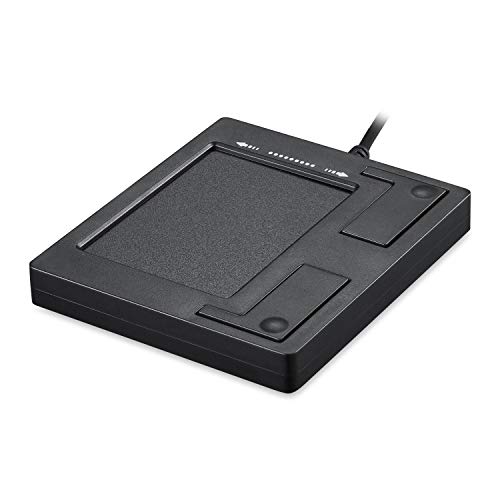
Easy to Use: 2 Buttons external touch pad with a plug and play feature; No driver needed

Windows-Optimized - Seamlessly compatible with Windows 10 & 11 PCs. Not supported on Mac, Chrome OS, or Linux.
Touchpad Driver Issue
An outdated, corrupted, or incompatible touchpad driver causes erratic cursor behavior — jumping, skipping, phantom clicks, and inconsistent tracking. This is particularly common after Windows updates that replace manufacturer touchpad drivers with generic Microsoft drivers that don’t support all the touchpad’s features including palm rejection.
Open Device Manager by right-clicking the Start button. Expand Mice and Other Pointing Devices and find your touchpad — it may show as a Synaptics touchpad, ELAN touchpad, Alps touchpad, or similar.
Update through the manufacturer website rather than Device Manager for better results. Go to your laptop manufacturer’s support page — Dell, HP, ASUS, Lenovo, Acer, or others — search your model number, and download the touchpad driver specifically. Manufacturer drivers include palm rejection and gesture support that generic Windows drivers lack.
After installing, restart and test whether the jumping continues.

✅ 【Compatible with Mac & Windows – Full Multi-Gesture Support】: This wireless trackpad offers smooth multi-touch gesture control on both macOS and Windows 10/11. Enjoy natural MacBook-style gestures such as two-finger scrolling, pinch-to-zoom, three-finger swipe, tapping, and dragging on both your MacBook, iMac, and Windows laptop or desktop. Ideal for office work, presentations, and users who want the same intuitive trackpad gestures they’re used to on a MacBook but need compatibility with any desk setup.
![Perixx PERIPAD-706 [Firmware Updated] Wireless Slim Touchpad for Windows System - Multi-Device Bluetooth and 2.4G RF Connectivity - Rechargeable via USB-C - Large Size 5.31x4.57x0.55 Inches - Black](https://m.media-amazon.com/images/I/21aRcE2mFxL._SL500_.jpg)
BOOST PRODUCTIVITY WITH MULTI-TOUCH GESTURES: Effortlessly navigate your Windows device with intuitive gestures like swiping, pinching, and scrolling, enhancing your efficiency and digital interaction.

Premium Alluminum Build: Crafted from a single piece of solid, anodized aluminum, this touchpad is built for durability and a premium feel.
Moisture or Debris on the Touchpad
Moisture on the touchpad surface or your fingers causes erratic tracking — the capacitive sensor reads moisture as touch input, producing phantom movements and cursor jumps. This is particularly common in humid environments or if you’ve been handling drinks.
Dry your hands thoroughly and wipe the touchpad surface with a dry microfiber cloth. Test whether the jumping resolves. If the touchpad has moisture underneath the surface from a spill, the cursor may jump erratically until it fully dries — sometimes requiring several hours.
Debris on the touchpad surface — dust, crumbs, or particles — can also produce inconsistent input. Clean the surface with a dry cloth and inspect for any debris around the edges of the touchpad.
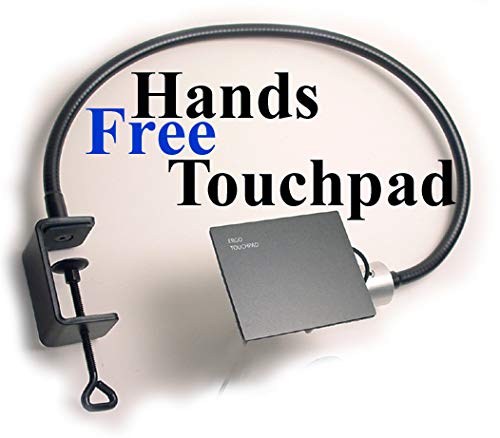
Control your computer mouse by lightly grazing your chin across the surface of the Ergonomic Touchpad. Left and right click, and scroll. An economical alternative for people...
External Mouse Conflict
If an external mouse is connected via USB or Bluetooth, conflicts between the mouse and touchpad inputs sometimes cause cursor jumping — particularly if the mouse’s USB receiver is generating interference or if a Bluetooth mouse is dropping connection intermittently.
Disconnect any external mice and test the touchpad alone. If jumping stops, the external mouse or its receiver is causing interference.
Also check whether any USB devices connected to the laptop are drawing power in ways that affect signal quality — unpowered USB hubs can cause interference on multiple connected devices.
Static Electricity or Electrical Interference
Touchpads use capacitive sensing technology that’s sensitive to electrical interference. Static electricity buildup — from certain clothing, chairs, or environmental conditions — and electrical interference from nearby electronics can cause the touchpad to register phantom inputs.
Signs that interference is the cause:
Cursor jumping is worse in certain locations or environments. Jumping correlates with specific external conditions — touching the laptop case, sitting on certain chairs, or specific electronics being nearby. Grounding yourself by touching a metal surface temporarily reduces jumping.
Try connecting the laptop to a grounded power outlet through its charger — this often reduces static-related touchpad interference. Also try moving away from potential interference sources — wireless routers, fluorescent lighting, and high-power electronics.
Corrupted Windows Pointer Settings
Windows pointer settings and accessibility features can cause cursor behavior that looks like jumping — particularly mouse acceleration, snap-to features, and accessibility tools that move the cursor automatically.
Go to Settings → Bluetooth and Devices → Mouse → Additional Mouse Settings → Pointer Options. Check:
Enhance Pointer Precision — mouse acceleration that changes cursor speed based on movement speed. Can cause inconsistent cursor positioning. Try disabling it.
Snap To — automatically moves the cursor to the default button in dialog boxes. Can cause the cursor to appear to jump when dialog boxes open.
Display Pointer Trails — makes the cursor appear to drag a trail. Can create visual jumping illusion even when the cursor isn’t actually moving erratically.
Disable any of these that are active and test whether the jumping improves.
Malware Causing Cursor Movement
Remote access malware can control the cursor — moving it, clicking, and typing as if a remote user is controlling the computer. If your cursor moves with apparent purpose rather than randomly — navigating to specific locations, opening applications, or clicking specific elements — remote access is a possibility.
Run Malwarebytes free version for a scan alongside your regular antivirus. Check Task Manager for unfamiliar processes consuming CPU. Check Settings → Privacy and Security → Windows Security → App and Browser Control for any detected threats.
If you suspect unauthorized remote access, disconnect from the internet immediately and run a full malware scan before reconnecting.
Physical Touchpad Damage
A touchpad that’s been physically damaged — from pressure applied to the laptop chassis, a drop, liquid damage, or the battery swelling underneath — produces erratic jumping behavior that no software fix resolves.
Signs pointing toward physical damage:
The jumping appeared suddenly after the laptop was dropped or had something heavy placed on it. The touchpad surface feels uneven or has a raised area. The jumping is concentrated in a specific area of the touchpad. Other physical damage is visible on the laptop chassis.
Battery swelling is worth specifically checking on older laptops — a swollen battery presses upward against the touchpad from inside the chassis, causing constant phantom touches. If the laptop base feels uneven or the touchpad seems raised at one edge, inspect the battery. A swollen battery requires immediate replacement — it’s a safety issue beyond the cursor problem.
Check for Windows Accessibility Features
Windows accessibility tools including Mouse Keys, Sticky Keys, and similar features can cause unexpected cursor behavior when accidentally activated.
Go to Settings → Accessibility → Mouse and check whether Mouse Keys is enabled — this allows the numeric keypad to control the cursor and can cause jumping if numlock keys are pressed accidentally.
Also check Settings → Accessibility → Keyboard for any active accessibility features that might affect cursor behavior.
Disable and Re-Enable the Touchpad
A quick touchpad reset sometimes resolves temporary driver states causing jumping without requiring a full driver reinstall.
Open Device Manager, find the touchpad under Mice and Other Pointing Devices, right-click it and select Disable Device. Wait 10 seconds. Right-click again and select Enable Device. Test whether the jumping has resolved.
Check for BIOS Updates
On some laptop models, BIOS updates include touchpad firmware improvements and palm rejection fixes. If jumping has been a persistent issue since the laptop was new or appeared after a Windows update, a BIOS update may contain the specific fix.
Go to your laptop manufacturer’s support website, search your model number, and check for BIOS updates. Note any mention of touchpad, palm rejection, or cursor behavior in the release notes. Follow the manufacturer’s BIOS update instructions carefully — BIOS updates require the laptop to be plugged in and should not be interrupted.
Adjust Touchpad Sensitivity
If palm rejection settings don’t fully stop the jumping, reducing overall touchpad sensitivity makes accidental contact less likely to register as deliberate input.
Go to Settings → Bluetooth and Devices → Touchpad and look for sensitivity settings. Reducing sensitivity from High to Medium or Low makes the touchpad require more deliberate contact to register input — reducing accidental triggers while slightly reducing responsiveness to light intentional touches.
A Quick Checklist
Work through these in order:
- Enable Disable Touchpad While Typing in touchpad settings
- Increase palm rejection sensitivity in touchpad settings
- Keep palms elevated while typing and test whether jumping stops
- Clean the touchpad surface and dry your hands before testing
- Update touchpad driver from laptop manufacturer’s support website
- Disconnect external mice and test touchpad alone
- Disable Enhance Pointer Precision in mouse pointer settings
- Check for Snap To and other pointer options that cause apparent jumping
- Connect to grounded power outlet to reduce static interference
- Disable and re-enable touchpad in Device Manager
- Run Malwarebytes to rule out remote access malware
- Check for battery swelling on older laptops
- Check BIOS updates for touchpad firmware improvements
The Bottom Line
A jumping laptop cursor is almost always caused by accidental palm contact with the touchpad while typing — the single most impactful fix is enabling the disable-touchpad-while-typing option in touchpad settings, which prevents the touchpad from registering input for a brief period after keyboard activity. This change alone eliminates cursor jumping for the majority of users experiencing it.
Driver issues are the second most common cause — particularly after Windows updates that replace manufacturer touchpad drivers. Installing the manufacturer driver from the laptop’s support page restores palm rejection and other features that prevent jumping.
The cursor jumps because the touchpad is being told to move it — find what’s telling it to move and tell it to stop.
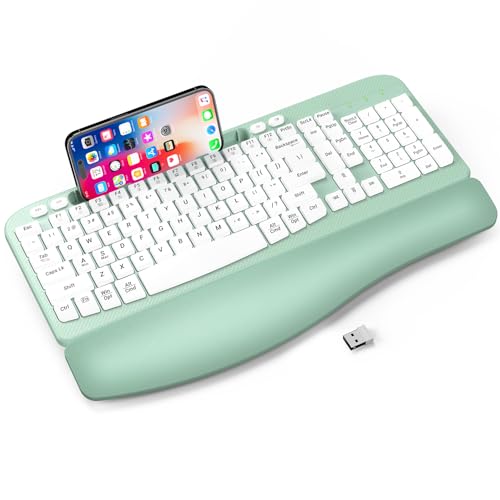
【INTEGRATED CUSHIONED PALM REST】: Distinguished from conventional keyboards, the wireless keyboard is equipped with a wrist rest made of comfortable leather, high-density support pads, and sturdy plastic bottom. It can better reduce hand pressure and provide you with better wrist support

Immersive 12-Mode RGB Keyboard with Shine-Through Characters: Illuminate your setup with our wired keyboard and mouse combo, featuring 12 active lighting effects including Rainbow Streamer and Neon modes. Built with double-shot injection molded keycaps, the characters provide superior light transmission and will never fade. Rapidly reset to default settings with FN+ESC (Factory Reset). It’s the perfect C98 98% layout membrane keyboard for those who demand both style and durability in their computer keyboards

LIGH UP WORK-LIFE: Personalize your own RGB keyboard mouse combo. Switch 3 lighting modes, 7+1 backlight colors and 3-level brightness to match your mood, enhancing immersion at work. Lighting also can improve visibility in dark environments and improve typing accuracy.

Meet Ry, “TechGuru,” a 36-year-old technology enthusiast with a deep passion for tech innovations. With extensive experience, he specializes in gaming hardware and software, and has expertise in gadgets, custom PCs, and audio.
Besides writing about tech and reviewing new products, he enjoys traveling, hiking, and photography. Committed to keeping up with the latest industry trends, he aims to guide readers in making informed tech decisions.