
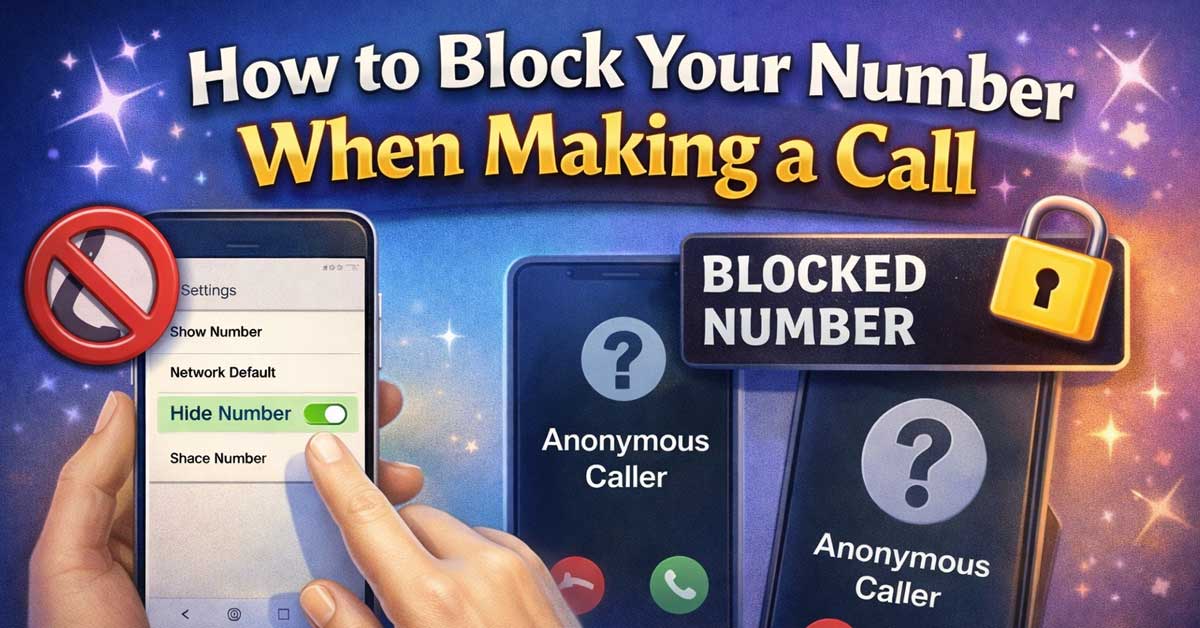

Whether you’re protecting your privacy, avoiding unwanted callbacks, or simply keeping your personal number off someone’s caller ID, blocking your number before making a call is a straightforward process. This guide covers every method on every major carrier, device, and platform.
Why Block Your Number?
There are plenty of legitimate reasons to make a call without revealing your phone number:
- Calling a business or individual you don’t want to have your personal number
- Responding to a classified ad or marketplace listing
- Making sensitive calls related to medical, legal, or personal matters
- Avoiding spam callbacks after a one-time call
- Maintaining a boundary between personal and professional contacts
- Journalists and researchers protecting their identity during sensitive inquiries
Blocking your number is completely legal in the United States and most countries. The recipient will see “No Caller ID,” “Private Number,” “Unknown,” or “Blocked” on their screen instead of your number.
Method 1: Use *67 Before the Number (US & Canada)
The simplest and most universal method for blocking your number on a per-call basis in the United States and Canada is the *67 prefix.
How It Works
- Open your Phone app
- Dial *67 followed immediately by the full number you want to call
- Include the area code: *67 + 1 + area code + number
- Tap Call
Example: To call (555) 867-5309 with your number blocked, dial: *67 15558675309
Important Notes
- Works on both cell phones and landlines
- Only blocks your number for that single call
- Free to use — no carrier plan required
- Does not work when calling toll-free numbers (800, 888, 877, 866, 855, 844, 833)
- Emergency services (911) can always see your number regardless of any blocking
International Equivalents
Different countries use different prefix codes:
| Country | Code |
|---|---|
| United States & Canada | *67 |
| United Kingdom | 141 |
| Australia | 1831 |
| Ireland | 141 |
| Germany | *31# |
| France | #31# |
| Italy | *67# |
| Spain | #31# |
| Netherlands | *31# |
| New Zealand | 0197 |
| South Africa | *31# |
| Japan | 184 |
Method 2: Block Your Number Permanently on iPhone
If you want every outgoing call to show as private by default, iPhone lets you turn this on in settings.
Turn Off Caller ID (All Calls)
- Open Settings
- Tap Phone
- Tap Show My Caller ID
- Toggle it off
Your number will now be hidden on every call you make until you toggle it back on.
Make a Single Call With Your Number Visible (Override)
If you’ve permanently hidden your number but want to show it for one specific call, dial *82 before the number. This temporarily unblocks your caller ID for that call only.
Note: Some carriers may take up to 24 hours to apply the permanent setting change. If it doesn’t work immediately, try restarting your phone or calling your carrier to confirm the change.
Method 3: Block Your Number Permanently on Android
The steps vary slightly depending on your Android manufacturer and carrier, but the process is similar across most devices.
Samsung Galaxy
- Open the Phone app
- Tap the three-dot menu (top right)
- Tap Settings
- Tap Supplementary services or More settings
- Tap Show your caller ID
- Select Hide number
Stock Android / Google Pixel
- Open the Phone app
- Tap the three-dot menu
- Tap Settings
- Tap Calls
- Tap Additional settings
- Tap Caller ID
- Select Hide number
Other Android Devices
The setting is typically found under: Phone app > Settings > Call Settings > Additional Settings > Caller ID > Hide Number
If you can’t find it in the Phone app, contact your carrier — some carriers manage this setting at the account level rather than the device level.
Method 4: Block Your Number Through Your Carrier
Every major US carrier offers number blocking through account settings, customer service, or a dedicated code. This applies the block at the network level rather than the device level.
AT&T
- Dial *67 before each call, or
- Call 611 or 800-331-0500 to request permanent blocking on your account
- My AT&T app: Go to Account > Settings > Caller ID
Verizon
- Dial *67 for per-call blocking, or
- Log in to My Verizon online or in the app
- Go to Account > Manage Features to enable permanent blocking
- Or call *611 from your Verizon phone
T-Mobile
- Dial *67 for per-call blocking, or
- Log in to My T-Mobile
- Go to Profile > Privacy and Notifications
- Or dial 611 to speak with customer service
Consumer Cellular, Mint, and MVNOs
Most carriers that run on the AT&T or T-Mobile network support *67 for per-call blocking. For permanent blocking, contact your carrier directly as settings vary.
Method 5: Block Your Number on a Landline
Blocking your number on a traditional landline works the same way as on a mobile phone.
Per-Call Blocking
Dial *67 before the number you’re calling. Works on most landline providers in the US including AT&T, Spectrum, Xfinity, and Verizon FiOS.
Permanent Blocking
Contact your landline provider and request Outgoing Caller ID Blocking on your account. This is typically a free feature available to residential customers.
Unblock for a Single Call
If your landline has permanent blocking enabled and you want to show your number for one call, dial *82 before the number to temporarily reveal your caller ID.
Method 6: Use a Third-Party App
If you need more control over your outgoing calls — or want a dedicated private number separate from your personal one — several apps are built specifically for this:
Burner
Creates a temporary secondary phone number you can use for calls and texts, then discard. Available on iOS and Android. Useful for marketplace transactions, dating apps, or any situation where you want a disposable number.
Google Voice
Gives you a free US phone number that can be used to make calls independently of your personal number. Calls made through Google Voice show your Google Voice number, not your mobile number. Available on iOS, Android, and via web browser.
Hushed
Similar to Burner — provides temporary or long-term secondary numbers for private calling and texting. Supports numbers in the US, Canada, and UK.
Sideline
Designed for separating work and personal calls. Provides a second number that runs through your existing carrier without needing a second SIM.
Method 7: Dial *82 to Unblock When Needed
If your number is set to permanently blocked — either through your phone settings or your carrier — some recipients may have services that automatically reject calls from blocked numbers. In that case:
- Dial *82 before the number
- Your caller ID will be visible for that call only
- The call will go through even to numbers that block “No Caller ID” calls
This is particularly useful when calling doctors’ offices, businesses, or anyone who has set up anonymous call rejection.
Does Blocking Your Number Always Work?
Blocking your number hides it from the recipient’s caller ID display, but it does not make your call completely untraceable. Here’s what to keep in mind:
What Blocking Does
- Hides your number from the person you’re calling
- Shows “No Caller ID,” “Private,” “Unknown,” or “Blocked” on their screen
- Works on most standard calls over the cellular and landline network
What Blocking Does NOT Do
- Emergency services (911) can always see your number and location regardless of blocking
- Toll-free numbers (800, 888, etc.) often use services like ANI (Automatic Number Identification) that bypass standard caller ID blocking
- Your carrier always has a record of calls made from your account
- Law enforcement can obtain your number from carrier records with proper legal authority
- Some businesses use ANI rather than standard caller ID, meaning your number may be visible to them even when blocked
Quick Reference Cheat Sheet
| Method | Best For | Works On |
|---|---|---|
| *67 prefix | Single call, quick and easy | All phones, US & Canada |
| iPhone Settings | Permanent blocking, all calls | iPhone |
| Android Settings | Permanent blocking, all calls | Android |
| Carrier account | Network-level permanent block | All devices on that carrier |
| *82 prefix | Temporarily unblock one call | All phones |
| Google Voice | Free second number | iOS, Android, web |
| Burner / Hushed | Disposable temporary number | iOS, Android |
Frequently Asked Questions
Can the person I’m calling still see my number?
Not through standard caller ID. They will see “No Caller ID,” “Private,” or “Unknown.” However, businesses using ANI services may still capture your number behind the scenes.
Does *67 work on cell phones?
Yes. *67 works on both cell phones and landlines in the United States and Canada for per-call caller ID blocking.
Will my call go to voicemail if I block my number?
It might. Some people and businesses set their phones to automatically reject calls from blocked or unknown numbers. If that happens, try using *82 to unblock or call from a different number.
Does blocking work when texting?
No. *67 only works for voice calls, not SMS or MMS messages. To send anonymous texts, you’ll need a third-party app like Google Voice, Burner, or a similar service.
Can I block my number on WhatsApp or FaceTime calls?
WhatsApp and FaceTime do not use traditional caller ID — the recipient sees your account name or Apple ID. To remain private on these platforms, you would need to use an account not associated with your personal information.
Final Thoughts
For a quick one-off private call, *67 is all you need — it’s free, instant, and works on every phone in the US and Canada. If you regularly want your number hidden, turning off caller ID in your iPhone or Android settings is the most seamless solution. For situations that require a completely separate number — marketplace sales, business calls, or sensitive inquiries — Google Voice offers a free and reliable alternative. Just keep in mind that no method is completely invisible: emergency services and your carrier can always identify your line regardless of how your caller ID is set.

Meet Ry, “TechGuru,” a 36-year-old technology enthusiast with a deep passion for tech innovations. With extensive experience, he specializes in gaming hardware and software, and has expertise in gadgets, custom PCs, and audio.
Besides writing about tech and reviewing new products, he enjoys traveling, hiking, and photography. Committed to keeping up with the latest industry trends, he aims to guide readers in making informed tech decisions.