

You’re looking to connect your classic PlayStation consoles to a modern TV, but your old AV cables won’t work with HDMI inputs. An upscaler converts those outdated signals into formats your current display accepts. You’ve got several reliable options available, each with different strengths—some excel at image quality, others at affordability, and a few offer extra features like remote controls. Understanding what each device does will help you pick the right one for your setup.
| GINGIN AV to HDMI Converter for Gaming Consoles |

| Best for Retro Consoles | Input Type: AV Composite (Yellow, White, Red) | Output Resolution: 720P/1080P (60Hz) | Power Requirements: 5V USB Power Cable (required) | VIEW LATEST PRICE | Read Our Analysis |
| HDMI Cable Adapter for PlayStation 2 & PlayStation 1 |

| PS1/PS2 Specialist | Input Type: PS2 AV Port | Output Resolution: HDMI (RGB signal) | Power Requirements: External power may be needed | VIEW LATEST PRICE | Read Our Analysis |
| Tengchi RCA to HDMI Converter 1080P |
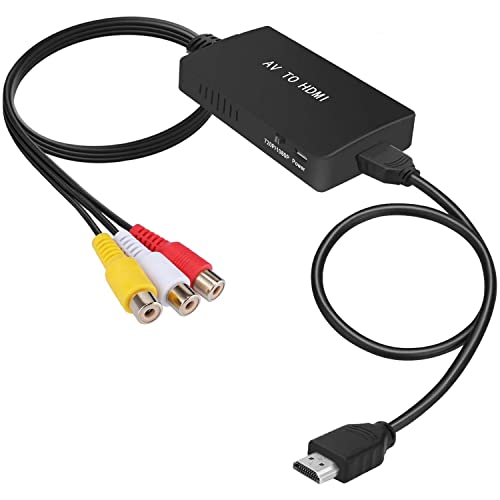
| Best Overall Value | Input Type: RCA Composite (Yellow, White, Red) | Output Resolution: 1080P | Power Requirements: USB Cable 5V 1A (required) | VIEW LATEST PRICE | Read Our Analysis |
| Kaico HDMI Adapter for PlayStation 2 PS2 Console |
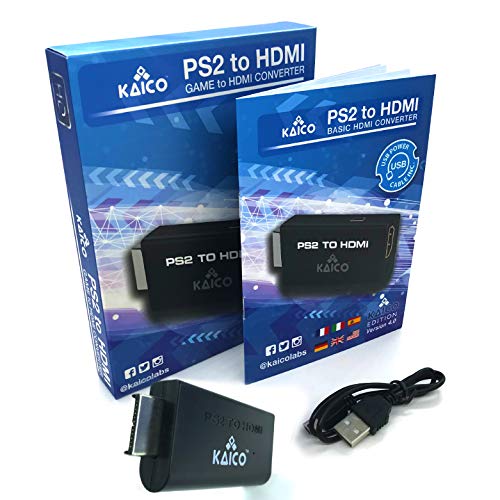
| PS2 Native Converter | Input Type: PS2 AV Port | Output Resolution: 480i, 480p, 576i | Power Requirements: Not specified | VIEW LATEST PRICE | Read Our Analysis |
| ClearClick AV to HDMI Converter 1080P Upscaler |

| Premium Upscaling Features | Input Type: RCA/AV Composite, S-Video | Output Resolution: 1080P or 720P | Power Requirements: 5V DC | VIEW LATEST PRICE | Read Our Analysis |
More Details on Our Top Picks
GINGIN AV to HDMI Converter for Gaming Consoles
Are you looking to play classic PlayStation consoles on a modern TV without purchasing new hardware? The GINGIN AV to HDMI Converter accepts composite cables (yellow, white, and red inputs) from older gaming systems and outputs HDMI signals at 720P or 1080P resolution. You’ll need to connect a USB power cable to a 5V source for operation. This converter works with PS1, PS2, PS3, and other consoles featuring standard AV outputs. Simply plug your composite cables into the device, connect the HDMI output to your TV, and power it on—no drivers required. The converter supports multiple TV standards including PAL and NTSC formats, ensuring broad compatibility across regions.
- Input Type:AV Composite (Yellow, White, Red)
- Output Resolution:720P/1080P (60Hz)
- Power Requirements:5V USB Power Cable (required)
- Plug & Play Installation:Yes, no drivers required
- Video Format Support:PAL, NTSC3.58, NTSC4.43, SECAM, PAL/M, PAL/N
- Included Accessories:AV to HDMI Adaptor, USB Power Cable, User Manual
- Additional Feature:Works with PS1, PS2, Xbox, N64
- Additional Feature:Supports six TV standards
- Additional Feature:Cannot improve video quality
HDMI Cable Adapter for PlayStation 2 & PlayStation 1
If you’re connecting an original PlayStation or PS2 to a modern HDTV, you’ll need a converter that transforms the console’s native signal into HDMI format. This adapter accepts the male PS2 input connector and outputs true RGB signals through HDMI. Setup requires no driver installation—simply plug the adapter into your console and connect the HDMI cable to your television. The converter processes your console’s video signal and delivers it in HDMI format compatible with most modern displays. Note that it won’t work with certain TV brands or PS3 systems. The package includes necessary connectors but doesn’t contain a US power adapter, so verify your setup’s power requirements beforehand.
- Input Type:PS2 AV Port
- Output Resolution:HDMI (RGB signal)
- Power Requirements:External power may be needed
- Plug & Play Installation:Yes, no drivers required
- Video Format Support:Not specified
- Included Accessories:Male PS2 input, Male HDMI output, Micro cable
- Additional Feature:True RGB signal output
- Additional Feature:PS1 and PS2 only
- Additional Feature:Incompatible with Sony/BlackMagic TVs
Tengchi RCA to HDMI Converter 1080P
Looking to play your classic PlayStation consoles on a modern TV without buying new hardware? The Tengchi RCA to HDMI Converter transforms your PS1, PS2, or PS3’s composite output into 1080p HDMI signal. Connect the yellow, white, and red RCA cables from your console to the converter’s input ports. Plug the included HDMI cable into the converter’s output and your TV’s HDMI port. Connect the USB cable to a 5V 1A power source to activate the device. The converter supports multiple video formats including PAL and NTSC, ensuring compatibility with consoles from different regions. You’ll receive the converter unit, HDMI cable, USB cable, and user manual. A one-year warranty covers your purchase.
- Input Type:RCA Composite (Yellow, White, Red)
- Output Resolution:1080P
- Power Requirements:USB Cable 5V 1A (required)
- Plug & Play Installation:Yes, plug and play
- Video Format Support:PAL, NTSC 3.58, NTSC 4.43, SECAM, PAL/M, PAL/N
- Included Accessories:RCA to HDMI Converter, HDMI cable, USB cable, User Manual
- Additional Feature:Includes HDMI cable bundled
- Additional Feature:One-year manufacturer warranty
- Additional Feature:Compatible with N64, Xbox, VHS
Kaico HDMI Adapter for PlayStation 2 PS2 Console
The Kaico HDMI Adapter for PlayStation 2 is your best choice if you own a PS2 and want to connect it directly to a modern TV without purchasing additional equipment. Insert the adapter into your PS2’s AV port, then connect a standard HDMI cable to your television. Before use, adjust your PS2 settings to component video output by selecting Y Cb Pb/Cr Br. The adapter supports 480i, 480p, and 576i resolutions on all TVs and monitors. Note that it only works with PS2 games, not PS1 titles. A 3.5mm headphone jack on the converter provides audio output for headphones if needed.
- Input Type:PS2 AV Port
- Output Resolution:480i, 480p, 576i
- Power Requirements:Not specified
- Plug & Play Installation:Yes, true plug & play
- Video Format Support:Component video output only
- Included Accessories:HDMI Adapter, 3.5mm headphone jack
- Additional Feature:3.5mm headphone jack included
- Additional Feature:Works with Phat & Slim
- Additional Feature:Requires component video mode
ClearClick AV to HDMI Converter 1080P Upscaler
Want to connect your retro gaming consoles and older video equipment directly to your modern TV without quality loss? The ClearClick AV to HDMI Converter 3.0 upscales analog inputs from RCA, composite, and S-Video sources to 1080P or 720P HDMI output. You’ll plug in your PlayStation or other legacy device using standard RCA cables, then connect the HDMI cable to your television. The included remote lets you adjust brightness, contrast, saturation, and hue. You can preserve the original 4:3 aspect ratio with black bars or stretch the image to 16:9. No computer or drivers are required for setup.
- Input Type:RCA/AV Composite, S-Video
- Output Resolution:1080P or 720P
- Power Requirements:5V DC
- Plug & Play Installation:Yes, no computer/drivers required
- Video Format Support:PAL and NTSC
- Included Accessories:Remote control, HDMI cable, RCA/AV audio cable
- Additional Feature:Remote control for adjustments
- Additional Feature:S-Video input capability
- Additional Feature:Two-year warranty with support
Factors to Consider When Choosing a PlayStation HDMI Upscaler
When you’re selecting a PlayStation HDMI upscaler, you’ll need to verify console compatibility with your specific PlayStation model, check the output resolution capabilities to ensure they match your display, and review the power requirements and setup process to confirm they’ll work with your current setup. You should also examine the video signal processing capabilities, which determine how well the upscaler enhances older game graphics and handles different input formats. These five factors will help you identify which upscaler best fits your gaming needs and equipment.
Factors to Consider When Choosing Playstation Hdmi Upscaler
Which PlayStation console you own should be your first consideration, since upscaler compatibility varies considerably across generations. Some units work exclusively with PS1 or PS2, while others support both. Check the upscaler’s specifications against your console before purchasing.
Next, verify the upscaler’s output resolution. Most offer either 720p or 1080p options depending on your TV’s capabilities. You’ll also need to confirm whether the device requires external power, typically 5V USB, and ensure you have an available outlet nearby.
Finally, examine the adjustment features available. Look for built-in controls for brightness, contrast, saturation, and hue to customize your image quality. Review aspect ratio options—whether the upscaler provides 4:3 with black bars or 16:9 stretch formatting—to match your display preferences.
Console Compatibility And Models
Two critical compatibility factors deserve your immediate attention before purchasing any PlayStation HDMI upscaler: the console generation your device supports and the specific output requirements it demands. Most upscalers target PS1 and PS2 consoles exclusively, explicitly excluding PS3 models. Verify your console generation matches the adapter’s specifications. Next, check whether your upscaler requires component video output (YPbPr) from your PS2 before conversion. Some devices won’t function without this specific signal mode. Additionally, confirm USB power compatibility, as many upscalers need stable 5V power during gameplay. Finally, test compatibility with your TV brand and model before purchasing, since certain upscalers don’t work with newer television models. This prevents costly incompatibility issues after purchase.
Output Resolution And Quality
How much screen clarity you’ll actually gain depends entirely on your upscaler’s resolution output and its ability to preserve color accuracy during conversion. Most upscalers offer either 720p or 1080p outputs. Choose 1080p if your TV supports it, as it delivers maximum HD clarity for older PlayStation games. Select 720p only if your display struggles with higher resolutions or you need reduced bandwidth. Check whether your upscaler uses true RGB or HDMI 1.3/1.4 outputs—these standards directly impact color accuracy and TV compatibility. Review the adjustment options available, including brightness, contrast, saturation, and hue controls. These settings let you fine-tune image quality to match your specific display’s capabilities. Verify that your chosen upscaler doesn’t downscale unnecessarily, maintaining your preferred resolution output.
Power Requirements And Setup
Before you purchase an HDMI upscaler, you need to understand its power requirements and how you’ll connect it to your PlayStation setup. Most upscalers require external power via micro USB or USB-C cables connected to a 5V adapter. Check your device’s specifications and included power cables for voltage compatibility with your region. Verify the adapter matches your local electrical standards before plugging in. Connect the power cable first, then link your PlayStation to the upscaler’s input port. Next, connect the upscaler’s HDMI output to your television. Insufficient power causes rebooting, blank screens, and poor upscaling performance. Some models draw power from the HDMI port itself, so review your specific unit’s manual. Ensure all connections are secure before powering on your PlayStation.
Video Signal Processing Capabilities
When you’re evaluating HDMI upscalers for your PlayStation, you’ll want to understand what happens inside the device during the conversion process. Most units use interpolation and scaling algorithms to convert lower-resolution signals to 720p or 1080p output. Check whether the model includes image processing controls for brightness, contrast, saturation, and hue adjustments, which directly affect perceived sharpness and color accuracy during upscaling. These controls let you fine-tune the output to match your display’s capabilities. Compare what maximum resolution each upscaler supports—entry-level models typically max out at 1080p, while advanced units may handle 4K or 3D formats. Review the specific scaling algorithms the device uses, as better algorithms reduce artifacts and preserve more detail from your original signal.
Audio Connection Options
What audio outputs does your upscaler actually provide? You’ll encounter three main options: a 3.5mm headphone jack, separate RCA/AV inputs, or embedded HDMI audio. Each requires different setup steps.
If your upscaler includes a 3.5mm jack, connect your headphones or speakers directly to the converter for audio passthrough. For RCA/AV models, you’ll need matching red and white audio cables running alongside your video connection to your TV or receiver.
Embedded HDMI audio travels through the HDMI cable itself, simplifying your setup by eliminating extra cables. Check your TV’s compatibility first, as some older models don’t support this method.
Most upscalers require USB power for stable audio processing. Connect the power adapter before testing audio output to ensure proper synchronization with your video signal.
Input Format Support Standards
Which video formats does your upscaler actually handle? You’ll need to confirm the device supports PAL, NTSC (both 3.58 and 4.43), and SECAM standards to match your region’s broadcast format. Check whether it processes PS1 and PS2 signals correctly, noting any compatibility limitations specific to PS1 games. Verify the upscaler converts composite RCA inputs—yellow video, white and red audio—to 720p or 1080p HDMI output. Confirm it preserves true RGB output or documents any color processing changes during conversion. Additionally, ensure the unit doesn’t downscale HDMI to analog, as true upscalers work in one direction only. Check power requirements, as many units need external power sources to operate properly.
Final Thoughts
You’ve reviewed five solid upscalers: Gingin for 720p/1080p output, HDMI Cable Adapter for RGB precision, Tengchi for composite inputs, Kaico for PS2 AV preservation, and ClearClick for image adjustment flexibility. Select based on your console type and input method. All require driver-free setup. Connect your console to the upscaler, then to your HDMI display. Test picture quality before finalizing your choice.

Meet Ry, “TechGuru,” a 36-year-old technology enthusiast with a deep passion for tech innovations. With extensive experience, he specializes in gaming hardware and software, and has expertise in gadgets, custom PCs, and audio.
Besides writing about tech and reviewing new products, he enjoys traveling, hiking, and photography. Committed to keeping up with the latest industry trends, he aims to guide readers in making informed tech decisions.