
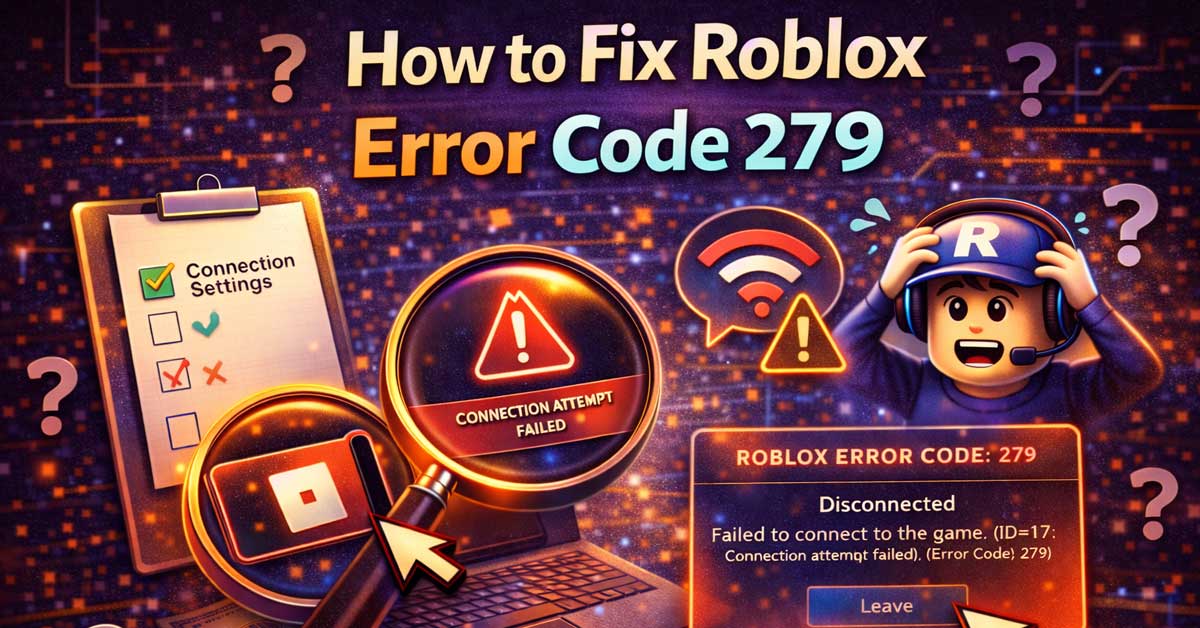

A connection error — not a Roblox account problem. Here’s how to clear it.
Error code 279 in Roblox means the game client failed to connect to the game server. You’ll typically see a message along the lines of “Failed to connect to the Game. (ID=17, Error Code: 279)” when it happens. It’s a network and connection error, not an account issue or a game bug — which means the fix almost always lives somewhere in your network setup, firewall, or browser configuration rather than inside Roblox itself.
Here’s what causes it and how to work through it systematically.
Try the Roblox Desktop App First
If you’re launching Roblox through a web browser and getting error 279, switch to the desktop app before doing anything else.
Browser-based Roblox is more prone to connection errors than the native desktop client. The desktop app establishes a more direct connection to Roblox’s servers and bypasses a lot of the browser-related causes of this error. Download the desktop client from roblox.com, install it, and try launching the same game.
This single step fixes error 279 for a large number of people. If it works, you’re done. If you’re already on the desktop app or the switch doesn’t help, keep going.
Check Your Firewall and Antivirus
A firewall or antivirus program blocking Roblox’s connection is one of the most common causes of error 279. Security software is designed to intercept outgoing connections, and Roblox sometimes ends up on the blocked list — either because the software flagged it during an update or because it was never given explicit permission.
On Windows:
Go to Windows Security → Firewall & Network Protection → Allow an app through firewall. Look for Roblox in the list. If it’s there, make sure both Private and Public boxes are checked. If it’s not listed, click Allow another app, browse to the Roblox executable, and add it manually.
Also check your antivirus software separately — many third-party antivirus programs have their own firewall or web protection layers that operate independently of Windows Firewall.
Temporarily disable your firewall or antivirus to test whether it’s the cause. If error 279 disappears with it disabled, you’ve found the problem. Re-enable it and add Roblox as an exception rather than leaving it disabled.
Check Your Router and Port Settings
Roblox requires specific ports to be open for its connection to work. If your router is blocking these ports — either through default settings or manual configuration — error 279 is the result.
Roblox primarily uses UDP ports 49152 through 65535. If your router has a restrictive firewall or if port filtering is enabled, these may be blocked.
Basic router steps:
Log into your router’s admin panel — typically accessed by typing 192.168.1.1 or 192.168.0.1 into your browser. The login credentials are usually printed on the router itself. Look for firewall settings, port filtering, or security settings and check whether UDP traffic is being restricted.
If your router supports it, adding Roblox as a trusted application or enabling UPnP (Universal Plug and Play) can resolve port-related connection issues without manually configuring port ranges.
Restart Your Router and Modem
Before going deeper into network configuration, do a proper restart of your networking equipment.
Unplug your modem and router from power. Wait a full 60 seconds — not just a few seconds — then plug the modem back in first, wait for it to fully connect, then plug the router back in. Give everything 2 to 3 minutes to come back up completely before testing Roblox again.
Router and modem restarts clear connection tables, flush DNS caches, and resolve a surprising number of intermittent connection errors. It’s a simple step that’s worth doing before spending time on more involved fixes.
Switch From Wi-Fi to a Wired Connection
If you’re on Wi-Fi, try plugging directly into your router with an ethernet cable.
Wi-Fi introduces latency, packet loss, and instability that wired connections don’t have. Roblox’s connection to game servers is sensitive to these issues, and error 279 can be triggered by an unstable wireless connection even when general internet browsing feels fine. A wired connection rules out Wi-Fi as a variable entirely.
If a wired connection fixes the problem, your Wi-Fi signal quality or interference is the root cause. Moving closer to your router, switching to the 5GHz band, or addressing interference sources can help stabilize a wireless connection.
Check Your DNS Settings
Slow or unreliable DNS resolution can cause error 279 by preventing Roblox from successfully connecting to its servers during the initial handshake. Switching to a faster, more reliable DNS provider is a quick change that helps with this.
On Windows:
Go to Control Panel → Network and Internet → Network and Sharing Center → Change adapter settings. Right-click your active connection, select Properties, then click Internet Protocol Version 4 (TCP/IPv4) and Properties. Switch from automatic DNS to manual and enter:
- Preferred DNS: 8.8.8.8 (Google)
- Alternate DNS: 8.8.4.4
Or use Cloudflare’s DNS instead:
- Preferred DNS: 1.1.1.1
- Alternate DNS: 1.0.0.1
Click OK, restart your connection, and test Roblox again.
Disable VPN or Proxy
If you’re running a VPN or proxy, disable it before launching Roblox.
VPNs route your traffic through a third-party server, which can introduce latency, connection instability, and routing issues that trigger error 279. Roblox also actively blocks connections from certain VPN IP ranges as part of its security measures.
Turn off the VPN completely — not just pause it — and try connecting to the game again. If error 279 disappears, the VPN is the cause. Some VPN providers have gaming-optimized servers or split-tunneling options that allow you to exclude Roblox from the VPN tunnel while keeping other traffic protected.
Flush Your DNS Cache
A corrupted DNS cache can cause connection failures that look exactly like error 279. Flushing it forces your system to look up server addresses fresh rather than relying on potentially outdated or corrupted cached data.
On Windows:
Open Command Prompt as administrator — search for cmd in the Start menu, right-click, and select Run as administrator. Type the following commands one at a time, pressing Enter after each:
ipconfig /flushdns
ipconfig /release
ipconfig /renew
Restart your computer after running these commands, then test Roblox.
On Mac:
Open Terminal and type:
sudo dscacheutil -flushcache; sudo killall -HUP mDNSResponderEnter your password when prompted and restart before testing.
Reinstall Roblox
If nothing else has worked, a clean reinstall of the Roblox client eliminates any corrupted installation files that might be causing the connection to fail.
On Windows, go to Settings → Apps, find Roblox, and uninstall it. Then go to roblox.com and download a fresh copy. During the reinstall, Windows may ask for firewall permissions — make sure you allow access on both private and public networks when that prompt appears.
Check If It’s a Specific Game Problem
Error 279 can sometimes be caused by a problem on the game server side rather than your connection. If you’re only getting the error in one specific game and other Roblox games connect fine, the game’s server may be down, overloaded, or misconfigured by its developer.
Try a different Roblox game and see if it connects successfully. If other games work fine, wait a while and try the original game again. Check the game’s community page or the developer’s social media for any reported server issues.
A Quick Checklist
Work through these in order before anything more involved:
- Switch to the Roblox desktop app if you’re using a browser
- Restart your modem and router — full power cycle, 60 seconds
- Check firewall and antivirus — make sure Roblox is allowed through
- Switch to a wired connection if you’re on Wi-Fi
- Disable VPN or proxy if either is active
- Change your DNS to Google (8.8.8.8) or Cloudflare (1.1.1.1)
- Flush your DNS cache via Command Prompt or Terminal
- Check router port settings — UDP 49152–65535 should be open
- Test other Roblox games to rule out a game-specific server issue
- Reinstall Roblox if nothing else resolves it
The Bottom Line
Error 279 is a connection error and the fix almost always lives in your network setup. Switching to the desktop app, checking your firewall, restarting your networking equipment, and disabling a VPN resolve the vast majority of cases. DNS changes and port settings are the next layer if those don’t work.
If you’ve worked through everything on this list and error 279 persists on multiple games, the issue may be on Roblox’s end — check the Roblox status page at status.roblox.com for any reported service issues before spending more time troubleshooting your own setup.
Error 279 sounds serious but it almost always has a straightforward network fix — start with the simple steps before going deep into router settings.

Meet Ry, “TechGuru,” a 36-year-old technology enthusiast with a deep passion for tech innovations. With extensive experience, he specializes in gaming hardware and software, and has expertise in gadgets, custom PCs, and audio.
Besides writing about tech and reviewing new products, he enjoys traveling, hiking, and photography. Committed to keeping up with the latest industry trends, he aims to guide readers in making informed tech decisions.